Your WordPress site shows a mysterious nosedive in traffic. Maybe new blog posts aren’t appearing in search results. It’s getting increasingly obvious that there are Google indexing issues.
There are a world of reasons why your site isn’t getting indexed. It could be anything from a WordPress hack to SEO issues like accidental noindex tags. Every minute that you wait, you’re losing revenue and traffic.
This article walks you through the exact diagnostic steps to identify why Google isn’t indexing your pages. We’ll go over tried and tested fixes for the 8 most common WordPress indexing issues. You’ll fix your site in minutes.
First, rule out the fact that your site isn’t on Google’s blacklist. Then, diagnose and fix common SEO issues like accidental noindex tags, broken sitemaps, and robots.txt misconfigurations.
How to Check if You Actually Have Google Indexing Issues
Before diving into fixes, you need to confirm whether Google is actually indexing your WordPress pages. Check for Google Blacklists and any other information that indicates the root cause. Here are four reliable methods to diagnose indexing problems:
1. Using Google Search Console (GSC)
Navigate to the URL Inspection Tool in your GSC dashboard. Paste your full page URL (e.g., https://yoursite.com/blog-post-title) and click Enter on your keyboard.
Give it a few minutes and you’ll see the results:
What the results mean:
- URL is on Google: The URL is indexed and there are no issues.
- URL is not on Google: This means that the page was not indexed. There will also be added information on specific reasons like “Crawled – not indexed” or “Discovered – currently not indexed.
If GSC shows “URL is not on Google,” click “Request Indexing” to fast-track the page for crawling. This is something you can do if you accidentally added the no-index tag.
2. Google your site with the Search Operator
This is the fastest way to spot-check individual pages: Type site:yourdomain.com/your-page-url directly into Google search.
If the page shows up in the search results, your page is indexed. If your page doesn’t show up in the search results, it’s a sign that your site has Google indexing issues.
For a broader view, use site:yourdomain.com to see all indexed pages from your site. Compare this count to your actual published content. Are all your published blogs showing up? If not, which ones aren’t?
3. GSC Coverage Report
For more detailed information about what’s happening, use the Google Search Console’s Coverage Report. Go to Index > Coverage in Google Search Console.
Here’s what the results mean:
- Valid: Successfully indexed pages
- Error: Pages with critical issues blocking indexing
- Valid with warnings: Indexed but with minor problems
- Excluded: Pages Google chose not to index
4. SEO Plugin Quick Check
Popular SEO plugins provide instant indexing insights. The process of doing this changes depending on the plugin. But, for this tutorial we’re using RankMath. Here’s how to do so:
- Page editor → Rank Math panel → “Advanced” tab
- Verify “Robots Meta” isn’t set to “noindex”
Google Indexing Issues (And How to Fix Them)
Now that you’ve confirmed indexing problems exist, it’s time to identify the specific culprit. We’ve compiled a list of the top issues. We’ll tackle them in order of severity – starting with security threats that can deindex your entire site, then moving to technical SEO problems that affect individual pages.
1. Security Issues
WordPress security issues are the most devastating cause of Google indexing problems because they can deindex your entire WordPress site overnight. When Google detects malware, spam injections, or hacking attempts, it immediately removes your site from search results as a protective measure for users. Unlike technical SEO issues that affect individual pages, security violations create site-wide penalties that compound daily – making this your highest priority fix.
-
Run a comprehensive malware scan: Use a security plugin to conduct a deep scan. Scan your site files and database table to detect hidden infections in core files, themes, and plugins. If you use a plugin like MalCare, you’ll have this report in minutes.

-
Check Google Search Console for security warnings: Navigate to Security & Manual Actions → Security Issues in GSC. Review any warnings like “Malware detected,” “Deceptive pages,” or “Harmful downloads.” Check Manual Actions section for hacking penalties or spam violations. Screenshot all warnings for documentation before cleanup.
-
Remove malware completely from your WordPress site: We recommend that you use a malware cleaning plugin like MalCare. All it takes is one click. If that doesn’t work, hire a security expert.

-
Change all WordPress password: Update the admin panel password, hosting control panel, FTP, and database passwords. Use a 2FA plugin on WordPress admin and hosting accounts. Remove any unauthorized admin users from Users → All Users in WordPress dashboard.
-
Update all WordPress components immediately: Update WordPress core to latest version (Dashboard → Updates). Update all themes and plugins, delete unused ones entirely.
Expert advice: Use a staging site to reduce the impact of your updates.
-
Test Googlebot access after cleanup: Use GSC’s URL Inspection Tool on your homepage and key pages. Check if results show “Server error,” “Access denied,” or “Timeout” errors. Compare “Live URL” vs “Google’s view” to ensure both show identical content. Test crawling of your sitemap URL (/sitemap.xml) to verify accessibility.
2. SSL Certificate Issues
SSL certificate problems can severely impact Google indexing because search engines prioritize secure sites and may refuse to crawl pages with certificate errors. When your SSL certificate is expired, misconfigured, or missing, Google treats your site as unsafe and may deindex pages or prevent new content from being crawled. Mixed content warnings (HTTP resources on HTTPS pages) also trigger indexing issues as Google can’t properly render pages with security conflicts.
How to Fix SSL Certificate-Related Indexing Issues:
-
Check your SSL certificate status: Visit your site in Chrome and look for a padlock icon in the address bar. Click the padlock to view certificate details and expiration date. Use SSL testing tools like SSL Labs to scan for configuration errors, weak encryption, or certificate chain issues. Check Google Search Console for “HTTPS” errors under Security Issues.

-
Install or renew expired SSL certificates: Contact your hosting provider toinstall a new SSL certificate if yours is expired or missing. Force HTTPS redirects across your entire site: Add 301 redirects from HTTP to HTTPS in your .htaccess file. Use plugins like Really Simple SSL to do this automatically. Update your WordPress site URL in Settings → General to use https:// instead of http://. Configure your hosting server to redirect all HTTP traffic to HTTPS automatically.

-
Fix mixed content warnings: Use tools like Why No Padlock to identify HTTP resources loading on HTTPS pages. Update hardcoded HTTP links in your content, theme files, and widgets to use HTTPS. Install SSL plugins like SSL Insecure Content Fixer to automatically convert mixed content. Check that your CDN (if using one) is serving assets over HTTPS.
-
Update Google Search Console property: Add your HTTPS site as a new property in GSC if you only had the HTTP version. Verify ownership of the HTTPS version using the HTML file or DNS method. Submit your HTTPS sitemap and set preferred domain to the secure version. Monitor both HTTP and HTTPS properties during the transition period.
3. Robots.txt Blocking
Robots.txt misconfigurations are one of the most common causes of Google indexing failures. A single incorrect Disallow directive can block your entire site from being indexed. Overly restrictive rules can prevent Google from accessing CSS, JavaScript, or specific content sections needed for proper rendering.
-
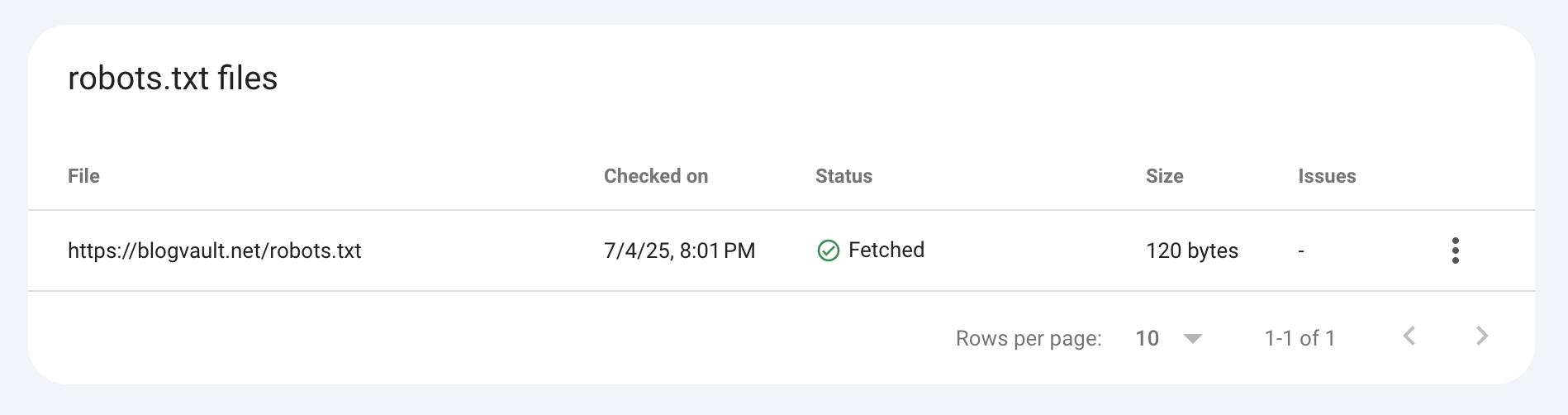
Test robots.txt with Google Search Console: Go to Settings → robots.txt Tester in GSC (or use the legacy version in old Search Console). Enter specific URLs to test whether they’re blocked by your current robots.txt rules. Look for red “BLOCKED” status on important pages like your homepage, blog posts, or product pages. Test both desktop and mobile user agents to ensure consistent access.
-
Remove blocking directives for essential content: Find the robots.txt file using your SEO plugin. Delete or modify Disallow: / rules that block your entire site or important sections. Never block /wp-content/ entirely as it contains themes, plugins, and media files Google needs to render pages. Remove blocks on /wp-admin/admin-ajax.php which many plugins use for functionality. Ensure your sitemap URLs aren’t blocked by robots.txt directives.
4. Noindex Directives
Noindex directives are HTML meta tags or HTTP headers that explicitly tell search engines not to include specific pages in their index, even if they can crawl them. These directives are often accidentally added by themes, plugins, or WordPress settings, causing pages to disappear from Google search results despite being technically accessible. Unlike robots.txt blocks that prevent crawling, noindex tags allow Google to see your content but forbid it from showing in search results – making this a particularly frustrating indexing issue.
How to Fix Noindex Directive Issues:
-
Check for noindex meta tags in your page HTML: Right-click on any affected page and select “View Page Source” to examine the HTML. Look for
<meta name="robots" content="noindex">or<meta name="googlebot" content="noindex">in the<head>section. Check multiple page types (homepage, blog posts, product pages) as different templates may have different settings. Use browser developer tools (F12) to search for “noindex” in the HTML source code.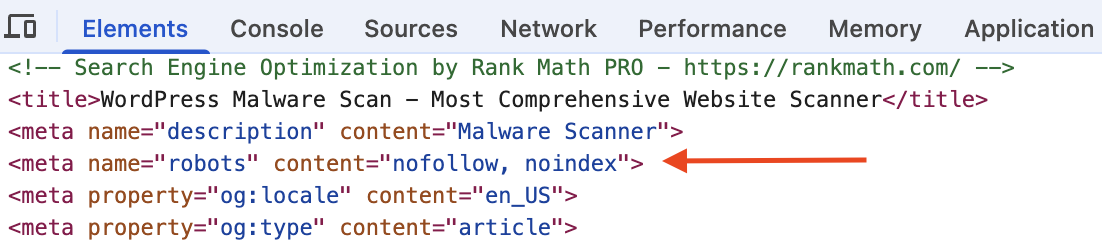
-
Remove noindex using SEO plugin settings: For this tutorial, we’re using Rankmath. Go to Rank Math → Titles & Meta in your WordPress admin dashboard. Click on the Posts tab and ensure “Robots Meta” is set to “Index” instead of “No Index.” Check the Pages tab and verify the same setting. Review other content types like Products (for WooCommerce) or Media to ensure they’re not set to “No Index” unintentionally.
-
Fix WordPress “Discourage search engines” setting: Go to Settings → Reading in your WordPress admin dashboard. Look for the “Search engine visibility” checkbox that says “Discourage search engines from indexing this site.” If checked, uncheck this box immediately and click “Save Changes.” This setting adds
<meta name="robots" content="noindex,nofollow">to your entire site. Verify the change by viewing your homepage source code – the noindex tag should be gone. -
Remove noindex from individual pages: Edit the affected page/post in WordPress and scroll to the Rank Math SEO meta box. Click on the Advanced tab within the Rank Math panel. Look for the “Robots Meta” setting and ensure it’s set to “Index” rather than “No Index.” If “No Index” is selected, change it to “Index” and update the page. Check the “Follow” setting is also enabled unless you specifically want “No Follow.”
5. Plugin/Theme Conflicts
Failed theme updates and plugin conflicts are a leading cause of Google indexing issues on WordPress sites because they can inadvertently block search engine crawlers, add unwanted noindex tags, or break critical functionality needed for proper indexing. Security plugins, caching plugins, and poorly coded themes often interfere with Googlebot’s ability to access and render pages correctly. These conflicts are particularly tricky because they may work fine for human visitors while silently blocking search engines.
How to Fix Plugin/Theme Conflict Issues:
- Identify the problem plugin: Deactivate all plugins except essential ones (backup, security scanner like MalCare). Test if Googlebot can access your pages using GSC’s URL Inspection Tool. If indexing works with plugins disabled, reactivate plugins one by one, testing after each activation to identify the conflicting plugin. Pay special attention to security plugins, SEO plugins, caching plugins, and page builders.
- Test your active theme for conflicts: Switch to a default WordPress theme (Twenty Twenty-Three or Twenty Twenty-Four) temporarily. Test if indexing issues resolve with the default theme active.
- Check security plugin settings for Googlebot blocking: Review your security plugin settings (Wordfence, Sucuri, iThemes Security) for overly aggressive firewall rules that might block search engine crawlers. Look for “Block fake Google crawlers” or “Advanced bot protection” settings and temporarily disable them. Whitelist verified Googlebot user agents in your security plugin’s allowed crawler list if available.
- Contact plugin/theme developers for indexing support: Once you’ve identified the conflicting plugin or theme, contact the developer’s support team with specific details about the indexing issue. Include screenshots from Google Search Console showing the indexing errors and mention that you’ve confirmed the conflict through deactivation testing.
6. Faulty Redirects
Faulty redirects can severely impact Google indexing because they confuse search engines about which version of a page should be indexed or create endless loops that prevent crawling altogether. Common redirect issues include redirect chains (A→B→C), temporary 302 redirects instead of permanent 301s, and broken redirects that lead to 404 errors. These problems waste crawl budgets and can cause Google to abandon indexing attempts entirely.
How to Fix Faulty Redirect Issues:
- Identify redirect chains and loops: Use tools like Screaming Frog SEO Spider to trace redirect paths on your important pages. Look for chains longer than 2-3 redirects (e.g., old-page → new-page → final-page → another-page). Check for redirect loops where pages redirect back to themselves.
- Fix temporary 302 redirects to permanent 301s: Review your .htaccess file for redirects using 302 status codes and change them to 301 for permanent moves. If using WordPress redirect plugins (Redirection, Simple 301 Redirects), ensure they’re set to “301 Moved Permanently”.
- Clean up broken redirects leading to 404s: Audit your redirect rules to ensure target URLs actually exist and return 200 status codes. Remove redirects pointing to deleted pages, expired products, or non-existent content. Fix typos in redirect target URLs that cause 404 errors. Use GSC’s Coverage Report to identify “Redirect error” issues and fix the underlying redirect problems.
- Simplify redirect chains to direct paths: Replace multi-step redirects with single, direct redirects from source to final destination. Update old redirects that point to intermediate pages instead of final URLs.
7. Sitemap Problems
Sitemap issues prevent Google from efficiently discovering and indexing your content because search engines rely on sitemaps as a roadmap to your site’s pages. Common problems include broken sitemap URLs, missing sitemaps, sitemaps containing blocked or noindex pages, and XML formatting errors that make sitemaps unreadable to search engines.

How to Fix Sitemap Problems:
- Verify your sitemap exists and is accessible: Visit https://yoursite.com/sitemap.xml or https://yoursite.com/sitemap_index.xml to confirm your sitemap loads without errors. Check that the sitemap displays properly formatted XML with your site’s URLs listed. You can also use SEO plugins like Rank Math to generate a new sitemap.
- Submit updated sitemaps to Google Search Console: Go to Sitemaps section in GSC and submit your main sitemap URL (usually /sitemap.xml or /sitemap_index.xml).
8. Indexing Quotas
Indexing quotas refer to Google’s internal limits on how many pages from your site can be indexed within a given timeframe. It is particularly affecting new or low-authority websites. Unlike crawl budget (which is about crawling), indexing quotas determine whether crawled pages actually get added to Google’s search index. New sites often face indexing delays even when pages are crawled successfully.
How to Fix Indexing Quota Issues:
- Build domain authority gradually: Focus on creating high-quality, original content that naturally attracts backlinks from reputable sites. Publish consistently valuable content rather than flooding your site with low-quality posts that compete for limited indexing slots. Engage in legitimate outreach to earn editorial mentions and links from industry publications.
- Prioritize your most important pages: Submit only your best, most important pages for indexing using GSC’s “Request Indexing” feature rather than requesting indexing for every page. Focus link building efforts on your money pages, pillar content, and key category pages to signal their importance to Google. Ensure your homepage and main service/product pages are linked from every other page on your site to demonstrate their priority.
- Optimize for featured snippets and user engagement: Create comprehensive, well-structured content that answers user questions. Use proper heading structure (H1, H2, H3) and include relevant schema markup to help Google understand your content better. Monitor user engagement metrics like time on site and bounce rate, as these may influence indexing priority.
- Be patient with new site indexing: Expect 3-6 months for new sites to establish regular indexing patterns as Google evaluates your site’s quality and authority. Continue publishing quality content consistently even if indexing is slow initially – Google often indexes content in batches for new sites.
- Monitor indexing progress and adjust strategy: Use GSC’s Coverage Report to track how many pages are indexed over time and identify any sudden drops that might indicate quota issues. Check the “Discovered – currently not indexed” status for pages that Google found but chose not to index due to quality or quota constraints. Improve the quality of unindexed pages by adding more comprehensive content, better internal linking, or more relevant keywords.
9. Content Issues
Content quality problems are a major cause of drop in website traffic. This is because search engines prioritize original, valuable content while filtering out duplicate, thin, or manipulative pages. Google’s algorithms are designed to detect and exclude low-quality content that doesn’t serve users, including copied content, AI-generated text, and pages created solely for advertising. These content issues can prevent individual pages from being indexed or, in severe cases, impact your entire site’s indexing capacity.
How to Fix Content Quality Issues:
- Remove or improve copied and scraped content: Use plagiarism detection tools like Copyscape or Grammarly to identify content that’s been copied from other sites. Rewrite any duplicate content with original insights, updated information, or unique perspectives on the topic. Remove content that’s been scraped from other sources unless you can add significant original value.
- .Clean up URL parameters and session IDs: Use Google Search Console’s URL Parameters tool to tell Google which parameters to ignore (session IDs, tracking codes, sort options). Remove or redirect URLs containing session IDs like ?PHPSESSID= or ?sid= that create duplicate content. Implement canonical tags to point parameter-heavy URLs back to clean versions.
- Expand thin content pages under 300 words: Audit your site for pages with minimal content using tools like Screaming Frog or manual review. Expand short pages by adding relevant details, examples, FAQs, or related information that provides real value to users. Combine multiple thin pages on similar topics into comprehensive resource pages. Delete or redirect pages that can’t be meaningfully expanded and serve no user purpose.
- Improve AI-generated content with human editing: Review any AI-generated content for accuracy, originality, and alignment with your brand voice. Add personal insights, case studies, examples, or expert opinions to AI-generated text to make it more valuable and unique. Fact-check all AI content for errors or outdated information that could harm your site’s credibility.
- Remove doorway pages and thin affiliate content:Identify pages created solely to rank for keywords without providing substantial value to users. Remove or consolidate affiliate product pages that contain only basic product descriptions and affiliate links. Add genuine reviews, comparisons, or buying guides to affiliate content to make it more valuable.
- Monitor content performance and indexing Use GSC’s Coverage Report to identify pages marked as “Crawled – currently not indexed” which often indicates content quality issues. Track user engagement metrics like time on page, bounce rate, and click-through rates to identify underperforming content. Monitor for duplicate content issues using tools like Siteliner or Copyscape. Review pages that lose rankings suddenly, as this may indicate content quality problems.
Request re-indexing
Use GSC’s URL Inspection Tool to test individual pages, then click “Request Indexing” for pages showing “URL is not on Google” status. Submit up to 10 individual URL requests per day through this method – prioritize your most important pages first.
For larger indexing issues, resubmit your XML sitemap in the Sitemaps section of GSC after fixing underlying problems. Monitor the “Last submitted” date and “Status” columns to track Google’s processing of your sitemap submissions.
How to Prevent Google Indexing Issues
Prevention is far more effective than fixing indexing problems after they occur. Here are some preventative measures to take:
- Robots.txt Audit: Validate your robots.txt file via GSC > Robots.txt Tester to ensure it’s properly configured. Never block CSS/JS files as Google needs these resources to render your pages correctly for indexing.
- Sitemap Hygiene: Submit your sitemap_index.xml in GSC (this is the default for Yoast/Rank Math users). Exclude low-value pages like tags, archives, and admin paths from your sitemap to focus crawl budget on important content.
- Permalink Structure: Use the /post-name/ permalink structure (Settings > Permalinks) for clean, SEO-friendly URLs. Avoid WordPress permalinks with dynamic parameters like ?session_id= that can create duplicate content issues.
- Noindex Control: Audit your theme and plugins to ensure noindex tags aren’t accidentally added to key pages. Disable “Discourage search engines” in Settings > Reading if it’s accidentally enabled.
- Duplicate Content Prevention: Add canonical tags to prevent duplicate content issues (SEO plugins like Yoast and Rank Math automate this process). Ensure each page has a clear canonical URL pointing to the preferred version.
- Structured Data Validation: Test your structured data with Schema Markup Validator to ensure it’s properly formatted. Fix any errors that prevent rich snippets from appearing in search results.
- Malware Prevention: Run daily auto-scans using MalCare to detect code injections that block Googlebot access. Enable firewall protection to stop malicious crawlers while allowing legitimate search engine bots.
- Login Protection: Never let Googlebot encounter login walls or password-protected content. Use X-Robots-Tag: noindex on protected pages that require authentication to access.
- HTTPS Enforcement: Redirect all HTTP traffic to HTTPS using plugins like Really Simple SSL. Fix mixed content warnings that can prevent Google from properly crawling and indexing your secure pages.
- Speed Matters: Target load times under 1.5 seconds as Google times out after 5 seconds of waiting. Test your site speed regularly with PageSpeed Insights and fix performance issues promptly. Use performance plugins like Airlift to improve your site speed in minutes.
- Internal Linking: Link new posts from high-traffic pages to help Google discover fresh content faster. Fix broken links monthly using plugins like Broken Link Checker to maintain good site health.
- Weekly GSC Checks: Review your Coverage report as part of your WordPress maintenance checklist. This is to fix “Excluded” URLs before they impact traffic. Check Enhancements section to resolve AMP and structured data errors that affect search appearance.
- Alerts for Critical Issues: Set up MalCare’s uptime monitor to detect 5xx errors that prevent crawling. Enable security alerts to catch hacks that block Google access before they cause widespread deindexing.
- Post-Publish Protocol: Test page rendering with GSC’s URL Inspection tool after publishing new content. Resubmit your sitemap after major site updates and check site:example.com/new-page-url within 48 hours to verify indexing.
Final thoughts
Google indexing issues can be devastating for your WordPress site. It can cause sudden drops in organic traffic that directly impact leads, sales, and revenue. All your sales plummet overnight.
The challenge with indexing issues is that they can stem from numerous sources: technical SEO problems, security threats, content quality issues, or even simple plugin conflicts. However, of all of them, the biggest problem is the security issue. So, use MalCare to scan your site and clean the malware. Then, go ahead and fix the SEO.
FAQs
Frequently asked questions
Google indexing failures typically stem from five main causes: security issues (malware blocking Googlebot), technical barriers (robots.txt blocks, noindex tags), content quality problems (thin or duplicate content), server issues (slow loading, 5xx errors), or crawl budget limitations. The most common culprits for WordPress sites are accidental noindex tags added by plugins, robots.txt misconfigurations, and security threats that prevent crawler access. Use Google Search Console’s URL Inspection Tool to diagnose the specific reason why your pages aren’t being indexed.
Start by running a security scan to rule out malware blocking Googlebot, then check for technical issues like robots.txt blocks or noindex tags in your page source. Use Google Search Console’s Coverage Report to identify specific errors affecting your pages. Common fixes include removing accidental noindex directives, updating robots.txt to allow crawler access, improving page load speeds, and enhancing thin content. Address security issues first, then technical problems, followed by content quality improvements.
You can’t completely “reset” Google’s indexing, but you can request fresh crawling after fixing issues. Clean up technical problems first, then resubmit your sitemap in Google Search Console and use the “Request Indexing” feature on individual pages. For sites recovering from penalties or major technical issues, focus on submitting your most important pages first and be patient – full reindexing can take 2-6 weeks depending on your site’s authority and the severity of previous problems.
To remove pages from Google’s index, add <meta name="robots" content="noindex"> tags to pages you want removed, then use Google Search Console’s “Removals” tool for temporary URL removal (up to 6 months). For permanent removal, delete the pages and return 404 errors, or use 301 redirects to move content to new URLs. Never use robots.txt to block pages you want removed – this prevents Google from seeing the removal instructions.
Use Google Search Console’s URL Inspection Tool to test individual pages, then click “Request Indexing” for pages showing indexing issues (limited to 10 requests per day). For broader reindexing, resubmit your XML sitemap in the Sitemaps section after fixing underlying problems. You can also update your content significantly, add internal links from high-authority pages, and build external links to signal that pages deserve fresh crawling attention.