You open your WordPress site and the page is gone. Maybe the homepage is down. Maybe wp-admin is locked too. All you see is “the site is experiencing technical difficulties.”
That message usually means WordPress hit a fatal error while loading. In plain English, something broke badly enough that WordPress stopped the page and hid the technical details from visitors.
Check the admin email for the Recovery Mode link, restore a recent backup if downtime is urgent, then find the failed plugin, theme, PHP setting, database issue, or code change. Do not randomly edit live files: use a backup, staging copy, debug log, server log, or activity history so you fix the cause without making the outage worse.
If the site earns money, takes bookings, runs checkout, or collects leads, decide one thing first: do you need the site back now, or do you have time to diagnose safely? If uptime matters more than diagnosis, restore a known-good backup first. Then investigate the broken version on staging.
If the site can stay down for a short time, start with the safer checks below. Most cases come from a plugin update, theme issue, PHP version problem, memory limit, custom code edit, database issue, server change, or malware.
What this message means
WordPress shows this error when it cannot finish loading a request. The frontend, wp-admin, or both can be affected.
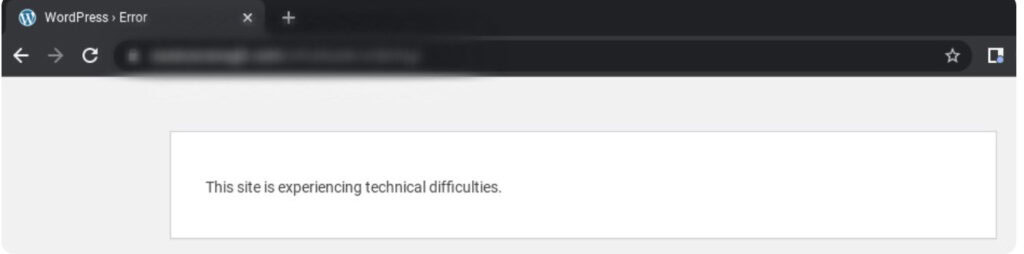
You may also see:
- This site is experiencing technical difficulties.
- There has been a critical error on this website.
- Please check your site admin email inbox for instructions.
The message is a symptom, not the cause. The cause is usually in the recovery email, recent-change history, debug log, server log, or plugin and theme testing.
Think of the public message as WordPress saying: I failed, but I am not going to show visitors the private error details. If your site is completely blank instead, use the related WordPress white screen of death troubleshooting path.
Quick triage
Start with the clue closest to the time the site broke.
| What happened first | Start here |
|---|---|
| Plugin or theme update | Use Recovery Mode or disable that item |
| Code edit or new snippet | Revert the edit or check the fatal error line |
| PHP version change | Check compatibility and PHP error logs |
| Memory error in logs | Raise memory, then find what used it |
| Database warning | Check database credentials and host status |
| Unknown files, redirects, repeated breakage | Scan for malware before deleting files |
The table is short for a reason. Do not treat every outage like a new mystery. If the error started right after a change, that change gets checked first.
Protect the site first
- Before changing files, confirm you have a backup or make one if the host still lets you.
- Restore a backup first when the site is business-critical and you trust the backup. This is often the right move for WooCommerce stores, membership sites, booking sites, and lead-generation pages.
- Diagnose first when you can access Recovery Mode, logs, staging, or wp-admin without extending the outage.
- Do not test risky fixes on production if checkout, forms, memberships, or client traffic are active. Disabling the wrong plugin can bring the page back while breaking payments or forms.
- Staging is not a fancy extra here. It is where you can switch themes, test PHP, disable plugins, and repair database tables without doing it in front of visitors.
Use Recovery Mode
Recovery Mode is the safest first fix when WordPress offers it.
Check the admin email set under Settings > General > Administration Email Address. Also check spam, junk, security-filtered mail, and shared inboxes.

If the email arrived:
- Open the Recovery Mode link and log in as an administrator.
- Find the paused plugin or theme that WordPress names.
- Deactivate the broken item so the site can load again.
- Update, reinstall, replace, or report it before turning it back on.
- Exit Recovery Mode only after the site works normally.
Recovery Mode gives you a safer way into the dashboard. It does not always fix the site for visitors by itself. The broken plugin, theme, or code still has to be disabled or fixed. If the error followed an update, treat it like a failed update recovery rather than a normal settings change.
If the link expired, try loading the login page again to trigger a new email. If no email arrives, move on. WordPress mail may be broken, filtered, or blocked by the same failure.
Check what changed
Fatal errors often have a timestamp. Use it. Check:
- plugin, theme, and WordPress update emails
- hosting control panel logs
- deployment notes or Git commits
- recent admin actions
- cache or CDN changes
- PHP version changes
- migration notes
- security plugin quarantine logs
Where people lose time is guessing before checking history. If the site failed at 09:12 and a plugin updated at 09:10, start with that plugin. A WordPress activity log helps because it shows who changed what and when. That matters when several people, auto-updates, and host-side changes can all touch the site.
Disable the broken plugin or theme
Plugins and themes are the most common practical cause because they run inside WordPress on almost every request.
If Recovery Mode names the culprit, deactivate it in wp-admin. If you cannot access wp-admin, use FTP, SFTP, or your host’s file manager.
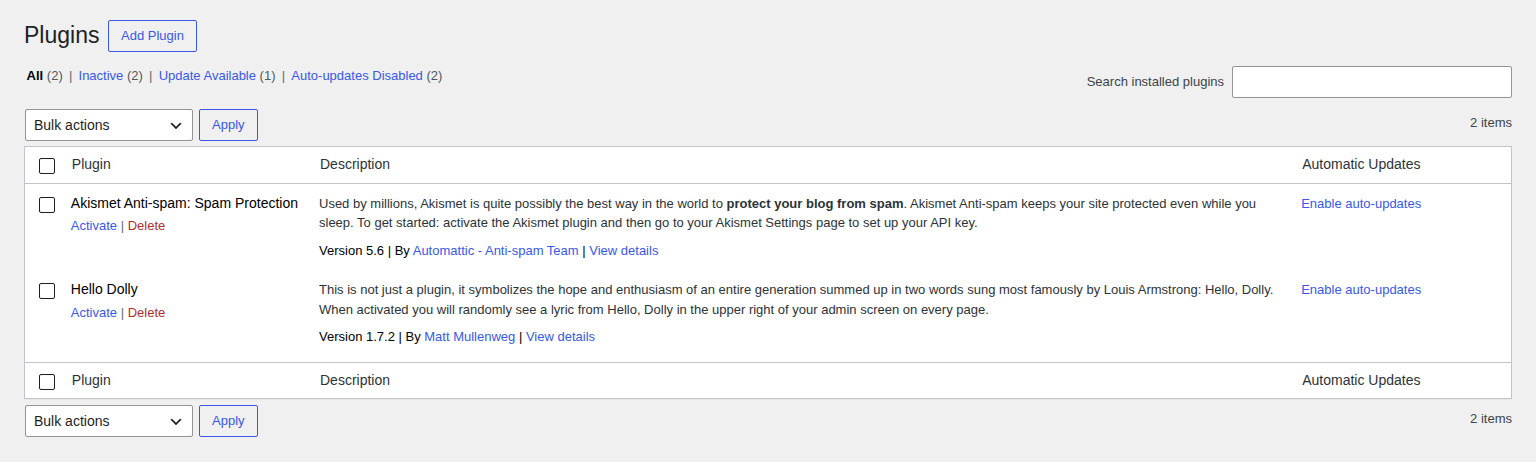
Disable a suspected plugin
Open wp-content/plugins/ and rename the suspected plugin folder. For example, rename contact-form-plugin to contact-form-plugin-disabled. WordPress will stop loading that plugin. If the site comes back, you have a strong clue. Then choose the right fix:
- Update the plugin if a patch is available.
- Reinstall a clean copy if the update failed halfway.
- Replace it if it is abandoned.
- Contact the developer if it is paid or business-critical.
- Keep it disabled if the site can safely run without it.
Disable all plugins carefully
If you do not know which plugin failed, rename wp-content/plugins to wp-content/plugins-disabled, then create a new empty folder named plugins.
If the site loads, a plugin is likely involved. Rename the original folder back, then reactivate plugins one at a time until the error returns. For a failed plugin update, use a safer plugin troubleshooting flow before reinstalling or deleting anything. Do this on staging when possible. On a live store, disabling all plugins can affect checkout, forms, SEO, caching, payments, analytics, and redirects.
Switch away from a broken theme
If logs or Recovery Mode point to the active theme, switch to a default WordPress theme. If wp-admin is unavailable, rename the active theme folder under wp-content/themes/.
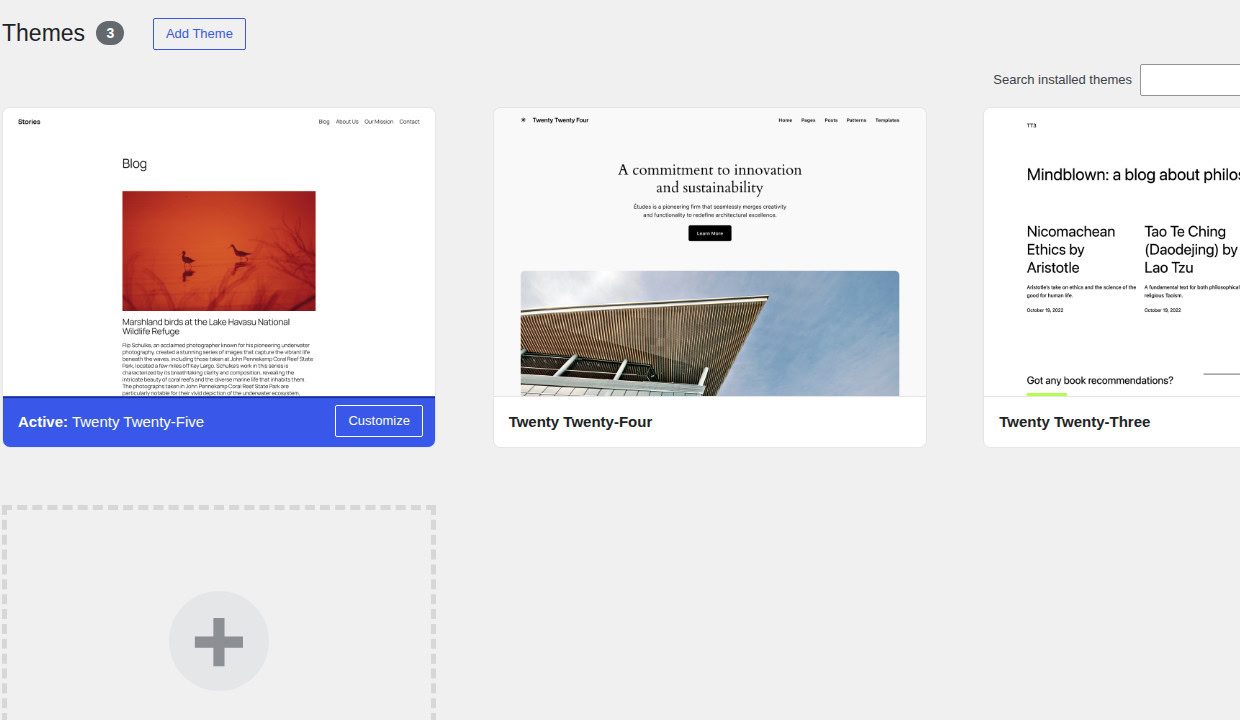
Watch child themes closely. An old child-theme file can break after the parent theme updates, even if nobody touched that child theme recently.
Read the error logs
The public message is vague on purpose. Logs show the real error. In wp-config.php, turn on private logging before the line that says That’s all, stop editing:
define( 'WP_DEBUG', true );
define( 'WP_DEBUG_LOG', true );
define( 'WP_DEBUG_DISPLAY', false );
Then load the broken page again and check wp-content/debug.log. Also check your host’s PHP error logs or server logs. Look for the newest fatal error near the time the site broke. The useful parts are:
- timestamp
- file path
- line number
- plugin, theme, custom code, core, or server location
If the path includes wp-content/plugins, start with that plugin. If it includes wp-content/themes, start with that theme. If it points to custom code, revert the edit or ask a developer to fix that line. Warnings and notices can be noisy. Fix them later. Fatal errors are the ones that stop the page.
Keep WP_DEBUG_DISPLAY set to false on public sites. Public error output can expose file paths and other details visitors should not see.
After diagnosis, turn debugging off:
define( 'WP_DEBUG', false );Check PHP and memory
PHP is the programming language WordPress runs on. If the PHP version, plugins, theme, and server settings do not agree, WordPress can fail.
WordPress.org currently recommends PHP 8.3 or greater, MariaDB 10.6 or greater or MySQL 8.0 or greater, and HTTPS support. That does not mean you should switch a live site to a newer PHP version without testing. Older plugins and themes can break after a PHP change.
Check PHP in your hosting panel or in WordPress Site Health if wp-admin works.
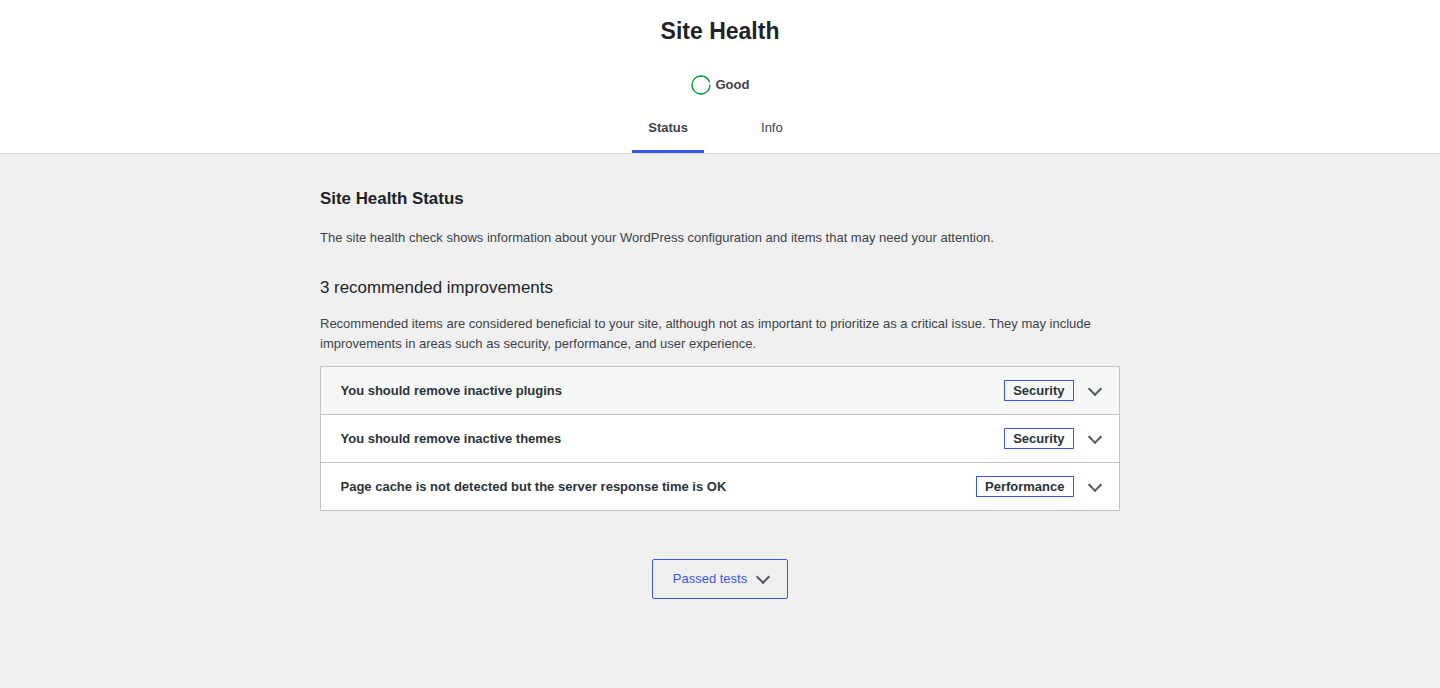
If logs show Allowed memory size exhausted, you can try raising the WordPress memory limit in wp-config.php. Site Health also exposes server details that help you compare PHP, memory, and database versions before changing hosting settings.
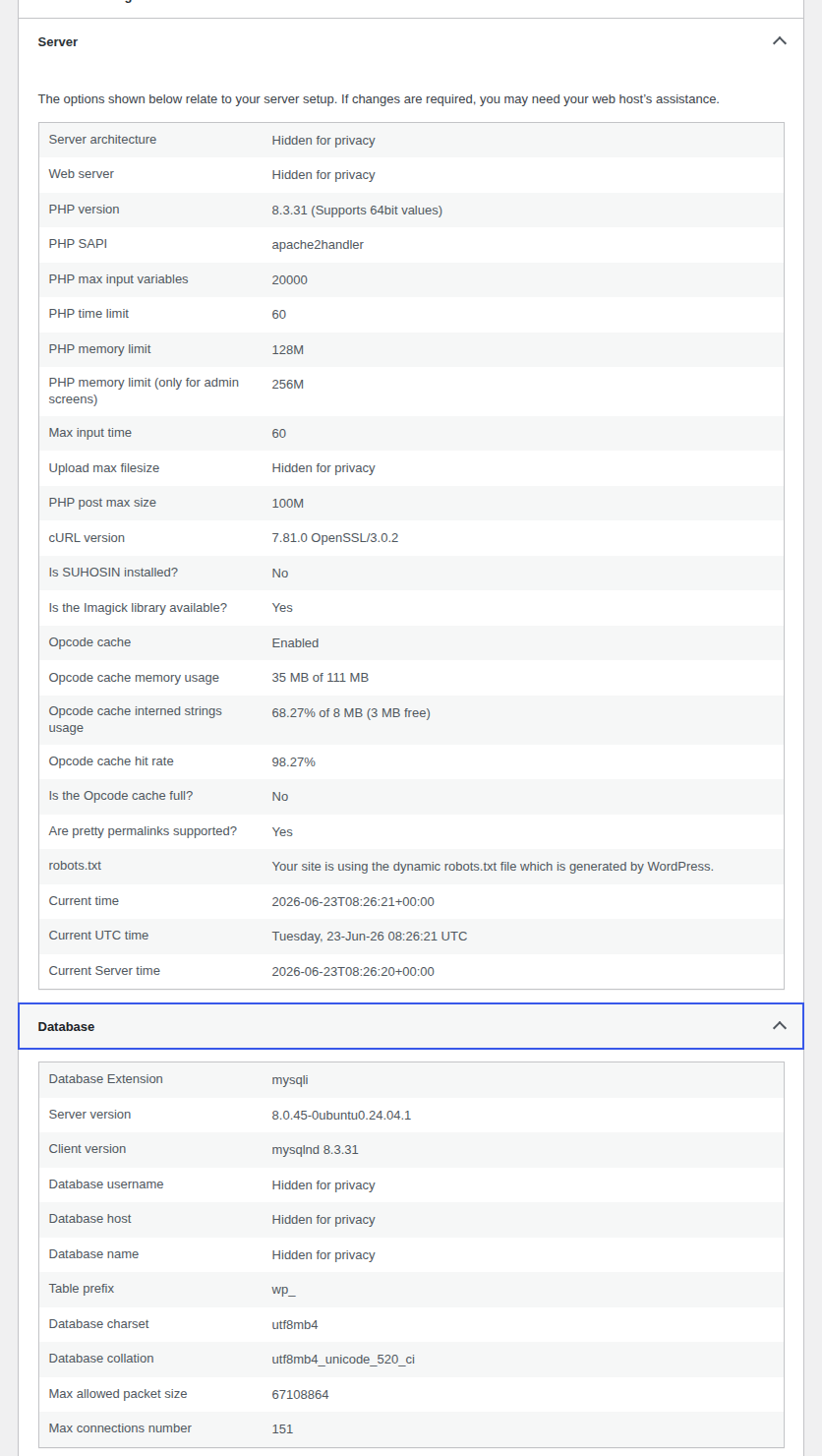
define( 'WP_MEMORY_LIMIT', '256M' );This helps only when memory is the real limit. If broken code keeps consuming memory, more memory only delays the crash. If the setting does nothing, ask your host to check server-level memory and process limits.
Check deeper causes
If plugins, themes, PHP, and logs do not explain the issue, move to deeper checks. These are not always the first cause, but they matter.
- Check database access if the error followed a migration, password change, host move, or Error establishing a database connection warning. In wp-config.php, verify DB_NAME, DB_USER, DB_PASSWORD, and DB_HOST. If WordPress asks to repair the database, take a backup first and remove repair mode after use. If logs mention a database lock or deadlock, troubleshoot that specific database error instead of changing plugins.
- Check core files if an update or cleanup failed. If you have WP-CLI access, wp core verify-checksums can confirm whether WordPress core files match the official release. If files are damaged, replace core from a clean WordPress download. Do not overwrite wp-content or wp-config.php.
- Check file permissions if the host says PHP cannot read or run files. Common baselines are 755 for directories and 644 for files, but hosts differ. Do not set everything to 777. That trades one problem for a security risk.
- Check .htaccess on Apache servers if redirects or rewrite rules look broken. Rename the file, test the site, then regenerate permalinks in wp-admin if access returns.
The rule is simple: use the logs to choose the deeper check. Do not repair the database because a plugin fatal error made the homepage disappear.
Watch for malware signs
Malware is not the default answer. Most cases are normal WordPress breakage.
Treat security as a real possibility if you see:
- unknown admin users
- redirects to spam or scam pages
- unfamiliar files in plugin, theme, or uploads folders
- modified WordPress core files
- the same error returning after clean fixes
- warnings from your host or browser
- files changing without a known update
Do not delete suspicious code blindly. Some malware hides inside legitimate files, and some strange-looking code belongs to real plugins.
Scan the site first, keep a backup, and clean based on evidence. MalCare fits here because it can scan your WordPress site for malware, help with cleanup, and pair that with vulnerability checks and firewall protection. If malware is found, also rotate passwords, update plugins and themes, and close the entry point.
The alert is not the fix. The fix is cleanup plus prevention.
Know when to ask for help
Contact your host when:
- server logs are not available
- PHP or memory limits are involved
- the database server is down
- permissions cannot be changed from your account
- the problem followed a host migration or PHP change
- backups or restores fail
- plugin and theme testing does not change anything
Contact a developer when:
- the log points to custom code
- a child theme is involved
- checkout, bookings, forms, or memberships are affected
- a paid plugin or theme is business-critical
- you need staging diagnosis before touching production
Send support the exact error message, when it started, the latest fatal error, recent changes, what you already tried, your PHP version, and whether the issue affects the frontend, wp-admin, or both. That short list saves time. It gives support a starting point instead of a blank “my site is down” ticket.
Prevent the next outage
Once the site is back, do the boring work that prevents a repeat.
- Keep reliable backups and test restores.
- Use staging for plugin, theme, core, and PHP updates.
- Update WordPress, plugins, themes, and PHP on a schedule.
- Remove abandoned plugins and themes instead of carrying old risk.
- Track activity history so you know what changed before an outage.
- Keep the admin email current and make sure site email works.
- Monitor uptime so visitors are not the first alert.
- Scan for malware when files or behavior look suspicious.
- Use a WordPress vulnerability scanner for risky plugin and theme versions.
- Add firewall protection if the site handles revenue, logins, or sensitive data.
For MalCare users, this is the useful long-term role: malware scanning, vulnerability monitoring, firewall protection, and security visibility in one workflow. It is not a magic fix for every fatal PHP error. It is a way to catch security problems and risky versions before they turn into another emergency.
FAQ
What does “the site is experiencing technical difficulties” mean?
It means WordPress hit a fatal error or critical failure while loading. The message is not the cause. Check the recovery email, recent changes, debug logs, server logs, plugins, and themes to find the cause.
How do I fix it fast?
Use Recovery Mode if the admin email arrived. If the live site must come back now, restore a recent backup. Then find the cause by checking recent changes, disabling the failed plugin or theme, and reading the latest fatal error.
What if I did not receive the Recovery Mode email?
Check spam and the correct admin inbox. If it still does not arrive, use FTP, SFTP, or your host’s file manager to disable plugins or switch themes, then check logs. Do not wait all day for an email that may never arrive.
Can I fix this without wp-admin?
Yes. You can rename plugin or theme folders through FTP, SFTP, or a hosting file manager. You can also read debug logs and server logs outside wp-admin.
Can malware cause this error?
Yes, but it is not the most common cause. Suspect malware if files keep changing, unknown admins appear, redirects happen, core files are modified, or the same issue returns after normal fixes.
Conclusion
The site is experiencing technical difficulties looks vague, but the fix should not be random. Protect the site first, use Recovery Mode if it is available, check what changed, isolate plugins and themes, read the fatal error, and escalate when the evidence points to the host, database, custom code, or security.
The best WordPress troubleshooting feels calm because it follows clues. A backup gets you breathing room. Logs tell you where to look. Staging keeps risky tests away from visitors. Once the site is back, keep backups, updates, monitoring, and security checks in place so the same problem is less likely to become another urgent morning.