Seeing that “deadlock found when trying to get lock” error on your WordPress site? We know it’s frustrating, but it’s pretty common.
This happens when your WordPress site’s database gets confused with too many requests happening at once. Your site might still work, but probably not as smoothly as it should.
The good news? You don’t need to be a tech expert to fix this. In this guide, I’ll show you exactly how to solve this problem with simple, straightforward steps that anyone can follow.
The “deadlock found when trying to get lock” error in WordPress indicates database conflicts due to simultaneous requests. To prevent future issues, regularly update WordPress, optimize your database, and maintain a solid backup routine.
Understanding the deadlock error
When you see the “deadlock found when trying to get lock” message on your WordPress site, you’re witnessing a traffic jam in your website’s database.
This happens when two different parts of your website try to access the same information at the same time. Neither can move forward because each is waiting for the other to finish.
In your WordPress site, this situation occurs when plugins, themes, or other website functions make competing requests to the database.
For example, one plugin might be trying to update a user’s information while another is trying to read it. When these conflicts happen, WordPress displays the deadlock error message.
The good news is that this error usually doesn’t crash your entire website. Instead, it typically causes temporary slowdowns or interruptions in specific functions. Visitors might notice pages loading more slowly or certain features not working properly.
Common triggers for this error
Several situations can trigger these database conflicts on your website:
Plugin conflicts: When multiple plugins try to work with the same data at once, they can create deadlocks. This is especially common with complex plugins like shopping carts or membership systems.
Poorly written code: Some plugins or themes might not be programmed efficiently. This causes unnecessary database conflicts when they run.
High traffic volumes: When many people visit your site at once, the increased number of database requests can lead to more chances for conflicts.
Resource limitations: If your hosting plan doesn’t provide enough processing power or memory, your database might struggle to handle multiple requests properly.
Outdated software: Running old versions of WordPress, plugins, or themes can introduce bugs that cause database problems.
Large database operations: Actions that affect many records at once, like publishing a post with many tags or categories, can sometimes trigger deadlocks.
Troubleshooting the WordPress deadlock found when trying to get lock
You can resolve this database error by following these simple troubleshooting methods:
1. Review your recent website updates
Often, this error appears after making changes to your site:
- Create a timeline of when you last updated WordPress core, themes, or plugins. Consider any recent customizations to your site’s code or configuration.
- Temporarily roll back to previous versions to determine if a specific update is responsible
- Make a note of which reversal stops the error from appearing
2. Examine your log files
First, look into what’s actually happening behind the scenes:
- Navigate to your hosting control panel and locate the logging section. Here, open the error log files related to your WordPress installation
- Look specifically for entries containing “deadlock” to understand what’s triggering the issue
3. Plugin management

Plugins are frequently the culprits behind database conflicts:
- Enter your WordPress admin area and navigate to the plugins section
- Disable all plugins temporarily. This is to check if the error disappears when no plugins are active
- Activate each plugin individually, testing your site after each activation
- When the error reappears, you’ve likely found the problematic plugin.
4. Clean up your database

Before using phpMyAdmin or your host’s database manager for this step, ensure that your backup includes your database backup too.
Maintaining your WordPress database can significantly reduce deadlock occurrences. Remove unnecessary data, including post revisions, deleted comments, and expired temporary options, to improve performance and reduce conflict potential.
5. Modify your PHP configuration
Adjusting technical settings can prevent deadlocks:
Always back up your entire WordPress installation before editing core files
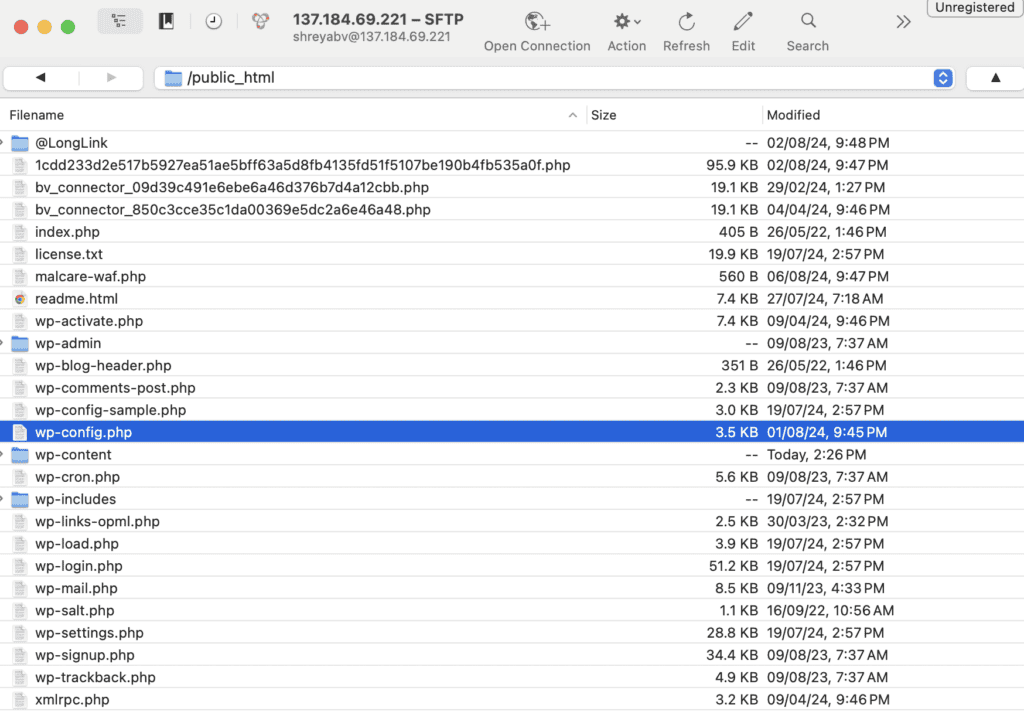
- Locate and open your site’s wp-config.php file
- Add memory allocation commands to give WordPress more operating space. Add the following right before the line that says, “That’s all, stop editing.”:
define('WP_MEMORY_LIMIT', '256M');- Next, increase the maximum execution time to allow complex operations to complete
- Restart your web server after making these adjustments
6. Boost your server capacity
Sometimes your hosting environment simply needs more resources:
- Evaluate if your current hosting plan matches your site’s requirements
- Monitor server load during peak traffic periods
- Consider upgrading to a more robust hosting package if you consistently encounter resource limitations
- Look into dedicated database servers for high-traffic websites
7. Get expert help
If you’ve tried everything without success, consider hiring a WordPress specialist with database expertise. Ensure they explain what caused the problem so you can avoid it in the future.
Verify everything works
After implementing changes, thoroughly test all site functions, including forms, comments, and e-commerce features. Consider using performance tools like Airlift for speed improvement. Always maintain a record of all the changes you’ve made. Establish regular maintenance routines to prevent future occurrences.
Practices to keep this error from occurring again
Keep your WordPress site free from deadlock errors with these easy practices:
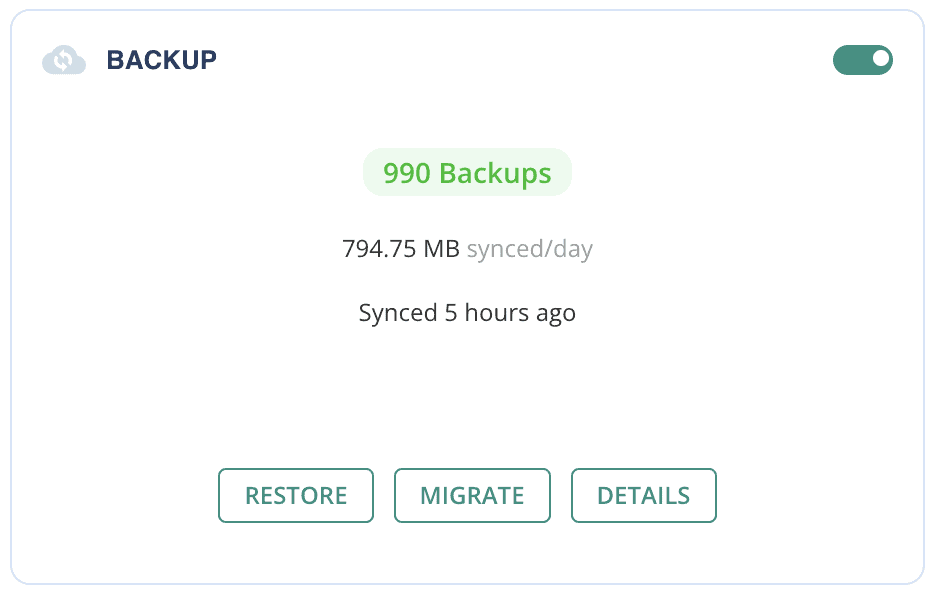
Keep regular backups: Schedule automatic backups of your entire site so you can quickly restore if problems occur.
Clean your database monthly: Remove old drafts, spam comments, and temporary data that can slow down your site.

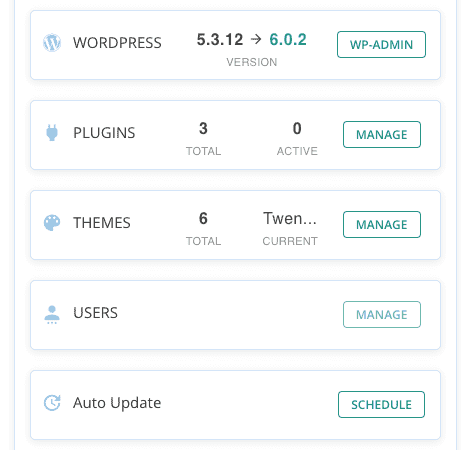
Stay current with updates: Update WordPress, theme, and plugin promptly when they appear in your dashboard.
Choose quality plugins: Install only well-reviewed, regularly updated plugins from reputable developers.

Limit your plugin count: Every plugin adds complexity, so only keep the ones you actively use and need.
Watch your site’s performance: Pay attention to loading times and functionality changes that might signal developing problems.
Implement caching: Add a caching solution to reduce how often your site needs to access the database.
Schedule maintenance time: Set aside 30 minutes each month to check and optimize your site’s health.
Final words
WordPress database deadlock errors can be challenging, but with the right steps, they are manageable. Establishing good maintenance habits, such as regular updates and database optimization, is key.
If persistent issues occur, consider seeking professional help to ensure your site remains reliable.
FAQs
How to solve a database error?
To solve a database error, identify the source by checking error logs and ensure database credentials are correct. Optimize the database for performance and look for conflicting plugins or themes that might cause errors.
How to fix error establishing a database connection in WordPress?
To fix the error establishing a database connection issue, verify your database credentials in the wp-config.php file and ensure the database server is functioning properly. Also, consider restoring a recent backup if configuration changes were recently made.
How to clean my WordPress database?
You can clean your WordPress database by removing unnecessary data such as old drafts and spam comments. Regular maintenance helps improve site speed and performance.
How can I monitor my server load?
To monitor your server load, use tools such as New Relic or server dashboards provided by your hosting provider. These tools help track resource usage and identify performance bottlenecks in real time.
WordPress database not connecting
If your WordPress database is not connecting, check your database login details in wp-config.php and test the database connection using hosting tools. Ensure the database server is running and accessible.