

Did you try uploading a new plugin or theme to your WordPress site and got hit with an error message instead?
Was the installation process going smoothly until you were hit with the surprising ‘No valid plugins were found’ error message?
It’s frustrating, right?
If you’ve ever faced the incompatible archive WordPress error, you’re not alone.
You just want to get that cool feature up and running, but instead, you’re stuck wondering what went wrong. This WordPress error can stop you in your tracks, leaving you trying to figure out what the problem is.
The incompatible archive WordPress error means your file might not be zipped right. You can fix this by re-zipping with WinZip or Terminal. You can also change settings in WordPress or use FTP to upload files. Always backup your site before trying any fixes to keep your data safe.
In this article, we will look at why this error occurs and how to fix it. But before you dive into fixing this, remember to backup your site. A backup is crucial when tackling errors, giving you a reliable safety net if things go awry.
What is the incompatible archive WordPress error?
The incompatible archive WordPress error usually happens when you try to upload a file that WordPress can’t process.
WordPress requires that plugins and themes be in .zip format for uploads. But, even when your file is a .zip, things aren’t always smooth. With WordPress version 6.4.3, the rules changed with the introduction of stricter ZIP file validation. Now, more and more users started encountering issues.
This is especially common with files created on macOS using the built-in Compress tool. This is because the tool adds extra data that WordPress’s stricter validation doesn’t like. At MalCare, we’ve seen over 300 websites struggle with this, just in the last month, particularly with premium plugins and themes.

1. Use a third-party tool to unzip and re-zip your plugin or theme files
As we saw earlier, the default Compress option on Macs adds data that WordPress might not accept. But don’t worry! There’s an easy workaround.
We suggest using WinZip Mac to create your archives instead. WinZip Mac offers a free 21-day trial, which is perfect if you just need to use it once. If you’re often working with WordPress files, you might want to buy it. The WinZip Mac Standard version costs $35.34, and the Pro version is $58.94. Both are one-time purchases.
Using WinZip Mac is simple. Here’s how you archive your folders using it:
- Open the app
- Drag and drop the folder containing your plugin or theme files into it
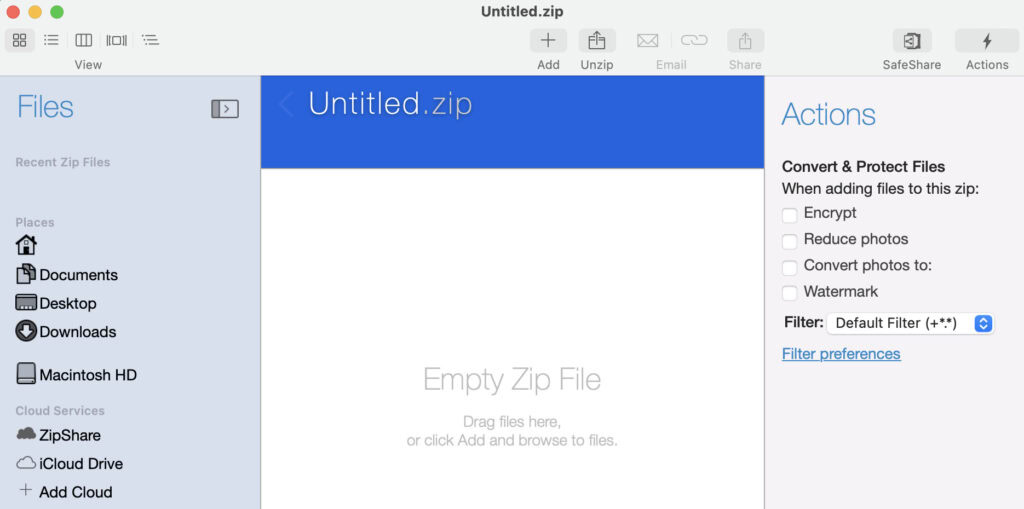
- Once the files are added, WinZip Mac will automatically compress them and show you the results. Click OK to continue

- Next, click on Save As > to this Mac… from the Actions menu on the right, or simply press Cmd + S
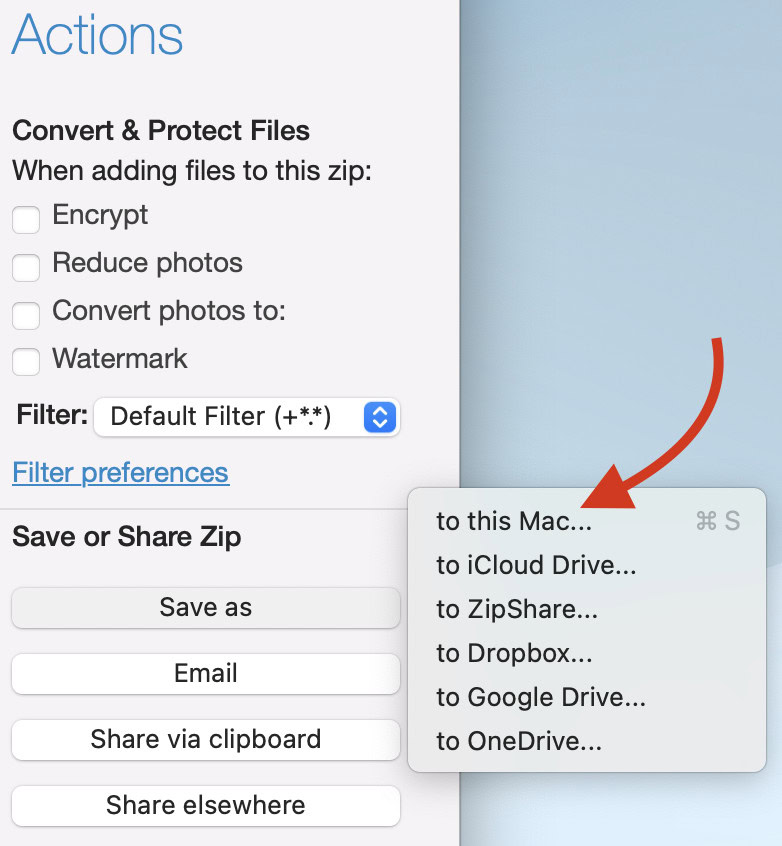
- Choose where you want to save your new .zip archive
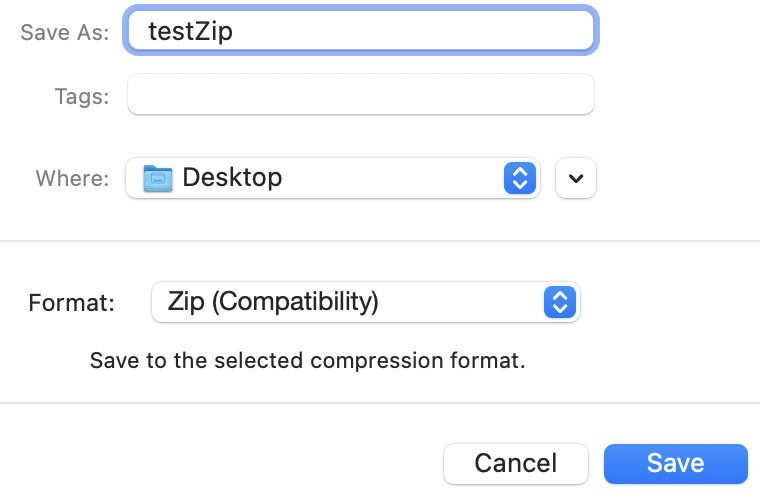
- Ensure the Format option is set to Zip(Compatibility)
- Click Save, and you’re done!
Now, try uploading this new archive to your WordPress site. This should help you get past that pesky error and enjoy your new plugin or theme.
2. Use the Terminal to zip your plugin or theme files
If you’d rather stick with built-in tools instead of downloading an app, macOS’s Terminal is a great choice. You can easily zip your files using a simple command.
Here’s the command you’ll need:
zip -r my-plugin.zip my-plugin/Let us break it down for you. The -r flag ensures that all folders and their contents are zipped. Replace my-plugin.zip with the name you want for your zipped file. my-plugin is the name of the folder you want to zip.
To use this command, first open a Terminal window. Navigate to the directory where your plugin or theme folder is stored. You can do this by using the cd command followed by the path to your folder. Once you’re in the right directory, type the zip command and press Enter.
This method allows you to compress files easily without any extra software. Now, try uploading the newly zipped file to your WordPress site and see if it resolves the issue.
3. Set filter on WordPress to bypass the default unzipping method
WordPress usually unzips files using the ZipArchive method. Sometimes, this can cause issues, so you might want to switch to another method. Forcing WordPress to use the PclZip method can often help you get around the incompatible archive error.
To change this setting, you’ll need to edit your current theme’s functions.php file.
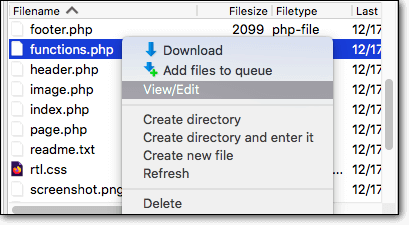
Add the following line of code to it:
add_filter('unzip_file_use_ziparchive', '__return_false');This line tells WordPress to bypass the default unzipping method and use PclZip instead.
Remember: before you edit any system files, always backup your site. Backups protect you if anything goes wrong while making changes.
We recommend using MalCare for reliable backup services. MalCare takes automatic backups of your site and stores them off-site in an encrypted format. This ensures your data is safe and secure without using up your site’s resources. With your site safely backed up, you can confidently adjust your theme files and solve the error.
4. Use FTP to upload your plugin or theme files
An alternative method to upload your plugin or theme is by using FTP (File Transfer Protocol). This lets you copy files directly from your computer to your WordPress site. You can either use an FTP client like Filezilla or use your web hosting provider’s file manager feature.
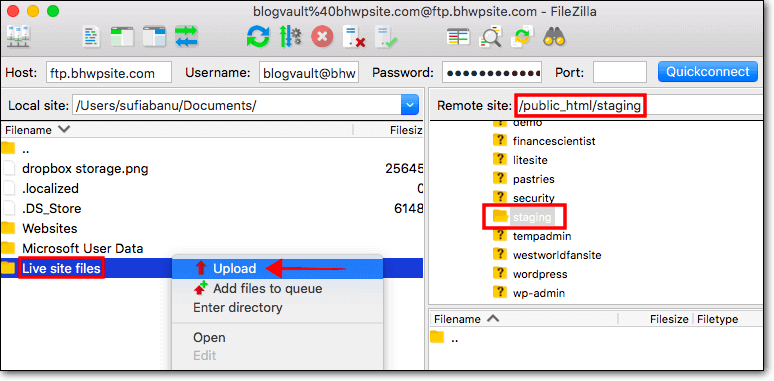
With this method, you’ll manually place your files into the correct directories. This is just as if you had installed them through the wp-admin dashboard. This requires you to know the WordPress file structure and to have the right file permissions.
Before you begin, ensure you’re familiar with where each file should go on your site. This method is best for those with technical knowledge and experience with FTP and WordPress directories. If you’re confident in your skills, you can sidestep the incompatible archive error by uploading your files directly.
5. Wait for an update to WordPress
The WordPress community is aware of the incompatible archive error and is actively working on a fix. If you can afford to wait, it might be best to hold off on making changes until a new update is released.
Upcoming WordPress versions may include a permanent solution to this problem. By waiting for the next core update, you might find that the issue resolves itself. Keep an eye out for WordPress updates, and remember to always backup your site before applying them. A little patience can save time and effort in the long run.
Final thoughts
Facing the incompatible archive WordPress error can be annoying when you want to add new features to your site. Luckily, there are ways to fix it. Whether you use different tools to zip your files or upload them directly with FTP, these methods can help. Make sure to stay updated on WordPress changes, as future updates might solve the problem for you.
While making changes, remember the importance of backups. MalCare is a great choice for keeping your site safe. It takes automatic backups and stores them off-site in an encrypted format. This means your data stays safe and doesn’t slow down your site. MalCare also offers extra security features. It has tools to scan for and remove malware, a smart firewall, and checks for vulnerabilities. This makes sure your website stays secure, letting you focus on running your site.
FAQs
To fix the incompatible archive WordPress error, you can try using WinZip Mac or Terminal to re-zip your files in a way WordPress accepts. Or, you can set a filter in your functions.php file to change how WordPress unzips files. You can also manually upload files via FTP if you know the file structure. If you prefer a hands-off approach, you might wait for a WordPress update to address the issue. Remember to back up your site before making any changes to ensure data safety.
The incompatible archive WordPress error means that the system can’t recognize or process the archive file you’re trying to upload. This usually occurs because the archive is not in the correct format. WordPress requires plugin and theme files to be in a .zip format. Sometimes, even .zip files can trigger this error if they’re created using certain tools. This includes tools like macOS’s Compress function, which adds extra data that WordPress can’t handle.