

The “This website has been reported as unsafe” warning is a major setback for website owners. This ominous screen kills traffic instantly. Users flee the moment they see it. Revenue dries up overnight. It’s not good but it’s fixable.
This warning typically signals a security breach or malware infection on your site. Your first move is to scan your WordPress site. Remove the malware and you can begin removing this warning. You will soon be able to rebuild your traffic. We’ll walk you through every step needed to get through it.
Scan and clean your website of all malware using a security plugin. Then submit a review request to Microsoft to remove the unsafe warning.
What Does the “This Website Has Been Reported as Unsafe” Warning Mean?
The “This website has been reported as unsafe” warning appears when browsers or security software detect potential threats on your site. You’ll typically see this message in Microsoft Edge, Internet Explorer, or through security tools powered by Microsoft Defender SmartScreen and similar protection systems.
This warning signals that your website has been flagged for one or more serious security issues:
- Phishing Risk: A phishing risk means that your site is suspected of impersonating a trusted website to steal sensitive information. This includes attempts to harvest passwords, credit card numbers, or login credentials from unsuspecting visitors.
- Malware or Viruses: Your website contains or distributes malicious code that could damage visitors’ computers or steal their personal data. This includes malware or viruses.
- Compromised Website: Your site has been hacked or infected with malicious content. Cybercriminals may have injected harmful code into your pages without your knowledge. This often happens through outdated plugins, weak passwords, or security vulnerabilities.
- Low Reputation or Suspicious Behavior: Sometimes newly registered sites or those with unusual behavior trigger warnings even without active malware. Automatic downloads, strange redirects, or odd URLs can raise red flags with security systems.
Every minute your site remains flagged costs you visitors, revenue, and reputation. This isn’t a problem you can postpone or handle casually. But, we’ve got your back. We’ll show you how to remove the warning.
How to remove the unsafe warning
Step 1: Identify the problem
The first step is to run a malware scanner. We looked for WordPress malware scanners that examine your database and files. We also wanted a plugin that could detect backdoors, and obfuscated code. In our testing, MalCare came out at the top.
It’s a really simple set up too. Install and activate the plugin. Sign up and add your site to the dashboard. The plugin will automatically scan your site for malware. Within minutes, you’ll find out if your website is hacked.

Expert Advice: You can technically scan your site manually by examining your files through FTP or cPanel File Manager. You’ll need to look for recently modified files, suspicious PHP code, unfamiliar scripts, or files with random names in your root directory. However, manual scanning is extremely unreliable and time-consuming. So, I would not recommend it.
Step 2: Remove the malicious code
Once you’ve identified the threats, you need to eliminate the malicious code from your site. You have three options for cleaning your infected website, but they’re not all equally effective.
Option 1: Automated removal with MalCare (Recommended)
MalCare’s automated cleaning is your fastest and most reliable option. The free scan identifies threats, but you’ll need to upgrade to a paid plan to access the removal features. The investment pays for itself quickly when you consider the revenue you’re losing while your site remains flagged.
MalCare’s one-click malware cleaner system surgically removes malicious code while preserving your legitimate content. Just head to the dashboard and click Clean All Malware. It handles complex infections, cleans your database, removes backdoors, and eliminates hidden admin accounts. The entire process takes minutes, not hours.

Option 2: Hire a security expert
Hiring a cybersecurity professional seems safe, but it comes with significant drawbacks. Experts charge a lot of money per cleanup, and the process can take days or weeks depending on their availability. You’re also putting your site’s sensitive data in someone else’s hands. While experts can handle complex infections, you’re still dependent on their schedule while your traffic continues to hemorrhage.
Option 3: Manual removal
Manual cleanup is the riskiest approach for website owners. You’ll need to identify every infected file, carefully remove malicious code without breaking legitimate functionality, clean your database, and patch security vulnerabilities. One wrong move can crash your entire site. Even if you successfully remove visible infections, you might miss hidden backdoors that allow reinfection. Manual cleanup often takes days of painstaking work, and there’s no guarantee you’ll catch everything.
Step 3: Bolster your security
Cleaning the malware is only half the battle. Hackers likely gained access through security weaknesses that still exist on your site. If you don’t patch these vulnerabilities, you’ll face another infection within weeks. This post-hack checklist ensures your site stays clean after removal.
- Update every password connected to your website. This includes your hosting account, WordPress admin , FTP credentials, database passwords, and any third-party service logins. Use strong, unique passwords for each account. Don’t reuse passwords from other sites. Consider using a password manager to generate and store complex passwords securely.
- Audit all user accounts on your website. Remove any suspicious admin accounts that hackers may have created. Check for users with unfamiliar email addresses or usernames you don’t recognize. Downgrade WordPress user permissions to the minimum level needed for their role. Limit the number of admin accounts to reduce your attack surface.
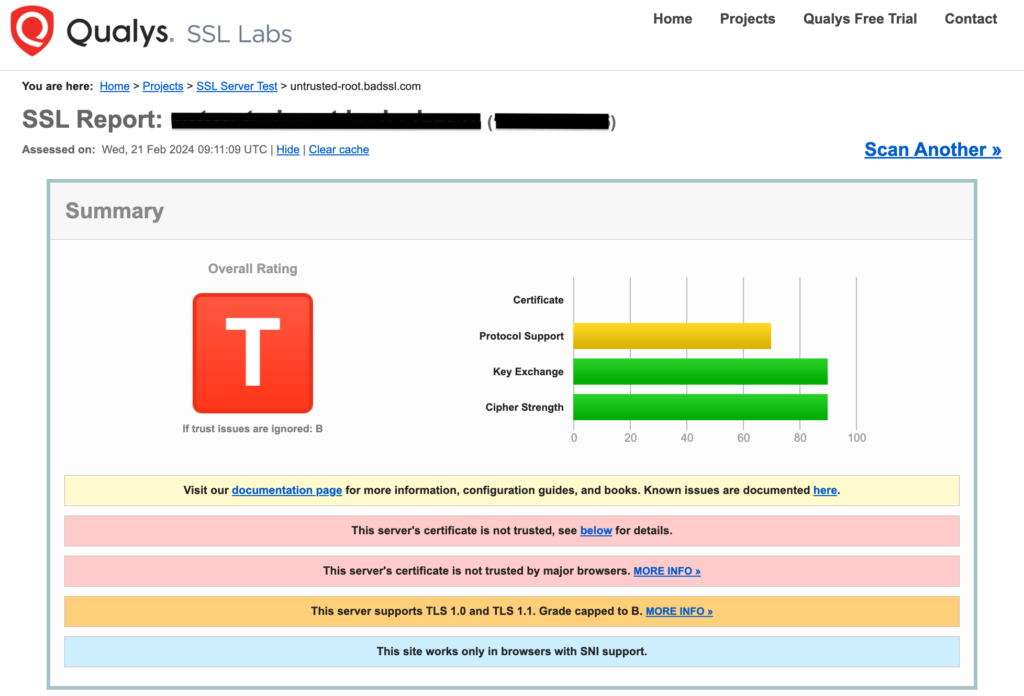
- Check that your SSL certificate is properly installed and functioning. An expired or misconfigured SSL certificate can trigger security warnings and make your site appear unsafe. Test your certificate using online SSL checker tools. Renew expired certificates immediately. Consider upgrading to a higher-level SSL certificate for additional trust signals.
- Install all available updates for your WordPress core, plugins and themes. Outdated software is the most common entry point for hackers. Enable automatic updates where possible to prevent future vulnerabilities. Remove any plugins or themes you’re not actively using—inactive software still creates security risks.
- Install ongoing security monitoring to catch future threats early. Set up real-time malware scanning, file integrity monitoring, and login attempt alerts. Consider implementing a web application firewall (WAF) to block malicious traffic before it reaches your site.
Step 4: Submit your review request
Your site is officially safe and it’s time to ask for a review. On the Microsoft Defender SmartScreen block page, expand More information and choose Report that this site doesn’t contain malware/phishing threats, as described in Microsoft’s current website-owner guidance.
In the comments section, briefly explain that you’ve conducted a comprehensive malware scan, removed all threats, and implemented additional security measures. Keep your explanation professional and factual—don’t make excuses or blame others.
Microsoft will investigate the report and send a confirmation email from the SmartScreen Reputation Group. Microsoft does not promise a fixed turnaround in its current guidance. If the issue is urgent or you need a response after the investigation, reply to that confirmation email with the relevant evidence.
You’ll receive an email notification once the review is complete. If approved, the warning will disappear for new visitors within hours. If rejected, you’ll need to investigate further and resubmit after addressing any remaining issues.
What to do if your review gets rejected? Don’t panic—rejections are common. Run another malware scan to ensure you didn’t miss anything. Check for lingering infections, suspicious redirects, or compromised files. Fix any remaining issues and submit a new review request.
What to do if your review is taking longer than expected? Reply to the confirmation email from the SmartScreen Reputation Group with your cleanup evidence and concerns rather than opening duplicate reports.
Prevent the warning from returning
Removing Microsoft’s warning is just the beginning. Your site remains vulnerable unless you implement comprehensive security measures. These steps protect against future infections and maintain your clean reputation.
- Check Other Blacklists Too: Microsoft isn’t the only organization that flags unsafe websites. Check your site’s status with Google blacklist , Norton Safe Web, and other major security providers. Each system operates independently, so you might be flagged elsewhere even after Microsoft clears you. Use online blacklist checkers to scan multiple databases simultaneously.
- Secure Your Site with SSL/HTTPS: Ensure your SSL certificate is properly configured and up-to-date. Force all traffic to use HTTPS by redirecting HTTP requests. An expired or missing SSL certificate makes your site appear untrustworthy and can trigger security warnings. Modern browsers flag non-HTTPS sites as “not secure,” which damages visitor confidence.
- Keep Software Updated: Outdated software is the primary entry point for hackers. Set up email notifications for available updates and install them immediately. Create a maintenance schedule to check for WordPress updates weekly.
- Clean Up Your Plugin and Theme Library: Delete unused plugins and themes completely—don’t just deactivate them. Inactive software still creates security vulnerabilities that hackers can exploit. Only install plugins from reputable sources like official repositories. Avoid nulled or pirated themes that often contain hidden malware.
- Install Security Plugin: Implement a comprehensive security plugin or web application firewall. These tools block malicious traffic, monitor file changes, and alert you to suspicious activity. Popular options include Wordfence, Sucuri, and Cloudflare. Configure real-time scanning and automatic threat blocking.
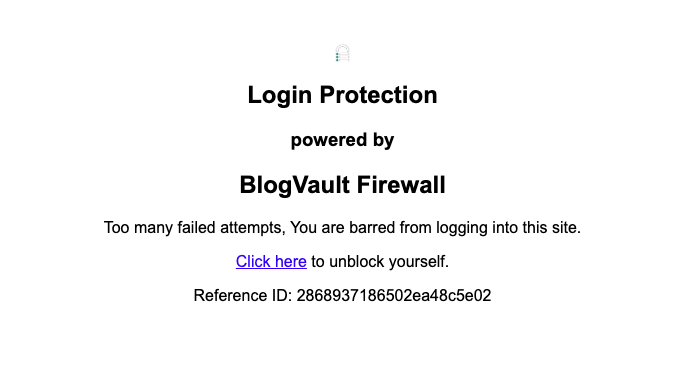
- Strengthen Login Security: Use strong, unique passwords and enable two-factor authentication. Limit login attempts to prevent brute force attacks. Consider changing your default admin username and hiding your login page from unauthorized users. Regularly audit user accounts and remove inactive users.
- Protect Your Online Reputation: Avoid hosting suspicious content that could trigger security flags. This includes user-generated content, file downloads, and external links. Moderate comments and uploads carefully. Set up abuse and contact email addresses so security researchers can report issues directly to you.
Final thoughts
The “This website has been reported as unsafe” warning is more than just an inconvenience—it’s a business-killing crisis that can destroy years of hard work overnight. Every hour your site remains flagged costs you visitors, revenue, and the trust that took years to build. The damage extends beyond immediate traffic loss, affecting your search rankings, brand reputation, and customer confidence for months to come.
A quality security plugin like MalCare can save you from this nightmare entirely. For the cost of a few cups of coffee per month, you get automated malware scanning, instant threat removal, and real-time protection that prevents infections before they trigger security warnings. When you consider the revenue lost during a security crisis, the time spent on cleanup, and the stress of watching your business crumble, investing in proactive security isn’t just smart—it’s essential for any serious website owner.
FAQs
Identify and fix the underlying security issue, remove malware, update vulnerable software, secure compromised accounts, and then submit a review to the service that flagged the site.
A site may be marked unsafe because of malware, phishing, suspicious redirects, malicious downloads, deceptive content, or a compromised hosting environment.
Clean every detected threat, verify SSL and redirects, and submit the URL for reassessment through Microsoft Defender SmartScreen’s reporting process.
Edge can expose a bypass under the warning’s details, but bypassing protection is risky. Site owners should clean and appeal the warning; visitors should avoid entering information or downloading files.


