If you’re learning how to scan website for vulnerabilities, you likely suspect a hack.
Has Google flagged your site for a breach in website security? Is your hosting provider sending you a suspicious activity warning? Maybe you’ve seen news of a massive plugin vulnerability that infected 300,000 websites overnight.
First, scan your site for malware to identify the hack.
The uncomfortable truth is that your site doesn’t need to be Amazon-sized to be attacked. The good news? We can fix this. In this article, we’ll talk about how to scan your site for vulnerabilities and prevent a hack.
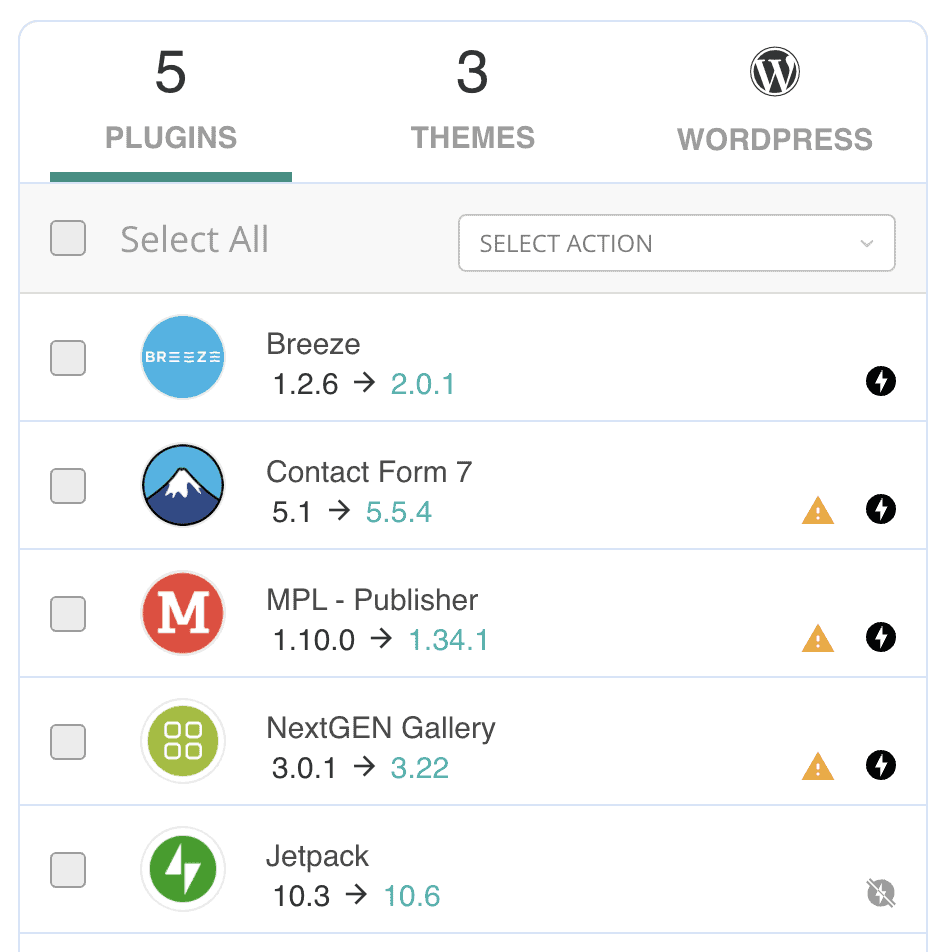
Use a vulnerability scanner to find the plugins and themes that need to be updated.
In the context of WordPress security, scanning your website for vulnerabilities needs to be done regularly. Think of a vulnerability as a tiny hole in a boat that gradually allows malicious code in. Without regular scans, you run the risk of stolen customer data and permanent SEO damage.
How to scan website for vulnerabilities?
Most security plugins can scan your website for vulnerabilities in minutes. They run automatically, continuously monitoring for vulnerabilities. They send immediate notifications when new ones appear.
💡 Expert Advice: 💡 Unpatched vulnerabilities give hackers time to cause serious damage. So, choose a solution that is quick and reliable.
We use MalCare on all our websites and are able to see a list of vulnerable and outdated software on our dashboard. We’re then able to bulk update it in seconds too.
Why should you choose MalCare? 🔍 Deep scans files and database 🚨 Alerts instantly when vulnerabilities appear 🛡️ Detects zero-day exploit attempts
Alternative vulnerability scanners for websites
We tested popular vulnerability scanners on a site with vulnerable plugins and malware. Here’s what we found:
- WPScan: Operating as an external API-based scanner, WPScan boasts the industry’s most comprehensive vulnerability database (tracking 30,000+ CVEs). It excelled in identifying obscure theme vulnerabilities others missed and maintained near-zero false positives.
❌Drawbacks ❌ Its free tier limits users to 25 scans/day, lacks auto-fixes, and requires technical setup for command-line usage—making it challenging for beginners.
- PatchStack: This cloud-based monitor specializes in****real-time alerts for plugin/theme vulnerabilities. Testers praised its clean dashboard that ranks exploit risks and its instant notifications for new threats.
❌Drawbacks ❌ It only supports one site, ignores custom-code vulnerabilities entirely, and offers no malware scanning—leaving critical security gaps unaddressed.
- Wordfence: This free plugin scans for vulnerabilities while providing firewall protection. During testing, it successfully detected 80% of known plugin vulnerabilities and offered clear remediation steps.
❌Drawbacks ❌ It missed critical database injection points, generated frequent false positives on custom code, and slowed site speed by 37% during scans due to heavy resource consumption.
Fixing website vulnerabilities
Finding vulnerabilities in your scan results can feel overwhelming, but the key is responding quickly and systematically. The longer vulnerabilities remain unpatched, the higher your risk of exploitation—some automated attacks begin targeting known flaws within hours of discovery.
Step 1: Scan for Malware Immediately
Install a comprehensive malware scanner plugin like MalCare to perform a deep scan of your entire website.
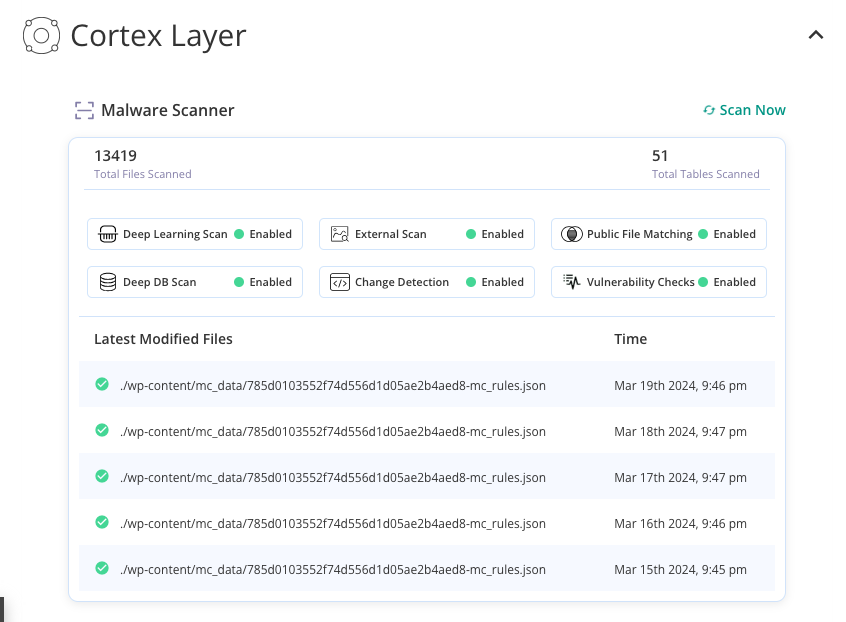
This is important because malware could be hiding in your files or database tables. Within minutes you’ll have a report of all the malware and where it was found.
.
💡Expert Advice 💡 While online scanners or manual checks seem like alternatives, they’re often incomplete. Online tools miss hidden database malware, and manual scanning requires specialized expertise to distinguish good code from bad, risking missed infections.
Step 2: Remove All Detected Malware
Use a malware removal plugin like MalCare to clean your site. With its one-click cleanup feature, MalCare helps you fix a hacked site in just a few minutes. It will be able to tactfully remove all the malicious code it identified in the previous step.

💡 Expert Advice 💡 While you could hire a security expert or attempt manual cleaning, both methods have significant drawbacks. Hiring a security servicecan be expensive (often $200-$500 or more), and manual cleaning is highly risky. Without deep technical expertise, you run a high chance of either missing sophisticated malware or accidentally breaking your site’s functionality.
Step 3: Post-Hack Checklist
Even after fixing a hack your work isn’t finished. Hackers often leave backdoors or may have compromised other systems during the attack. Following a systematic recovery process is crucial to prevent reinfection and secure your site long-term.
Immediate Actions:
- Change all passwords immediately
- Update all software
- Scan for remaining malware
- Review user accounts thoroughly
- Test all site functionality
How to Prevent Vulnerabilities and Secure Your Website?
Now that you know how to scan for vulnerabilities using various tools, the next critical step is preventing these security gaps from appearing in the first place. While vulnerability scanners are essential for detecting existing threats, implementing proactive security measures will dramatically reduce your website’s attack surface and keep hackers out before they can exploit weaknesses.
-
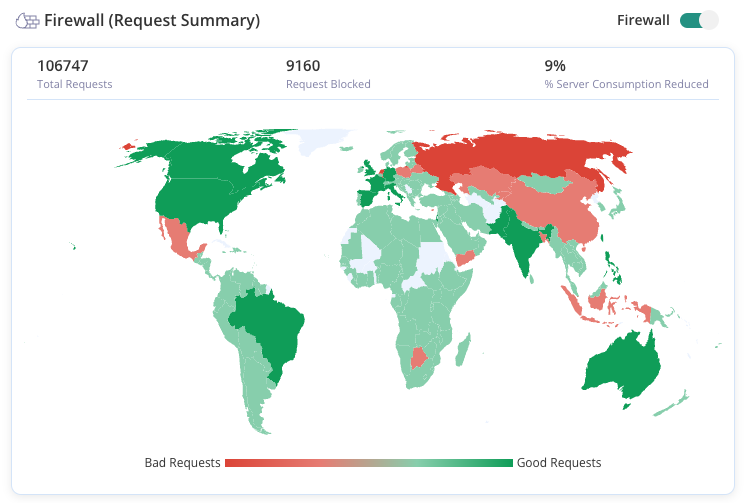
Install a Strong Firewall: Deploy Web Application Firewalls (WAF) as your first line of defense. WAFs block malicious traffic before it reaches your server, filtering out common attacks like SQL injection and cross-site scripting.
-
Keep Everything Updated: Update CMS core, themes, and plugins immediately when patches become available. Security vulnerabilities are constantly discovered, and updates often contain critical fixes.
-
Adopt the Principle of Least Privilege: Assign users only the permissions they absolutely need to do their job. For example, give content creators “Editor” roles instead of “Admin” privileges unless they specifically need administrative functions.
-
Harden File Permissions: Set proper file permissions to prevent unauthorized access. Directories should be set to 755 and files to 644 in most cases.

-
Schedule Daily Backups: Maintain three backup copies following the 3-2-1 rule to ensure you can recover even if attackers compromise your server or cloud storage.
-
Disable PHP Execution in Uploads Folder: Add .htaccess rules to prevent script execution in your uploads directory. Attackers often try to upload malicious PHP files disguised as images or documents.
-
Conduct Regular Security Audits: Perform quarterly manual security checks to review user accounts, verify plugin sources, and check file integrity using checksums. Avoid nulled themes and plugins, as they often contain malicious code.
-
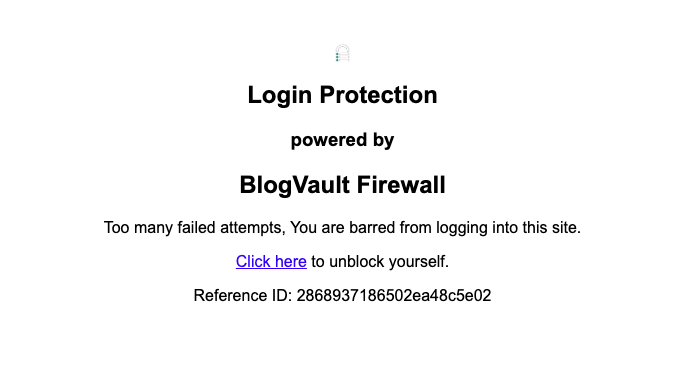
Harden Login Security: Implement login attempt limits, such as allowing only 3 failed attempts before triggering a 15-minute lockout. This prevents brute force attacks from overwhelming your login system.
-
Monitor and Log Activity: Track user logins, file changes, and plugin installations to maintain visibility into your website’s activity. Set up alerts for critical events like admin privilege changes or suspicious login patterns.
-
Disable Directory Indexing: Prevent file browsing via URL by adding “Options -Indexes” to your .htaccess file. This hides your website’s file structure from potential attackers who might otherwise discover sensitive files.
-
Employ SSL Encryption: Install valid SSL certificates to encrypt data transmission between users and your server. Use Let’s Encrypt for free certificates if budget is a concern
Final Thoughts
Website security is an ongoing commitment requiring consistent attention and the right tools. Regular vulnerability scans help you check for weaknesses before attackers exploit them. But, solutions like MalCare can automate it for you.
Once you install the plugin, it will scan your site for malware and vulnerabilities daily. You’ll get alerts as soon as a breach is identified. MalCare also offers added features like safe updates, malware cleaning and activity logs to keep tackle vulnerabilities as they come up.
FAQs
Vulnerabilities are security weaknesses that hackers exploit to gain unauthorized access to your website. They can lead to data breaches, malware infections, defaced pages, stolen customer information, and complete site takeovers. Even minor vulnerabilities can be chained together for devastating attacks, resulting in lost revenue, damaged reputation, and potential legal liability.
Use automated security scanners that check for known vulnerabilities in your CMS, plugins, themes, and server configuration. Manual testing involves checking file permissions, reviewing user accounts, and examining code for security flaws.
Scan your website at least weekly, with daily scans preferred for high-traffic or e-commerce sites. Run immediate scans after installing new plugins, themes, or updates. Critical websites should implement continuous monitoring that alerts you to vulnerabilities as they’re discovered. The frequency should match your website’s risk profile and business importance.
Start by updating all software components—WordPress core, plugins, and themes—to their latest versions. Remove unused plugins and themes entirely. Fix file permission issues, strengthen passwords, and patch any custom code vulnerabilities. For complex issues, consider hiring security professionals or using automated remediation tools that can safely apply fixes.
The best scanner is MalCare. It’s able to identify all vulnerabiities correctly. It runs the scans in the background. You are able to safely update these plugins from the dashboard too.