

Your WordPress site suddenly shows a white screen or throws a “Cannot redeclare function” error pointing to pluggable.php. Maybe you just activated a new plugin or updated your theme — and now everything’s broken.
This common WordPress error can crash your site’s front end or lock you out of the admin dashboard entirely, all because WordPress is trying to load the same function twice.
In this article, we’ll explain exactly why the pluggable.php error happens, how to identify the source — often a plugin or custom code conflict — and show you step-by-step how to fix it and prevent it from coming back.
Fixing the pluggable.php error may involve editing core WordPress files or disabling conflicting plugins manually. Before making any changes, always back up your site — just in case something goes wrong. A full backup ensures you can restore your site quickly if needed.
What is the pluggable.php error?
When you see a pluggable.php error in WordPress it means two parts of your site are trying to define the same function, and PHP isn’t having it.
This typically results in a fatal error, a broken page, or even a completely blank site. It’s PHP’s way of stopping a potential conflict before it causes deeper damage.
Why does this error happen?
- Plugin conflicts – Two plugins try to override the same WordPress function.
- Theme conflicts – A theme or child theme redefines a function already declared in pluggable.php.
- Custom code issues – Manual edits to functions.php or other files introduce duplicate functions.
- Missing checks – Functions are added without function_exists() wrappers, which would normally prevent redeclaration.
WordPress allows certain core functions to be overridden — that’s what pluggable.php is for — but only once. When two or more pieces of code compete to define the same function, PHP throws an error to protect your site.
How to fix the pluggable.php error?
A pluggable.php error isn’t just annoying — it can take your entire WordPress site offline. Whether it breaks the front end, locks you out of the admin dashboard, or leaves visitors staring at a blank screen, this error demands quick action.
Expert Advice: Before fixing pluggable.php errors, always create a full backup of your site—files and database. Use trusted backup plugins for easy, reliable backups. This ensures you can quickly restore your site if something goes wrong. Never skip this crucial step!
Step 1: Check for whitespace
Extra whitespace or blank lines before the opening <?php tag in your theme or plugin files can trigger the pluggable.php error. This seemingly harmless space can cause PHP to output unexpected content early, leading to conflicts when WordPress tries to redeclare functions. Removing any whitespace ensures your code starts cleanly, preventing errors related to premature output or function redeclaration.
-
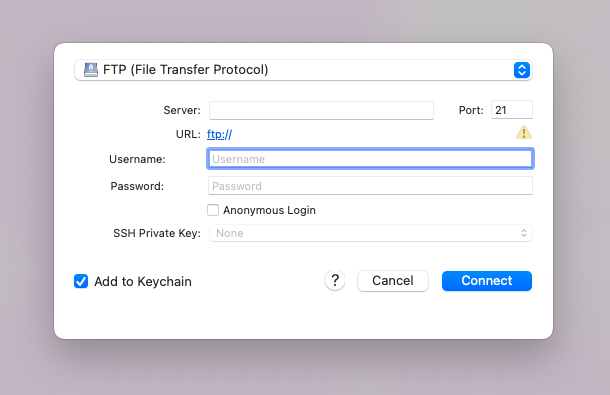
Find and open the functions.php file: Use your hosting control panel’s file manager or an FTP client to navigate to your active theme’s folder and open the functions.php file. For this article, we connected to the server using Cyberduck.
-
Check for whitespace: Make sure the opening
<?phptag is the very first thing in the file — no spaces, tabs, or blank lines before it. At the end of the file, if there’s a closing?>tag, ensure nothing (no spaces or blank lines) comes after it. If the file is PHP-only, it’s best to remove the closing tag entirely.
Expert Advice: If you recently installed or updated any plugins, especially ones you’ve edited manually, be sure to check their files too. Plugin files with extra whitespace before the opening <?php tag or after the closing ?> tag can also cause the pluggable.php error.
Step 2: Solve plugin conflicts
Plugin conflicts are one of the most common causes of the pluggable.php error. This happens when two or more plugins try to declare the same function that already exists in WordPress’s core files. Since PHP doesn’t allow a function to be defined twice, this clash triggers a fatal error that can break your site. Identifying and resolving these conflicts quickly is crucial to restore your site’s functionality and prevent downtime.
Start by deactivating all your plugins at once through the WordPress dashboard. If the pluggable.php error prevents you from accessing the dashboard, use an FTP client or your hosting control panel’s file manager to rename the entire plugins folder to something like plugins-disabled. This action will automatically deactivate all plugins on your site. Once all plugins are disabled, check your site to see if the error has disappeared. If it has, you’ve confirmed that one or more plugins are causing the conflict.
Next, reactivate your plugins one at a time, testing your site after each activation. When the error reappears, the last plugin you activated is likely the culprit. Focus especially on plugins you’ve recently updated or installed, as these are common sources of conflicts.
After identifying the problematic plugin, you can try updating it to the latest version, replacing it with an alternative plugin that offers similar features, or reaching out to the plugin developer for help. This process helps you isolate and resolve conflicts efficiently while minimizing downtime.
Step 3: Fix theme conflicts
Sometimes, the pluggable.php error is caused by your active theme — especially if it includes custom code that redefines core WordPress functions. Themes can override functions just like plugins, and if a theme update tries to declare a function that already exists in WordPress core, it will trigger this fatal error. Identifying whether your theme is the source is key to fixing the problem quickly.
To check for theme conflicts, start by switching to a default WordPress theme like Twenty Twenty-One or Twenty Twenty-Three. You can do this from your WordPress dashboard under Appearance > Themes. If you cannot access the dashboard due to the error, use FTP or your hosting file manager to rename your current theme’s folder inside wp-content/themes (for example, add -disabled to the folder name). WordPress will then automatically fall back to a default theme.

After switching themes, visit your site to see if the error disappears. If the error is gone, the problem lies with your original theme. You should then review your theme’s functions.php file or any custom code to find duplicate function declarations. If you recently updated the theme, check if the update introduced the issue.
To fix it, consider restoring an earlier version of the theme, contacting the theme developer for support, or modifying the theme’s code to avoid redeclaring core functions. Testing with a default theme helps isolate the problem so you can get your site back online faster.
Step 4: Fix corrupt core files
If you’ve tried everything else and the pluggable.php error persists, your WordPress core files might be corrupted. This can happen due to a failed update, security breach, or accidental changes to critical files like pluggable.php. In this case, replacing the core WordPress files is your last-resort solution to restore your site’s stability.
Expert Advice: Replacing core files is very risky. We recommend you using a staging plugin to troubleshoot and then pushing it to the live site.
-
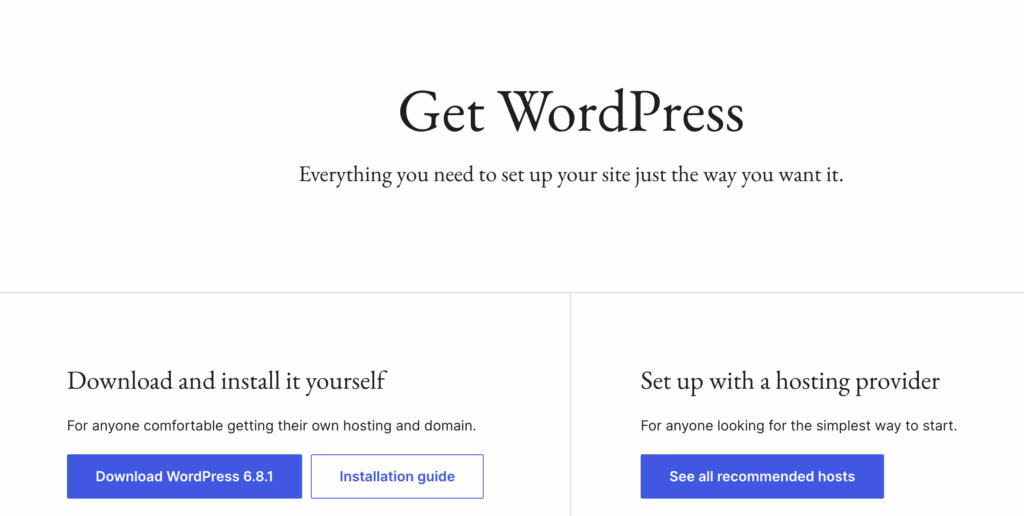
Download the latest WordPress files: Go to wordpress.org/download, download the ZIP file, and extract it on your computer.
-
Connect to your server: Use an FTP client like Cyberduck or your hosting file manager to access your website’s root directory where WordPress is installed.
-
Upload the core files: Upload all extracted files except the wp-content folder to your site’s root directory. When prompted, choose to overwrite existing files to replace the core without affecting your themes or plugins.
Expert Advice: If you made custom changes to your .htaccess file, reapply those rules now. Alternatively, regenerate .htaccess by resetting permalinks. Go to Settings > Permalinks in your WordPress dashboard and clicking Save Changes.
Visit your homepage and admin area (/wp-admin) to confirm your site is working properly. If WordPress asks you to update the database, follow the on-screen instructions to complete the process.
How to Prevent Pluggable.php Errors
Nothing beats the satisfaction of fixing a broken site, but preventing these errors from happening again? That’s even better. After dealing with hundreds of pluggable.php crashes over the years, I’ve learned a few ways that will virtually eliminate these errors
- Use hooks instead of direct modifications – WordPress provides action and filter hooks specifically designed to extend functionality without touching core files.
- Add unique prefixes to all custom functions – Name your functions something like mytheme_send_email() instead of generic names that might already exist.
- Never manually include core WordPress files – Let WordPress handle loading pluggable.php, functions.php, and other core files in the proper sequence.
- Place override code in must-use plugins – If you absolutely need to replace a pluggable function, create an MU plugin in /wp-content/mu-plugins/ that loads before everything else.
- Test updates in test environments – Always preview plugin and theme updates on a test site before applying them to your live website.
- Keep detailed logs of customizations – Document any custom code you add so you can quickly identify potential conflicts when issues arise.
- Regular code audits – Periodically review your functions.php file and custom plugins to remove outdated or redundant code that might cause conflicts.
Final Thoughts:
Before you start any troubleshooting process for pluggable.php errors, there’s one critical step I cannot emphasize enough: create a complete backup of your website. Throughout this troubleshooting guide, you’ll be deactivating plugins, switching themes, and potentially modifying core files—all actions that could accidentally break something else on your site. Troubleshooting without any insurance is risky.
This is where MalCare becomes invaluable. Unlike basic backup solutions that might miss critical files or database entries, MalCare creates comprehensive, incremental backups that capture every aspect of your site. It can also be restored, from an external dashboard, in one-click.
FAQs
Frequently asked questions
PHP classifies errors into four main categories that help developers understand the severity and nature of issues. Fatal errors stop script execution entirely and include problems like calling undefined functions or memory limit exceeded errors. Parse errors occur when PHP cannot understand your code syntax, such as missing semicolons or brackets. Warning errors indicate potential problems that don’t stop execution but suggest something isn’t working as expected, like including a file that doesn’t exist. Notice errors are the least severe and typically point to minor issues like using undefined variables or deprecated functions. Understanding these categories helps you prioritize which errors need immediate attention versus those that can be addressed during routine maintenance.
Fixing pluggable.php errors requires a systematic approach starting with the most common causes. First, check for whitespace or output before PHP opening tags in your functions.php file and plugin files—even a single space can cause header errors. Next, deactivate all plugins to test for conflicts, then reactivate them one by one to identify the problematic plugin. If plugins aren’t the issue, switch to a default WordPress theme to rule out theme conflicts. For persistent errors, examine your error logs to identify specific function redeclaration issues, then either update the conflicting code or find alternative solutions. Always create a complete backup before beginning troubleshooting, as you’ll be making changes that could affect other parts of your site.
Pluggable.php is a WordPress core file that contains essential functions for user authentication, cookies, HTTP requests, and other critical operations. What makes these functions “pluggable” is that they’re designed to be safely overridden by plugins and themes when necessary. The file uses conditional statements to check if functions already exist before defining them, allowing developers to create custom versions of these core functions without breaking WordPress. Common pluggable functions include wp_mail(), wp_authenticate(), and wp_set_current_user(). This system provides flexibility for developers who need to modify core WordPress behavior while maintaining compatibility with updates, since the pluggable.php file can be safely updated without losing custom functionality.
Resolving PHP errors depends on understanding the error type and implementing the appropriate solution. Start by checking your error logs to identify the specific error message and the file causing the problem. For syntax errors, review the code around the line number mentioned in the error message, looking for missing semicolons, unmatched brackets, or typos. Fatal errors often require checking function names, class definitions, or memory limits in your hosting configuration. Warning and notice errors can usually be resolved by defining variables properly, updating deprecated functions, or checking file paths. Enable WordPress debug mode by adding define(‘WP_DEBUG’, true) to your wp-config.php file to get more detailed error information. Always test fixes on a staging site first, and consider consulting with a developer for complex errors that affect critical site functionality.


