You click a search result, and a red screen tells you this site may harm your computer. Maybe a customer just sent you a screenshot of your own site, and your stomach drops as you wonder how many people saw it, whether you’ve been hacked, and what you might break by touching anything.
If the warning concerns your own website, run a Google blacklist check to record Google’s reported status before investigating the cause.
Most people fix the one page Google flagged and move on, which leaves the real entry point wide open. That mistake is common and fixable. The checks here follow a clean WordPress baseline that was tested, and the guide says plainly where those checks fall short.
By the end of this guide, you’ll know what to do as a visitor, how to find the cause as a WordPress owner, and how to verify your site before you ask Google for a review.
TL;DR Take a breath, because this warning is a signal to investigate and doesn’t mean your device or your site is lost.
Visitors should close the page now, and owners should open the Security Issues report in Google Search Console before changing a single file.
Where are you starting from?
Your next move depends on how you found the warning and what access you have, and each case below has a safe first move. Pick the one that sounds like you, since a visitor and an owner need different things from the same page.
- Visitor at a browser warning: Leave the page, and don’t enter a password, payment detail, or any personal information. Skip any download or extension the page asks for, and find what you need from a different trusted source.
- Visitor who already entered information: Change the password from a known-safe device or session, and don’t reuse it anywhere else. If you opened or downloaded a file, follow your organization’s device-security process or ask a qualified professional to check the device.
- Owner who arrived from a search result or customer report: Verify the site in Search Console, open the Security Issues report, and preserve the current state before you edit anything.
- Owner with no Search Console access: Skip the guessing and don’t ask Google for a review. Contact the verified owner, your host, or a qualified incident responder, and keep a backup or forensic copy first.
- Clean scan, but symptoms continue: Don’t declare the site safe. Look at the database, redirects, accounts, uploads, scheduled tasks, and hosting access, and bring in a specialist if the remaining cause stays unclear.
- Repeat warning after cleanup: Read the new sample URL or issue category as evidence that something remains, and repeat the investigation instead of trusting the homepage. If a review request doesn’t clear the warning, Google’s review found unsafe behavior, so go back to the Security Issues report for the current details.
📝 Note: A visitor protects themselves by leaving the page, while an owner protects the investigation by leaving the site untouched until it’s backed up.
Is the warning real?
Yes, so treat it as a real security signal until the site owner verifies what Google found. Google shows the message when it believes a site may allow malicious software to install, and the possible causes include malware, phishing, unwanted downloads, injected scripts, malicious redirects, and spam pages.
The warning doesn’t name a malware family, and it doesn’t prove that every page is affected or that every visitor’s device is infected. A compromised site can hand a visitor to another malicious destination without hosting the final file on the page they first opened.
Picture a page you recognize that looks completely normal to you while a malicious WordPress redirect sends logged-out visitors somewhere else.That’s why bypassing the warning to take a quick look is the wrong test, and why owners should check through Search Console instead.
📝 Note: The warning names a category of danger and leaves the cause open, so treat each category as a possibility until Search Console and a full investigation narrow it down.
How bad can it get?
It can reach well beyond the URL in the warning, and that’s the part that worries most owners at 2 a.m. Attackers may change WordPress files, database content, uploads, redirects, plugins, themes, or access credentials, and they may leave a backdoor for later.
Sample URLs in Search Console show where Google saw a problem, which makes them useful leads and still leave unlisted pages unchecked. A clean homepage can’t rule out an injected database field, an unfamiliar administrator, or a conditional redirect.
A spam page is often only the symptom, with a vulnerable plugin, a stolen password, or a hidden backdoors as the entry point that keeps the site exposed. If your site handles payments, member accounts, or sensitive information, involve your host and a qualified incident responder early.
📝 Note: The idea to remember: cleaning the visible page isn’t recovery, because the site stays at risk while the access path that created the page is still open.
Open Security Issues first
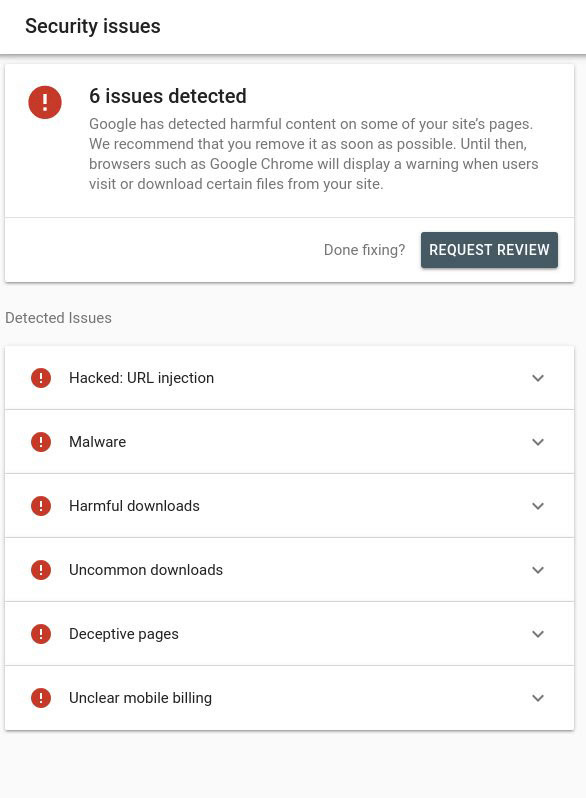
Open the Security Issues report for your verified site in Search Console before you change anything. It shows an issue category, details about the threat, and sample URLs, and you should save all three alongside the current state of the site so later checks can show what changed.
A useful result gives you a category and sample URLs to work from. A report that lists three sample URLs shows where Google looked, and every other page still needs checking. When it’s safe, compare how a sample URL behaves for logged-out visitors and for people arriving from search, and note any unexpected destination.
Keep four questions beside the report as you read it:
- Which URLs did Google identify, and do they behave differently for logged-out visitors?
- Is the unsafe response coming from files, the database, uploads, a plugin, a theme, or the hosting layer?
- Do any unfamiliar administrator or editor accounts, changed passwords, or new access keys show up?
- Which vulnerable component, hosting account, or stolen credential could let the attacker return?
📝 Note: Write down the exact issue category now, because a changed category on a repeat warning is how you’ll tell whether something new or something old remains.
Backup before you touch anything
Save a known-good backup or a forensic copy of the site as it stands, kept somewhere the cleanup can’t overwrite. This is your evidence, and it’s also your way back if a fix goes wrong.
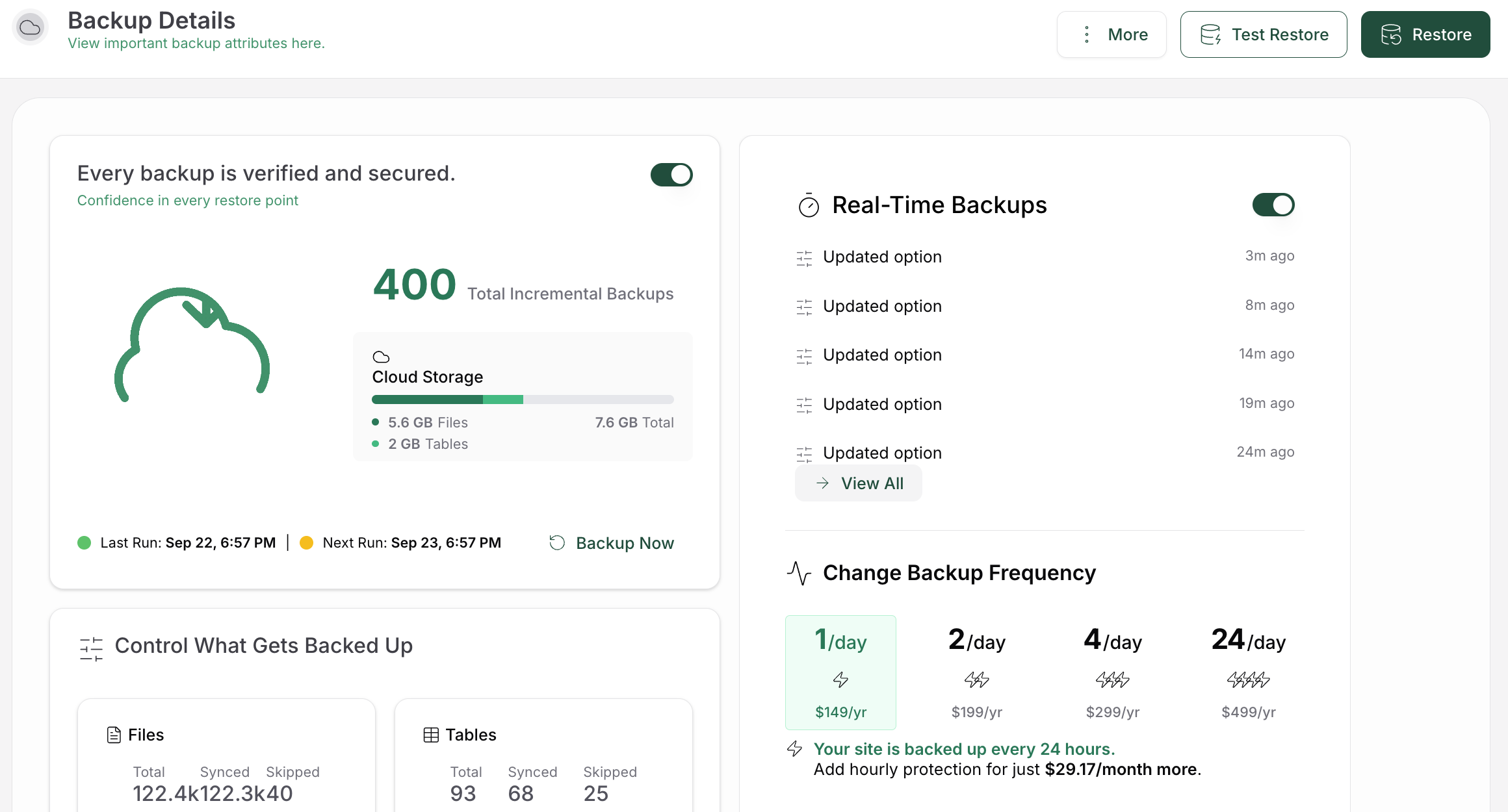
Be careful with old backups. A backup can preserve the compromise instead of removing it, so restoring last month’s copy might bring an injected script back along with your posts. Check the backup’s date and contents before you restore anything.
📝 Note: Preserve evidence before you repair it, since random edits can erase the clue that links the warning to a file, account, database value, or entry point.
Scan the whole installation
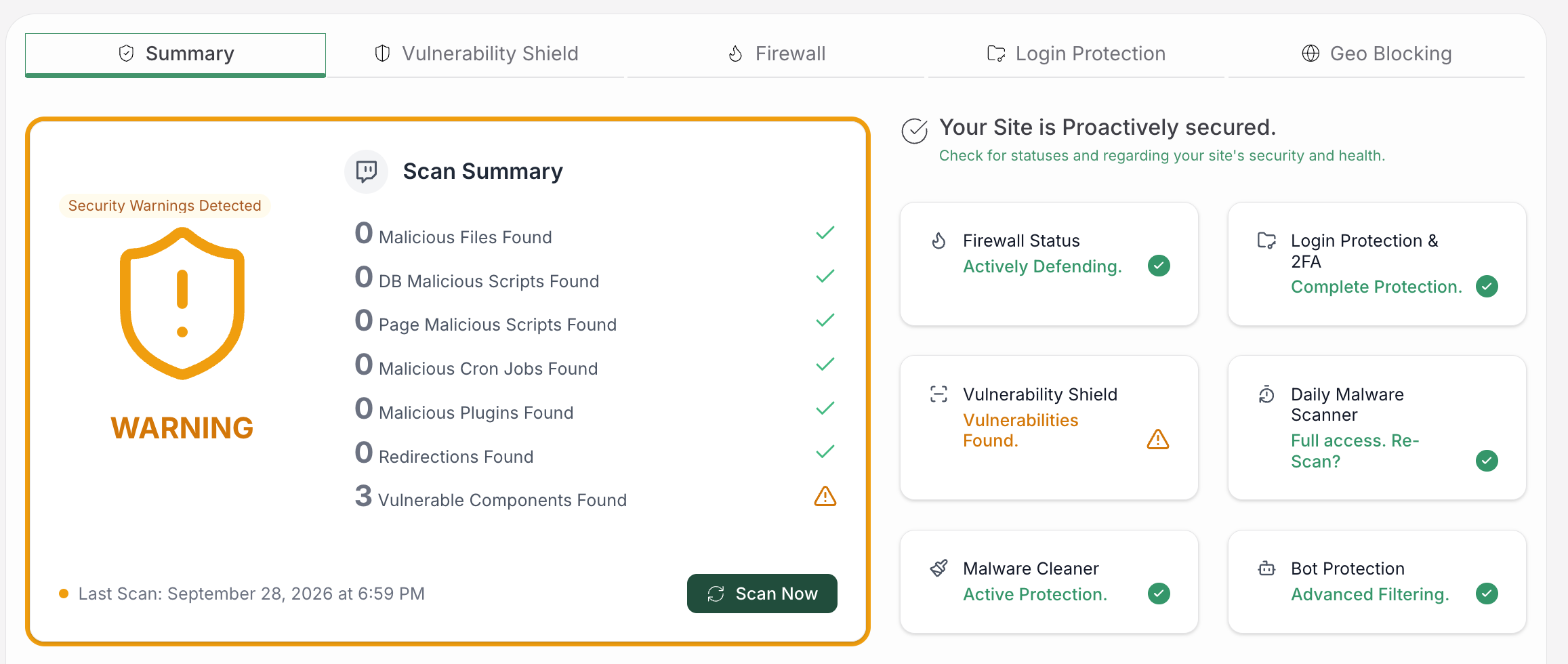
Use a WordPress malware scanner to investigate the installation, rather than checking only the flagged URL.. That means the web root, WordPress core, plugins, themes, uploads, configuration files, scheduled tasks, database tables, redirects, and user accounts.
Search Console gives you Google’s view of the unsafe behavior, and a full-site scan shows what sits on your server, so use the two results together. Scan my site for malware with MalCare after you’ve recorded the warning details, and use the result to see how far the infection reaches. A good result lists suspicious files and content with their locations, and a bad one is a thin report you treat as the finish line.
📝 Note: A first clean scan is one observation, and a hidden backdoor, database injection, unauthorized user, or conditional redirect can all sit outside it.
Remove the cause and lock the door
Work through the fixes below in order, and take them slowly. Blind deletion can break the site while the attacker’s access stays open somewhere else. A database row, for example, can relate to posts, options, users, or settings in ways its content doesn’t show.If manual cleanup is beyond your expertise, use a WordPress malware removal plugin or a qualified specialist to remove the infection, then verify the result and close the entry point.
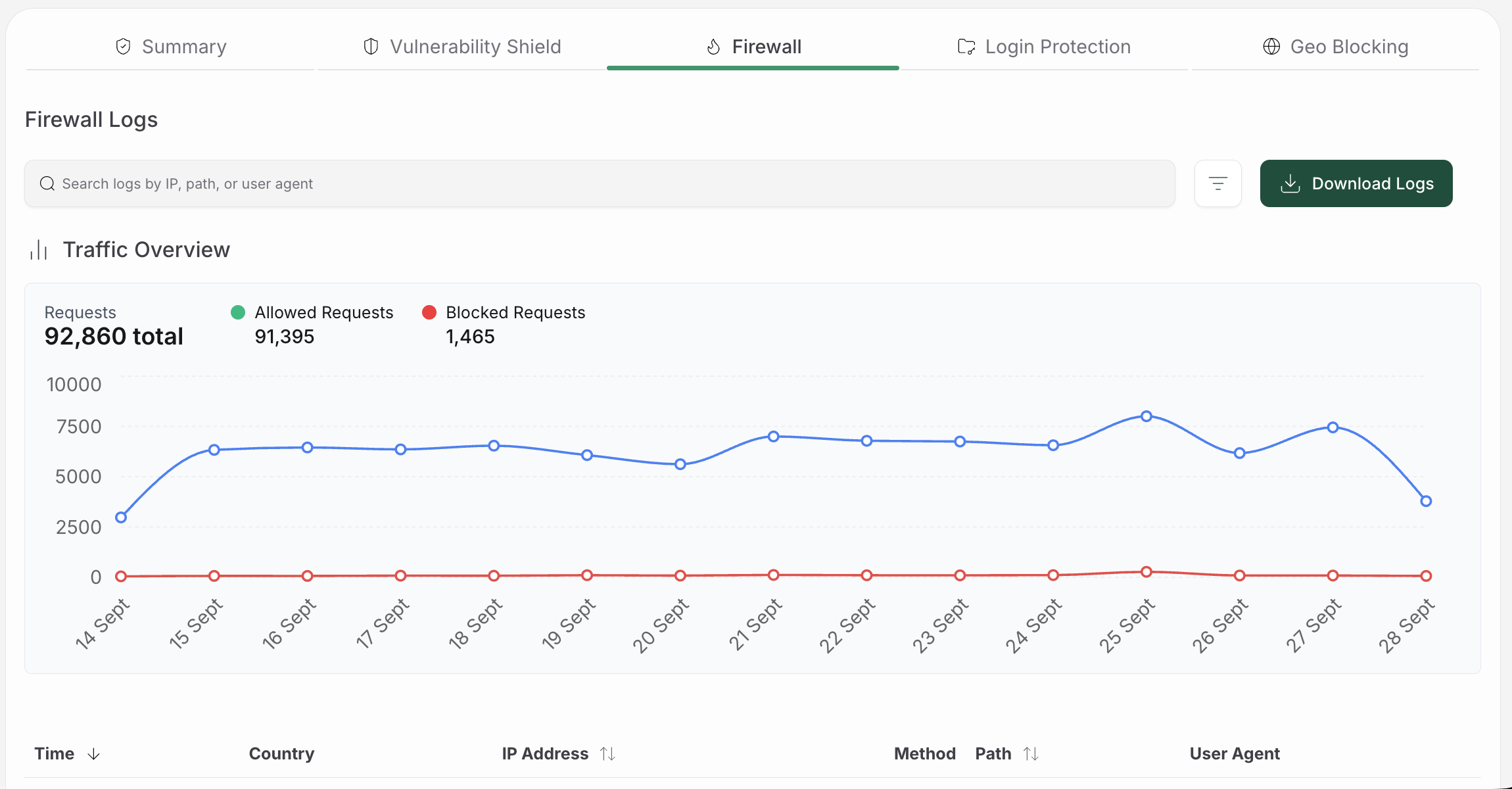
- Restore trusted code: Replace core, plugin, or theme files only after comparing them with a trusted version, then test the result. An unfamiliar line inside a file is no reason to delete the whole file.
- Remove injected content: Check database content, uploads, redirects, and users, and learn how each item connects to your posts, options, settings, and access before it goes.If posts or pages contain links you never added, investigate WordPress spam link injection before removing only the visible links.
- Close the entry point: Apply WordPress security updates to core, plugins, and themes, and patch or remove whichever component let the attacker in.
- Rotate access secrets: Change passwords for WordPress administrators, hosting, FTP or SFTP, the database, and connected services. Rotate exposed WordPress salts and security keys to invalidate existing WordPress login cookies, then review administrator and editor accounts for unauthorized changes.
- Call a specialist when needed: Preserve the current state and escalate if the infection keeps recurring, spreads widely, or involves PHP, SQL, file permissions, hosting logs, or WordPress authentication beyond your skills.
📝 Note: Manual cleanup gives an experienced administrator the most control, and guessing turns a malware problem into a malware problem plus a broken site.
Verify, then request a review
Run a second full scan and test the paths your visitors use before you ask Google to look again. A homepage that loads is one good sign, and recovery needs more of them.
- Load public pages while logged out: Open the homepage and every previously reported URL, and look for the intended page. A good result is the page you expect, and a bad one is an unexpected redirect or download.
- Test the login and forms: Confirm that the WordPress login, forms, downloads, and important account or checkout paths behave normally.
- Check content and access: Review your WordPress activity log for unfamiliar logins, content edits, plugin changes, and role changes. Investigate unauthorized settings and continued access attempts in security alerts too.
- Repeat the full scan: Compare the result with your first investigation across files, database, uploads, redirects, and accounts.
- Compare against a known baseline: Use a clean site as a model for what normal looks like, as in the example below.
A clean test site running WordPress 6.9.4, PHP 8.2, and MySQL 8.0 gives you a picture of normal. Its homepage and login page both loaded with HTTP 200, and a draft post stayed a draft. That test never reproduced Google’s warning or checked for malware, so use it only as a model for noting what your own site should look like when it’s healthy.
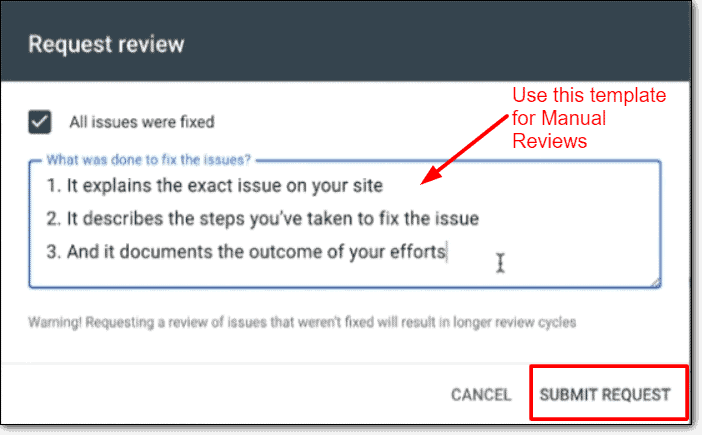
When every check passes, follow the Google Safe Browsing blacklist removal process and request a review in Search Console, describing your fixes accurately. Hold off if the homepage merely looks normal, one sample URL stopped redirecting, or a plugin scan returned nothing. Google’s review can still find unsafe behavior, and no fixed review time is promised.
📝 Note: A good verification result describes normal behavior across important paths, which a loading homepage alone can’t show.
How do you keep it from coming back?
Close the original entry point and keep the site maintained, since no single security layer is enough on its own. Keep WordPress, plugins, and themes updated, and remove components the site no longer needs.After cleanup, run a WordPress security audit to review software, account access, settings, hosting, and recovery readiness.
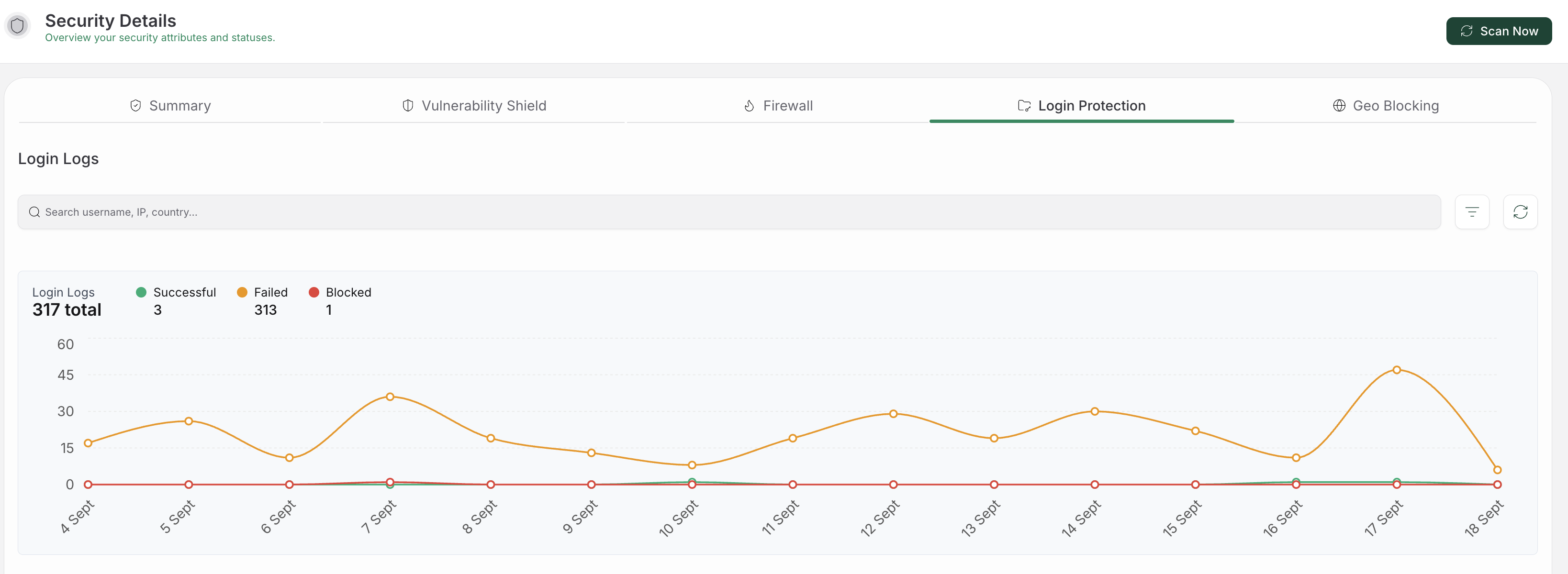
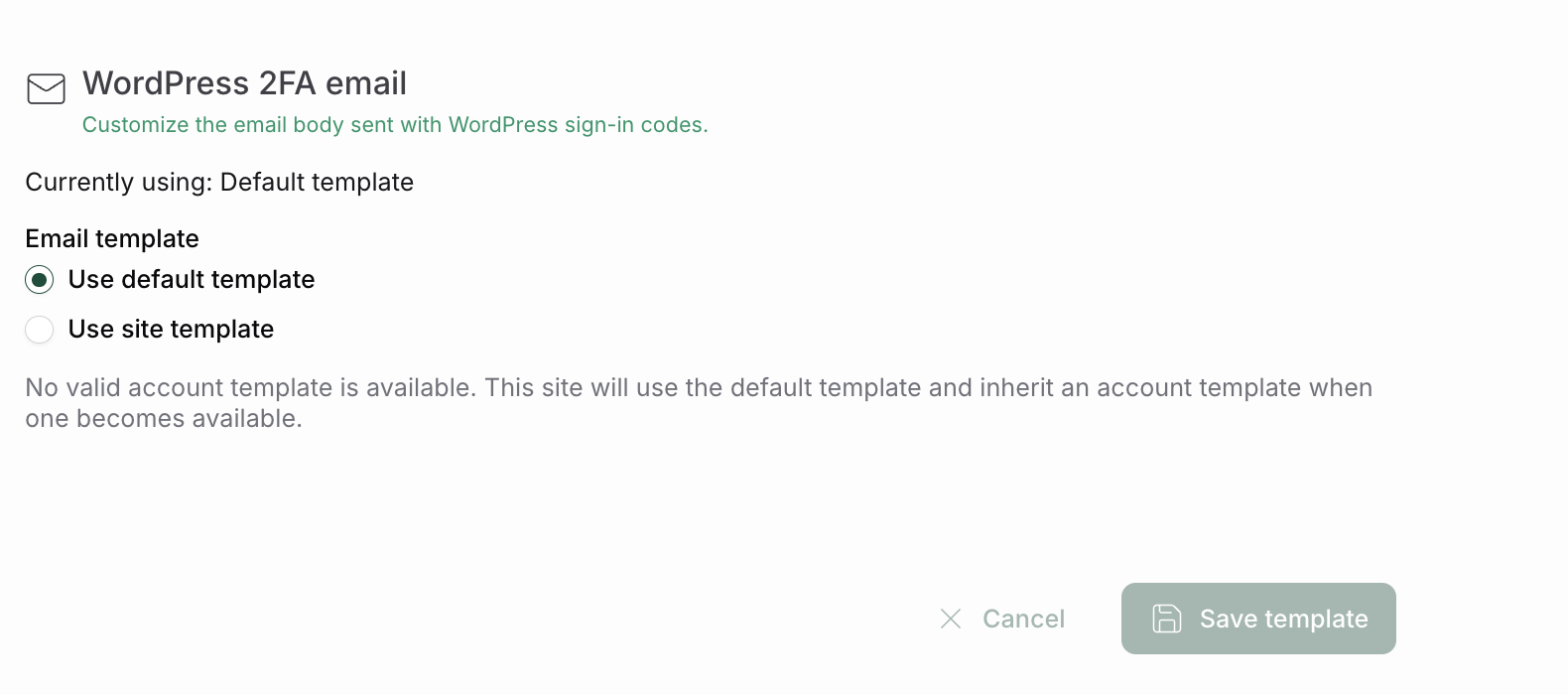
Give every administrator a unique password and enable WordPress two-factor authentication. Limit who has administrator access, and review accounts and security alerts regularly. Keep tested backups, and know how to restore the site without restoring an unexamined infection. Add a WordPress firewall alongside monitoring and vulnerability protection to reduce the risk of another compromise.
📝 Note: Each layer has limits, since a backup can restore a compromised state, a firewall can miss an allowed attack, and a scanner can miss a problem outside its coverage.
FAQs
What does “this site may harm your computer” mean?
It means Google believes the site may expose visitors to malicious software or another unsafe behavior. Phishing, unwanted downloads, injected code, and malicious redirects are all possible causes, so the warning calls for investigation and a workaround would only hide it.
Is it safe to visit a site with this warning?
No, so leave the page and don’t enter credentials or download files. If you already shared a password, change it from a known-safe session and don’t reuse it elsewhere.
Does the warning mean my WordPress site was hacked?
Not necessarily, although the site needs an investigation before you call it clean. A compromise is one possible cause, alongside phishing content, unwanted software, and malicious redirects.
Should I clean the WordPress site manually?
Yes, if you’re an experienced administrator who can keep a complete backup, compare trusted files, inspect the database, review accounts, and test the result. A specialist or a controlled security tool fits better when the infection is deep, recurring, or unclear.
Why is the warning still showing after I cleaned the site?
The investigation may have missed a hidden URL, a database injection, a redirect, a backdoor, an unauthorized account, or the original vulnerability. Repeat the complete checks, and request Google’s review only after the entire site is secure.
Conclusion
The page Google flagged is only the part of the problem you can see, and the warning leaves for good once the files, database content, accounts, redirects, and original entry point are all clean.
Open the Security Issues report today, save what it says, and take the next fix that your findings support.