

Seeing the “Briefly unavailable for scheduled maintenance. Check back in a minute” message on your WordPress site can be stressful. It’s especially frustrating when you expect it to disappear right after your update or WordPress site maintenance tasks.
Instead, it lingers, and you find yourself waiting. You worry about lost traffic and revenue, wondering if your site will ever be back up.
Fortunately, fixing this issue is simpler than you think. In this article, we’ll walk you through two tested and foolproof methods to get your WordPress site out of maintenance mode quickly. No matter how long it’s been down, you’ll be able to restore access to your site and continue with your updates.
The “Briefly unavailable for scheduled maintenance” message is shown to visitors trying to access your site while updates are in progress. If an update fails, this message can linger. To resolve the issue, delete the hidden .maintenance file using FTP or cPanel.
What does “Briefly unavailable for scheduled maintenance. Check back in a minute.” mean?
Seeing the message “Briefly unavailable for scheduled maintenance. Check back in a minute” on your site means that WordPress updates are in process.
These updates can be for WordPress itself, or for parts like themes or plugins. Normally, this message is quick, lasting only a few seconds or minutes.

Here’s the background on what’s happening:
WordPress, during these updates, creates a hidden file called .maintenance. This file is placed in your site’s main folder, often known as public_html or www. The role of this file is to block visitors from entering the site while changes are happening.

This is to make sure no one sees parts of your site that are incomplete or broken because of an update in progress. It also prevents visitors from using the site and possibly causing problems while it’s being updated.
Why does your site get stuck in maintenance mode?
Many people experience their WordPress site getting stuck in this update mode, and it’s usually because something went wrong during the update. Here’s why this might happen:
1. Plugin and theme conflicts: Sometimes, when plugins or themes update, they don’t get along with each other, or they clash with WordPress’s main files. This can stop the update midway and leave your site stuck in maintenance mode.
2. Incomplete update: If the update is interrupted, maybe because of a WordPress timeout error, the server being too busy, or not having enough memory, the update might not finish, leaving your site halfway.
3. Hosting problems: If your site is on shared hosting (where many sites share the same server), it might face slowdowns or limited resources. This can disrupt the update process.
4. Browser or network issues: The problem might be on your side, too. If your internet connection drops or your browser suddenly crashes, it can halt the update.
5. Manual mistakes: Sometimes, when site administrators are manually updating or changing settings using FTP (a way to transfer files) or cPanel, they might make mistakes. If something does go wrong, it can trigger maintenance mode.
When something doesn’t go as planned and an update gets interrupted, your site might stay stuck in maintenance mode. This means visitors will continue to see the maintenance message, and you might lose access to your admin controls.
A) Using FTP to fix the “Briefly unavailable” WordPress error
Before jumping into technical solutions, ensure you back up your site. Also, clear your cache to view the updated version of your site.

If your site is stuck in maintenance mode, FTP can help resolve it quickly. Here’s how you can do it:
Connect via FTP: First, download an FTP client like FileZilla. Open it and connect to your website using FTP credentials, which you can get from your hosting provider.

Find the .maintenance file: Go to your WordPress site’s root directory, typically named public_html or www. The .maintenance file is usually hidden, so you’ll need to unhide it by selecting Force Showing Hidden Files from the Server menu.

Delete the .maintenance file: Simply right-click on the .maintenance file and select Delete. This action removes WordPress from maintenance mode. Refresh your site in the browser to check if it’s back to normal.

B) Fixing the “Briefly unavailable” WordPress Error using cPanel File Manager
If FTP isn’t your preferred method, you can also address the maintenance mode issue via your hosting control panel’s file manager.
Most hosting providers use cPanel as their file manager. If yours uses a different one, the steps should still be similar. Here’s how to fix it using cPanel:
Access cPanel: Log into your cPanel account and navigate to File Manager.

Locate the .maintenance file: Access the root directory of your WordPress site, usually named public_html or www. If the .maintenance file is hidden, click the Settings button in the top right corner and check the Show Hidden Files (dotfiles) box.
Delete the .maintenance file: Right-click on the .maintenance file and remove it. This will bring your site out of maintenance mode. Refresh your browser to verify if your site is up and running.
What to do if the fixes don’t work
If the earlier solutions didn’t restore your site, don’t worry—there are more steps you can try:
1. Recheck for the .maintenance file: Go back and see if this file has come back. Sometimes it returns after being deleted. If you find it again, delete it again.
2. Clear your browser cache: Your web browser may still show you the old maintenance page because it remembers (or caches) information from your last visit. You need to clear this cache. Most browsers have this option in the settings menu.
3. Temporarily deactivate plugins: Sometimes plugins cause problems. Use FTP or your web hosting control panel to find the folder called wp-content. Rename this plugin folder to something like plugins_disabled.
This change stops all plugins from working and might help you see if they were causing the maintenance page. To turn them back on, change the name of the folder back to plugins.
4. Increase PHP memory limit: Your site might be low on memory, which could keep it stuck. Find the wp-config.php file on your site and add this line of text:
define('WP_MEMORY_LIMIT', '256M');This line gives your site more memory space. If you’ve already set the memory limit to 256M and it’s still not enough, you can try increasing it to 512M for larger sites.
Be very careful when you do this as making a mistake can cause your site to crash.
5. Check file permissions: Every file and folder on your site has a permission setting that tells the server who can see and change them. Usually, folders should be set to 755, and files should be 644.

This helps keep things running smoothly. You can check and change these settings with your web hosting control panel.
6. Manually complete updates: If updates stopped halfway, you might need to do them by hand. Download the .zip file for the plugin or theme from the WordPress repository to your computer. Then, use FTP or your hosting control panel to upload these files to your site manually.
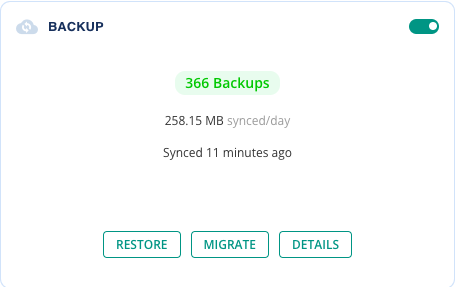
7. Restore a backup: If you have saved a recent version of your website (a backup), you can put your site back to how it was before the maintenance problem happened. This can help quickly solve the issue.
8. Contact your hosting provider: If none of these steps work, it might be time to get help from your hosting provider. They have professionals who can help you out. Be ready to tell them everything you’ve tried to fix the problem so far.
Ways to avoid this issue in the future
Nobody wants their website stuck in maintenance mode again, right? Here are some simple steps to help prevent this from happening:
1. Keep your internet connection stable: Before you start any updates, make sure your internet is working well. If your connection is unreliable and drops in and out, it might stop updates partway, causing issues on your site.
2. Use a test site before updating: Before changing anything on your main website, try those changes on a test site first. Tools like MalCare can help you set one up very easily. It lets you safely test updates to see if they cause any problems.

3. Update in smaller groups: Instead of updating everything at once, try doing updates in smaller parts. This means updating just a few plugins or themes at a time. It helps reduce the chances of something going wrong because there are fewer things changing all at once.
4. Pick times with less traffic: Try to do your updates at times when not many people are visiting your site. This way, if something does go wrong, it won’t affect many visitors.
5. Backup your site regularly: Use a reliable plugin to save copies of your site on a regular basis. These backups will help you restore your site to an earlier state if something goes wrong during updates.
6. Check compatibility before updating: Before you start any updates, check that the new changes work with your current setup. This means looking to see if your WordPress, themes, and plugins all work well together. It helps to avoid problems that might occur from conflicts between new and existing site elements.
Parting thoughts
Hitting the “Briefly unavailable for scheduled maintenance” message can be frustrating. The good news is that it’s a problem you can often resolve by following a few steps, like removing the .maintenance file from your site’s main folder.
You can also set up a test site or staging environment using tools like MalCare to try out updates without risking your actual site. Plus, always make sure to backup your site regularly. This way, if something goes wrong, you can restore everything quickly and get back on track.
If you’ve done all this and the issue still doesn’t go away, don’t hesitate to reach out to your hosting provider for help. They have the right tools and expertise to tackle more stubborn problems.
FAQs
How to fix WordPress errors “briefly unavailable for scheduled maintenance. Check back in a minute”?
To resolve this error, use FTP or cPanel to find and delete the hidden .maintenance file in the root folder of your site. Doing this should immediately release your site from maintenance mode.
How long does scheduled maintenance take in WordPress?
In WordPress, scheduled maintenance is generally very quick, usually lasting only a few seconds to a couple of minutes. It’s a short process during updates. If it extends much longer, it’s possible that something went wrong with the update.
Why is my WordPress site not coming out of maintenance mode?
Your site might stay in maintenance mode if something disrupts or fails during an update. This leaves the .maintenance file where it is, which stops the site from returning to normal operation. Removing this file using FTP or cPanel typically solves the issue.
If I figure out how to revert this error, will I have to do the update again?
Yes. After correcting the maintenance mode error, you’ll need to attempt the update again that caused the issue. If the update was interrupted or stuck, taking out the .maintenance file stops it, so you’ll have to go back to your WordPress dashboard and redo the update to ensure everything is installed correctly.
Why do websites shut down for maintenance?
Websites undergo maintenance shutdowns to apply updates without disruptions from visitors. This process helps prevent errors and ensures that any new features or modifications are smoothly integrated. It also stops visitors from encountering incomplete or non-functional parts of the website during updates.


