A small popup has appeared. It says: This page is trying to load scripts from unauthenticated sources. Seeing words like “unauthenticated” trigger a lot of worry. Is your site hacked? Is this a malware problem? Can you fix it?
The short answer is that this Google blacklist alert pops up when your HTTPS website attempts to load files from insecure HTTP sources. You’ll typically encounter this message when testing your site after installing an SSL certificate.
The good news? This problem is completely fixable with the right approach. We’ll recommend some plugins that can help you fix this problem quickly.
Install the SSL Insecure Content Fixer plugin to automatically fix most mixed content issues. For remaining errors, manually update HTTP links to HTTPS in themes/plugins, clear caches, and use browser dev tools to identify problem scripts.
What Does “This Page is Trying to Load Scripts from Unauthenticated Sources” Mean?
The popup message “This page is trying to load scripts from unauthenticated sources” typically appears because of mixed content issues. This means that your webpage is loaded securely via HTTPS, but is attempting to load a file from an insecure HTTP source.
HTTPS pages require all resources (scripts, images, stylesheets) to be loaded securely to prevent tampering. This security requirement exists to avoid your customers being exposed to attacks. It’s like a secure vault trying to use keys from an unlocked drawer. It defeats the whole point of data security.
So, when browsers detect this security mismatch, they immediately flag it as a potential threat to your visitors. The “unauthenticated sources” terminology refers to the fact that HTTP connections cannot guarantee the integrity of the scripts being loaded
Your website is vulnerable to a WordPress hack and you need to fix it as soon as possible. Here are some ways to do so:
Step 1: Check Your WordPress Site’s SSL Certificate
“This page is trying to load scripts from unauthenticated sources” warnings often indicate underlying SSL certificate issues. This can prevent your site from establishing secure connections. Before diving into the fixes, verify that your SSL certificate is properly installed.
Use SSL Labs SSL Test to figure this out. Enter your domain and wait for the detailed security report. Anything lower than an A grade indicates certificate issues.
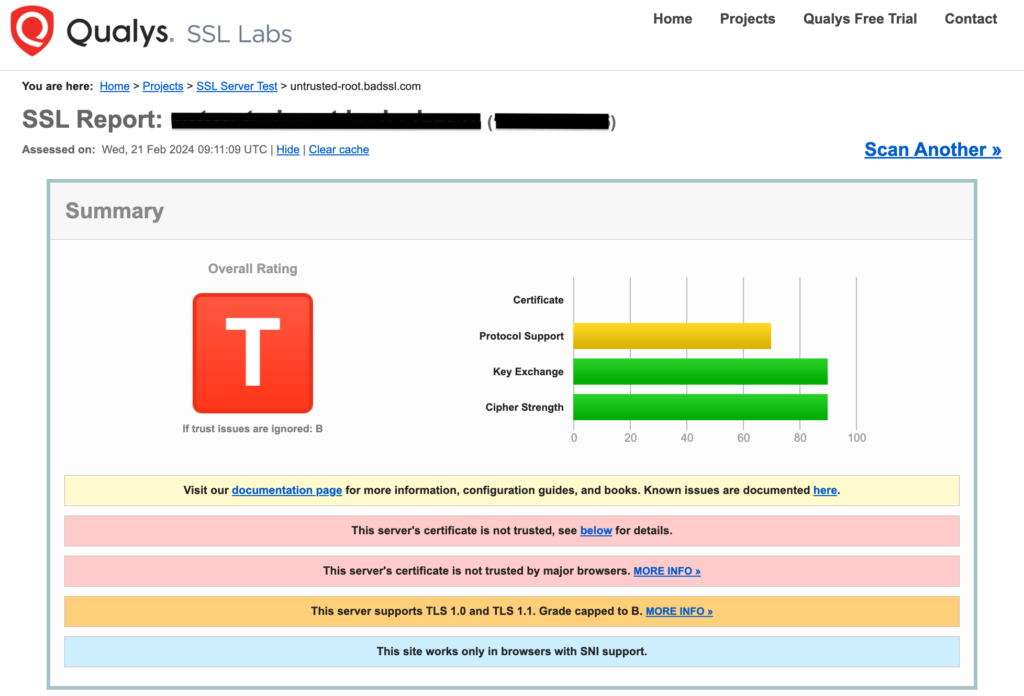
Common SSL Certificate Problems
The bad grade is likely because of one of the following:
- Expired certificates – browsers reject all secure connections
- Self-signed certificates – not trusted by browsers, causes security warnings
- Incorrect domain name – certificate issued for different domain than your site
- Incomplete certificate chain – missing intermediate certificates break trust
- Mixed certificate authorities – conflicting certificates from different providers
If you find certificate problems, do the following:
- Contact your hosting provider – They can reinstall or renew certificates.
- Check your domain registrar – Ensure domain ownership is current.
- Verify DNS settings – Incorrect DNS can prevent certificate validation
Step 2: Use WhyNoPadlock to Identify Mixed Content Issues
If “This page is trying to load scripts from unauthenticated sources” despite your SSL certificate being fine, you’ll need to figure out the root cause. WhyNoPadlock is a free online tool specifically designed to scan your HTTPS website and identify every insecure resource that’s preventing your security padlock from appearing.
Go to the WhyNoPadlock website and enter your complete HTTPS URL. Click Test this page and wait for the scan to complete. The tool will crawl your website to find HTTP resources loading on HTTPS pages.
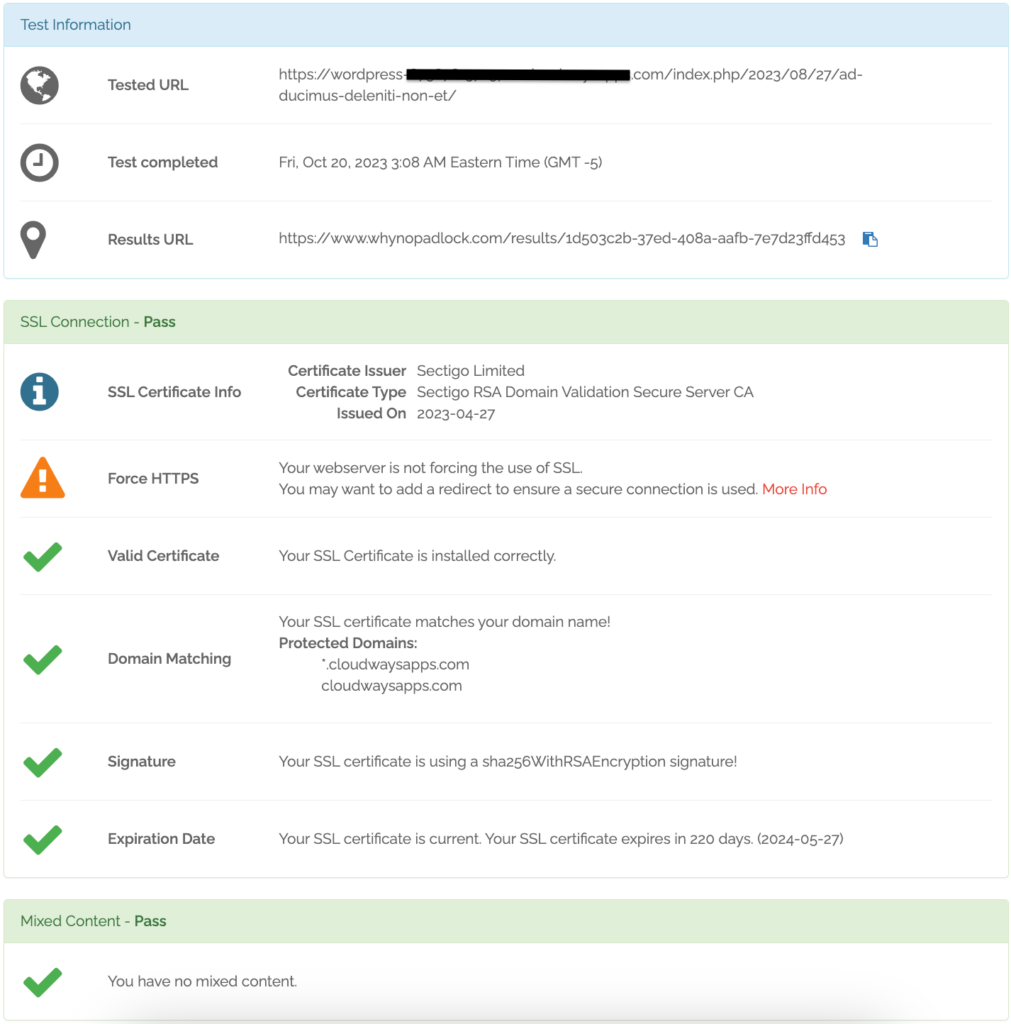
Understanding the results
- Green checkmarks indicate secure resources loading properly
- Red X marks highlight insecure HTTP resources causing problems
- Yellow warnings show potential issues that may need attention
- Detailed URLs show exactly which scripts, images, or stylesheets are problematic
Step 3: Find and replace the HTTP resources
You’ve got a list of mismatched resources. You have to find and replace them with their HTTPs counterparts. The SSL Insecure Content Fixer plugin offers a quick and automatic solution.
Here’s what you need to do:
- Go to Plugins → Add New in your WordPress dashboard
- Search for “SSL Insecure Content Fixer“
- Click Install Now and Activate
- Navigate to Settings → SSL Insecure Content Fixer
- Set HTTPS detection to WordPress
- Set the fix level to Simple and increase if needed
- Enable “Yes” in Fix Insecure Content section
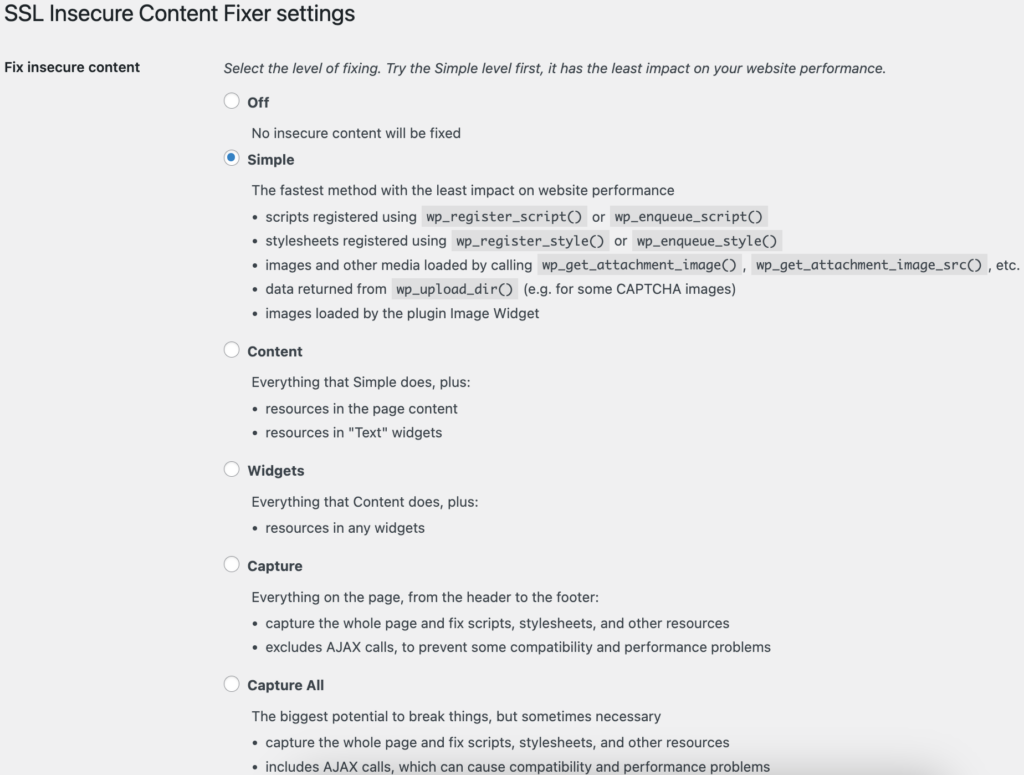
- Click on Save Changes
Step 4: Manual Site URL Update
“This page is trying to load scripts from unauthenticated sources” can persist even after checking the database and using automatic find and replace tools. This is usually because your WordPress core URLs are still configured to use HTTP. In this section we’ll talk about how to manually update your URL.
- Navigate to Settings → General in your WordPress admin
- Locate WordPress Address (URL) field
- Change http://yourdomain.com to https://yourdomain.com
- Update Site Address (URL) field the same way
- Scroll down and click Save Changes
You’ll be automatically logged out. Log back in using the HTTPS URL.
Important Notes: Backup your site first. Incorrect URLs can lock you out of your admin area. A backup can help you quickly recover your site. We recommend that you use a plugin like BlogVault that has an external dashboard. You’ll be able to restore your site without needing the admin panel.
Step 5: Database Search & Replace for HTTP Links
“This page is trying to load scripts from unauthenticated sources” can often be traced back to HTTP URLs stored deep within your WordPress database. Even after updating plugins and themes, old HTTP references may persist in post content, widget settings, theme customizations, and plugin configurations.
Expert advice: Backup your database before you make any changes. This is to quickly restore your site in case things go badly.
We’re using the Better Search Replace plugin to do so. It’s a user-friendly way to perform database-wide URL updates.
- Go to Plugins → Add New in your WordPress dashboard
- Search for “Better Search Replace”
- Click Install Now and Activate.
- Navigate to Tools → Better Search Replace.
- In the Search for field, fill in your HTTP URL.
- In the Replace with field, fill in your HTTPS URL.
- Leave the Select tables section blank to search all tables.
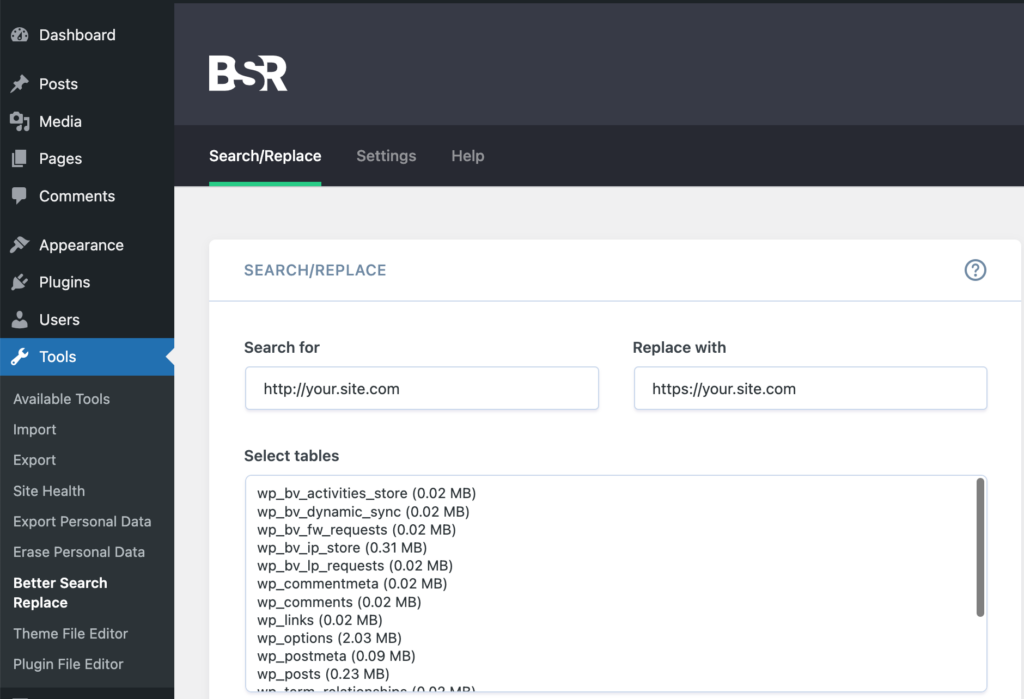
- Check Run as dry run? first to preview changes without making them
- Review the results to see how many replacements will be made
- Uncheck “Run as dry run?” and click “Run Search/Replace”
Step 6: Fix Plugins and Themes with HTTP Links
“This page is trying to load scripts from unauthenticated sources” is frequently caused by outdated plugins and themes that still contain hardcoded HTTP links. These legacy references need to be manually identified and fixed.
Identify problematic plugin:
- Deactivate all plugins and check if the error disappears
- If the warning stops, reactivate plugins one by one
- Test your site after each plugin activation
- Note which plugin triggers the “unauthenticated sources” warning
- Check that specific plugin’s settings for HTTP URLs
Identify problematic theme:
- Temporarily switch to a default WordPress theme (Twenty Twenty-Three)
- Test your site to see if the mixed content warning persists
- If the error disappears, your current theme contains HTTP links
- Switch back and examine your theme’s code files
How to fix plugin and theme HTTP links
- Review each plugin’s Settings page for URL fields. Look for CDN URLs, API endpoints, or external script references. Change any http:// URLs to https:// versions
- Update social media profile URLs to use HTTPS
- Check advertising and analytics plugin configurations
- Access your theme files via Appearance → Theme Editor. Search for http:// in header.php, footer.php, and functions.php. Update hardcoded HTTP URLs to HTTPS versions. Save changes and test your site
Expert advice: You may have to update the plugin or theme to get the HTTPS versions. But, if an update doesn’t fix the problem, you may need to find an alternate that is HTTPs compatible.
Step 7: Force HTTPS Redirects
“This page is trying to load scripts from unauthenticated sources” can continue appearing if visitors are still accessing your site through HTTP URLs. Forcing HTTPS redirects ensures that every visitor automatically lands on the secure version of your site. This is preventing browsers from loading any insecure resources and eliminating mixed content warnings at the source.
Expert advice: Take a full backup before you start. You;re about to make changes to a core file and the backup is just insurance.
The most reliable way to force HTTPS is through your site’s .htaccess file, which handles redirects at the server level.
- Access your site files via FTP, cPanel File Manager, or hosting control panel
- Locate the .htaccess file in your site’s root directory (same folder as wp-config.php)
- Add this code above the existing WordPress rules:
RewriteEngine On
RewriteCond %{HTTPS} !=on
RewriteRule ^(.*)$ https://%{HTTP_HOST}%{REQUEST_URI} [L,R=301,NE]
Header always set Content-Security-Policy "upgrade-insecure-requests;"
Step 8: Test Your Mixed Content Fixes
Clear all caches (browser, plugin, and CDN caches) and test your site systematically by visiting different pages. You should no longer see the “This page is trying to load scripts from unauthenticated sources” popup. However, use WhyNoPadlock.com to run a comprehensive scan of your site, confirming that all HTTP resources have been successfully converted to HTTPS. Then, you’re all good.
How to Prevent Mixed Content Issues
“This page is trying to load scripts from unauthenticated sources” is entirely preventable with the right proactive strategies. By implementing these best practices from the start, you can avoid mixed content warnings and maintain your site’s security padlock permanently.
- Use Relative URLs for Internal Resources: Relative URLs don’t specify a protocol (http or https), allowing them to adapt to the current protocol used by the page. For example, use //yourdomain.com/script.js instead of http://yourdomain.com/script.js – this ensures your resources automatically load via HTTPS when your page is secure.
- Enforce HTTPS for External Resources: Always verify that CDNs, APIs, and third-party services support HTTPS before integrating them into your site. If an external source doesn’t support HTTPS, consider finding an alternative or hosting the resource locally on your server to maintain security consistency.
- Monitor SSL Certificate Expiration: Keep track of your site’s SSL certificate expiry dates and set up renewal reminders. Google is moving towards 90-day certificates, making this monitoring step critical. Many hosting providers offer automatic renewal, but it’s essential to verify this is working properly to avoid sudden certificate failures that could trigger mixed content warnings.
- Maintain Updated WordPress Environment: Regularly update your WordPress themes and plugins as developers often release updates to fix security vulnerabilities and improve HTTPS compatibility. Outdated plugins are a primary source of hardcoded HTTP links that cause mixed content issues.
- Audit Third-Party Content: Avoid widgets or embeds that may use non-secure resources by thoroughly vetting all third-party content before adding it to your site. Try to find HTTPS-compatible alternatives or ensure that embedded content.
Final Thoughts
“This page is trying to load scripts from unauthenticated sources” is a very common problem that can have a major impact on your site. It’s an indicator that you are exposing your site visitors to data breaches and hacks. An SSL certificate and fixing this problem can boos your WordPress security.
However, this is only one part of the puzzle. You still need a security plugin to protect your site from WordPress hacks. That’s why we recommend installing MalCare. Just install the plugin and create an account. It automatically installs real-time firewalls and scans your site for malware daily. It offers a more comprehensive solution for website security.
FAQs
Frequently asked questions
“This page is trying to load scripts from unauthenticated sources” means your secure HTTPS website is attempting to load JavaScript files from insecure HTTP sources. This creates a mixed content security issue where browsers cannot verify the authenticity of the scripts, potentially exposing visitors to data theft or malicious code injection. It’s like having a secure building with bulletproof doors but leaving windows wide open.
Yes, this error can significantly damage your SEO. Google uses HTTPS as a ranking factor, and mixed content issues prevent your site from being considered truly secure. The browser warnings increase bounce rates as visitors leave when they see “Not Secure” messages, which signals poor user experience to search engines. Additionally, the broken security padlock reduces user trust and conversion rates, indirectly affecting your search rankings.
Several reasons can cause persistent mixed content warnings even with Really Simple SSL installed:
- Hardcoded HTTP URLs in theme files or plugin code that the plugin cannot automatically detect
- Cached pages still loading old HTTP resources—clear browser, plugin, and CDN caches
- External scripts from advertising networks or third-party services that don’t support HTTPS
- JavaScript-generated content that loads HTTP resources dynamically after the page loads
- Plugin conflicts where multiple plugins interfere with SSL enforcement
Use your browser’s Developer Tools to identify problematic scripts:
- Press F12 to open Developer Tools in Chrome, Firefox, or Edge.
- Open the Console tab.
- Look for red Mixed Content warnings that show specific HTTP URLs.
- Check the Security tab for detailed mixed-content reports.
- Use WhyNoPadlock.com for a comprehensive scan of insecure resources.
The messages identify the file names and URLs causing the warnings.
You have several options when an external script doesn’t offer HTTPS:
- Contact the provider to request HTTPS support.
- Download the script and host it locally on your HTTPS server.
- Find an HTTPS-compatible alternative.
- Use a CDN such as jsDelivr or cdnjs that provides an HTTPS version.
- Remove the script if it is not essential.
- Treat it as a security risk and replace it with a maintained alternative.