
Have you ever searched for your website on Google, only to find it missing from the results? It can be frustrating when your content isn’t showing up for the world to see. You may wonder why Google isn’t recognizing your hard work.
A common cause is the URL is not on Google indexing issues. This happens when Google can’t index your page for some reason. Think of it like a librarian who can’t find a book in the library catalog, even though the book is on the shelf.
These errors can stem from various problems, like server issues or blocked files. Sometimes, a simple noindex tag might be stopping Google from seeing your page.
Understanding and fixing these errors can boost your site’s visibility. It ensures that your audience can find and enjoy your content. Let’s dive into how you can solve these pesky problems and get your URL indexed correctly.
Struggling with getting your URL indexed on Google? Fix errors in Google Search Console, improve content quality, and check your site’s technical setup. Invest in a reliable WordPress security plugin to keep your site safe and ensure smooth indexing.
1. Check the index coverage report
To start fixing URL is not on Google indexing issues, first check the index coverage report. This report shows you what’s happening with your URLs on Google.
Head over to Google Search Console. Once there, navigate to Indexing and click on Pages. This section reveals any errors or warnings related to your site’s pages.
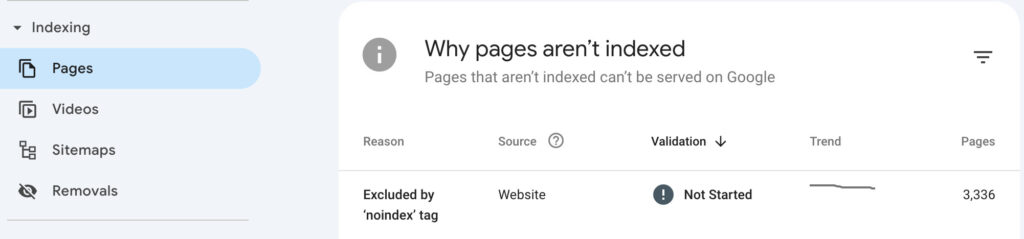
Pay attention to the specific messages you see. These can give you clues about what’s wrong. Look for notes on manual actions, too. Manual actions mean Google has taken steps to limit your site’s visibility. This could possibly be due to policy violations.
Google often provides instructions on how to resolve these issues. Follow them carefully to get your pages indexed. This process ensures your content can reach your intended audience.
2. Request indexing
If your page isn’t showing up on Google, you can request it be indexed. This is a simple way to get Google to take another look at your URL and avoiding URL is not on Google indexing issues.
First, open the URL inspection tool in Google Search Console. Think of it like a magnifying glass for your website to see how Google views your page.
In the search box, enter the URL you want to index.

Then, hit Enter. This should bring up details of how Google views your page.
Once you see the details, click the Request Indexing button. This forces Google to check your page and add it to its search results if everything is in order.

This step is quick and effective. It helps make sure your hard work isn’t going unnoticed by search engines.
3. Ensure URL accessibility
Making sure your URL is accessible is key to getting it indexed. If Google can’t reach your page, it won’t show up in search results. This can cause URL is not on Google indexing issues.
First, verify that your URL is live. Visit the page to see if it loads correctly. Your site should be visible and functioning without issues.

Next, check for any 404 not found errors or other server issues. These errors mean the page can’t be reached, which stops indexing in its tracks.
Fixing these problems quickly ensures that Google can access and index your content.
4. Review and edit robots.txt
The robots.txt file tells search engines which pages they can and can’t visit. If your URL is blocked here, it won’t be indexed, leading to URL is not on Google indexing issues.
First, check your robots.txt file and ensure your URL is mentioned in it. Look for directives that disallow search engines from accessing your page.
If you find a block, update the file to allow indexing. Open the robots.txt file, usually found in the root directory of your site. Remove or adjust any Disallow lines that affect the URL you want indexed.
Once updated, save the changes. This lets Google and other search engines access your page and properly index it.
5. Check your noindex and other tags
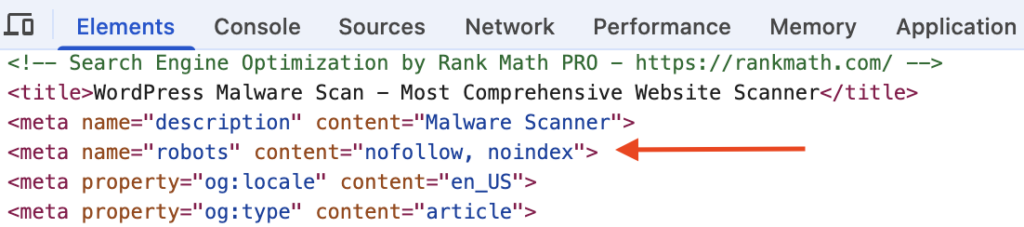
Meta tags in your page’s HTML can control whether your site gets indexed. A noindex tag tells search engines to skip your page, which can cause URL is not on Google indexing issues.
First, inspect the HTML of your page for a noindex meta tag. If you find one, remove it to enable indexing.
Next, check your canonical tags. These tags show the preferred version of a page. Make sure they point to the correct URL.
To do this, look at the HTML for the canonical link element. Verify that the URL listed is the one you want search engines to focus on. Fix any incorrect tags to ensure proper indexing and avoid confusion.

6. Assess sitemap
Your XML sitemap helps search engines find and index your pages. Hence, it is important to ensure that your URL is included. Otherwise, you may face URL is not on Google indexing issues.
First, open your XML sitemap, which is often found at yourdomain.com/sitemap.xml. Scan the list to confirm your URL is present. This inclusion guides search engines to your page.
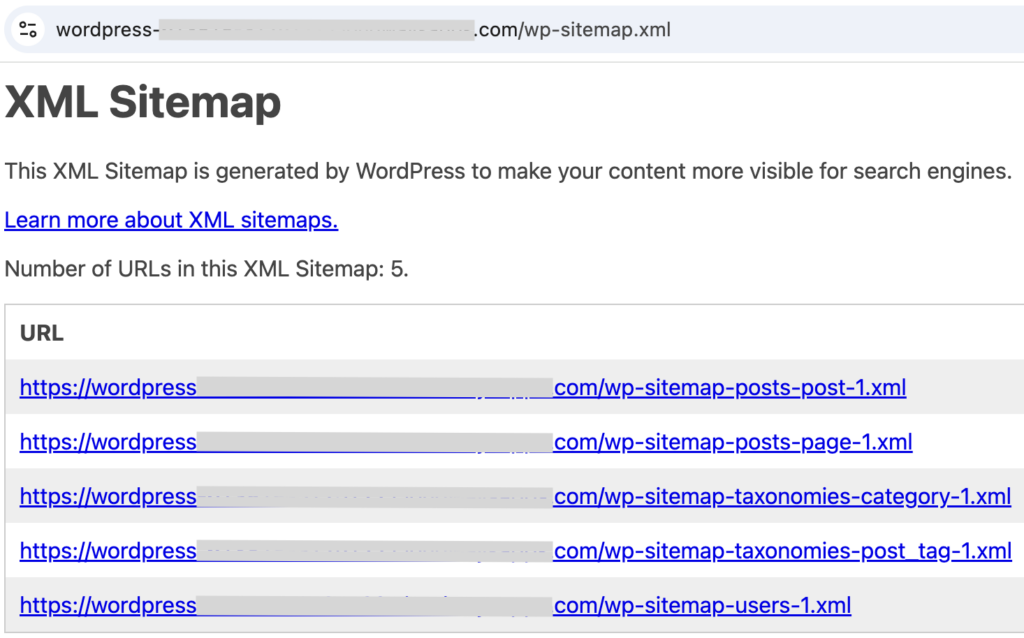
If your URL is missing, edit the sitemap to add it. Once updated, go to Google Search Console.
In the Sitemaps section, resubmit the updated sitemap by entering its URL and clicking Submit. This action helps Google see your changes and index your pages accordingly.

7. Fix security issues
Security issues can hurt your site’s indexing and reputation. Hence, it is important to keep your site safe and secure.
First, verify there are no security issues, such as hacks affecting your URL. Hacked sites can be blacklisted by Google, making them hard to find. This can cause URL is not on Google indexing issues.

Use a WordPress security plugin to scan your site. When selecting a security plugin, ensure that it is reliable and protects your site. If you find any hacks or malware, remove them immediately.
Address any other detected issues quickly. Keeping your site secure helps maintain its visibility and trust with search engines and users.
8. Check server logs
Server logs provide a detailed view of your site’s activity. They can help identify issues affecting your site’s indexing.
First, access your server logs. You can do this either through your hosting provider’s dashboard or a log file management tool. Look for any crawl errors or blocked requests. These might be preventing Google from accessing your site and causing the URL is not on Google indexing issues.

Review entries marked as errors or warnings. These can show specific problems that need fixing. Examples are requests returning a “404 not found” or “503 service unavailable” status.
Address any issues you find to ensure search engines can crawl your site efficiently. Keeping an eye on server logs helps maintain a smooth and accessible site, and prevent URL is not on Google indexing issues.
9. Improve page quality
Improving your page quality can boost indexing and attract more visitors. Quality content is key to making your site valuable.
First, enhance the content quality and relevance. Make sure your information is accurate and well-written. Also, it must address the needs of your audience. Use clear language and engaging visuals to keep readers interested.
Next, ensure your page provides real value to users. Think about what your visitors are looking for and how you can help them. You could either be solving a problem, answering questions, or providing insights. Regardless of which it is, focus on creating helpful and meaningful content.
By improving quality, you make your site more attractive to search engines and users alike. This goes a long way in fixing URL is not on Google indexing issues.
10. Wait and monitor
Patience is a virtue when making changes to improve indexing. Google needs time to re-crawl and potentially index your page.
Allow a few days to weeks for this process to happen. During this time, continue focusing on improving other parts of your site.
Regularly check the status of your URL in Google Search Console. This tool shows if your changes have fixed the URL is not on Google indexing issues.
Common reasons behind URL is not on Google indexing issues
There are many reasons why a URL might not be indexed by Google. Understanding these can help you fix any issues and improve your site’s visibility.
- Crawling issues: Googlebot might not crawl a page due to server errors. If your server is down or slow, Google may skip indexing.
- Blocked by robots.txt: Sometimes, directives in your robots.txt file can block Googlebot from crawling. Ensure your page isn’t mistakenly blocked.
- noindex tags: A
noindexmeta tag tells Google not to index your page. Remove it if you want your page to appear in search results. - Canonicalization: Incorrect canonical tags might make Google think your page is a duplicate. Always point them to the correct URL.
- Poor content quality: Thin or low-quality content is less appealing for indexing. Focus on providing valuable and engaging information.
- Security problems: If your site is affected by malware, Google will not index it. Keep your site secure and free of threats.
- Sitemap exclusion: If your URL isn’t in the sitemap, Google might miss it. Make sure your sitemap includes all important pages.
- Redirect issues: Improper redirects can confuse Google. Ensure your URLs point to the correct destinations.
- Google policy violations: Content violating Google’s guidelines won’t be indexed. This means no spammy or harmful information.
- Indexing limit reached: Some sites might hit Google’s indexing quota. It’s rare, but it can happen for very large sites.
- Recent changes: Changes in site structure or content can affect indexing. Keep an eye on these and adjust as needed.
- Manual action: Google may apply a manual action for policy breaches. This reduces your visibility, so address any flagged issues quickly.
How to prevent URL is not on Google indexing issues?
Preventing URL is not on Google indexing errors means your site remains visible. Here are some steps to keep your URLs indexed on Google:
- Regularly update and audit sitemaps: Ensure your XML sitemaps are current with all important URLs. Submit them to Google Search Console to guide search engines.
- Optimize robots.txt: Review this file regularly to prevent blocking pages that should be indexed. Disallow only that content that isn’t meant to show up in search results.
- Use appropriate meta tags: Avoid
noindextags on pages that should appear in search results. Use them correctly for any hidden content. - Verify and correct canonical tags: Make sure these tags point to the preferred version of a page. This helps avoid duplication issues.
- Improve content quality: Create unique, valuable content that engages users. Regularly update existing content to keep it relevant.
- Track Google Search Console: Regularly check for errors and warnings. If you find any issues, fix them promptly.
- Check for server errors: Regularly check server performance. Fix errors like HTTP 404 or 500 codes to ensure access.
- Ensure mobile-friendliness: Use responsive design for better mobile usability. Mobile-friendly sites rank better and reach more users.
- Enhanced security measures: Security practices such as using a firewall and malware scanner prevent hacks. This, in turn, helps your site maintain a secure status for indexing.
- Manage redirects properly:Use 301 redirects for moved content. Avoid chains and loops to prevent confusion.
- Regular content audits: Identify and resolve duplicate content. Update or remove outdated pages to maintain quality.
- Stay informed about Google updates: Google regularly issues algorithm changes and indexing guidelines. Keep up with them for best results.
Final thoughts
Fixing URL is not on Google indexing issues can seem tricky, but a few simple steps can make a big difference. Regularly check your site with Google Search Console and fix any issues quickly. Keep your content high-quality and relevant. Also, ensure your site’s technical aspects are in order. Small improvements can lead to better visibility and more visitors.
A good security plugin is essential for protecting your site and its data. As we mentioned earlier, search engines do not look kindly at hacked sites.
MalCare is a trustworthy choice to secure your site. It offers a robust malware scanner, one-click malware removal, and a smart firewall. It also provides real-time backups and vulnerability scanning. These features ensure your site is safe without overloading your resources. With MalCare, you can focus on creating great content while keeping your site secure.
FAQs
How do I fix this URL is not indexed by Google indexing?
To fix a URL not indexed by Google, first check the index coverage report in Google Search Console. This report helps you identify any issues. Make sure the URL is live, not blocked by the robots.txt file, and free from noindex tags. Confirm that the page is included in your sitemap and ensure all server errors are fixed. Improve the content quality to add value, and resolve any security problems. Then, request indexing again in Google Search Console and wait for Google to re-crawl the page.
Why is my URL not showing up on Google?
Your URL might not show up on Google for several reasons. It could be blocked by the robots.txt file or have a noindex tag in the HTML. There might be server errors preventing Googlebot from accessing it. It could also be missing from your XML sitemap, or the content might not meet quality standards. Lastly, security issues or improper redirects could be affecting visibility.
How to index a URL in Google?
To index a URL in Google, go to Google Search Console and use the URL Inspection tool. Enter your URL to check its status. If all looks good, click Request Indexing to prompt Google to crawl it. Make sure there are no errors like a noindex tag or server issues on the page. Also, include the URL in your XML sitemap for better indexing.
How to improve Google indexing?
To improve Google indexing, regularly update and submit your XML sitemap. Ensure your site’s robots.txt file isn’t blocking important pages. Use meta tags correctly and keep your content high-quality and relevant. Check Google Search Console for errors, and fix any server issues promptly. Enhance site security and ensure it’s mobile-friendly to boost indexing.