When your website shows a “DNS server not responding” error, it’s a clear signal that something needs to be adjusted. Getting your WordPress DNS settings right is an essential step to ensure your site is online and accessible to visitors.
But trying to fix these settings can feel intimidating, full of technical terms you’re not expected to know. So, we’ve laid out the solution in a simple, step-by-step guide. We’ll show you exactly what to do without the confusing jargon.
You can’t afford to have your site offline. A “DNS server not responding” error is a critical issue that takes your site offline, caused by incorrect nameserver settings, domain configuration, or propagation delays. It could potentially be because of a WordPress hack like DNS hijacking. So, use a security plugin like MalCare.
Why is WordPress DNS not responding?
Knowing why your WordPress DNS configuration is failing will help you fix it quickly and prevent it from happening again.
Here are the most common triggers for this DNS error:
- You Just Switched Hosts: When you move your WordPress site to a new hosting company, you must update your DNS to point your domain to the new server’s location. If you forget, your domain will keep trying to find your site at the old, empty lot.
- Incorrect Initial Setup: During a new WordPress domain setup, it’s easy to mistype a nameserver or miss a step. This is the most common reason a brand new site shows a DNS error.
- Your Domain Expired: If you forget to renew your domain registration, your registrar will take it offline. When this happens, the DNS records are removed, and your site becomes inaccessible.
- You Changed DNS Records Manually: If you were editing your A records, CNAME, or other settings in your DNS zone and made a mistake, you might have inadvertently caused a domain not pointing to WordPress host issue.
How to Fix “DNS Server Not Responding” for Your WordPress Site
Enough theory. Here is a step-by-step checklist to resolve the DNS error and get your site back online. This guide will show you how to update nameservers for WordPress and check other critical settings that might be causing the problem. Start with step one, as it’s the most likely solution.
1. Verify Your Domain’s Nameservers (The Most Common Fix)
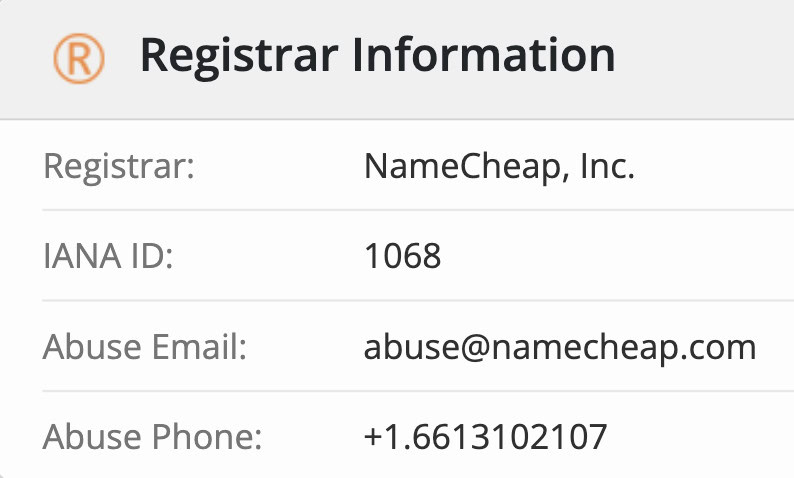
Nine times out of ten, this is the culprit. Nameservers tell your domain registrar which company is managing your site’s DNS settings—in most cases, this should be your web host. You can find your domain registrar by using Whois Domain Lookup.
- Find your host’s nameservers. Your hosting provider gave you at least two nameserver addresses when you signed up. Look for them in your welcome email or find them in your hosting control panel (cPanel, Plesk, etc.), often under a “Domain” or “Account Details” section. They usually look like ns1.yourhost.com and ns2.yourhost.com.
- Log into your domain registrar. This is the company where you purchased your domain name (e.g., GoDaddy, Namecheap, Google Domains), which may be different from your hosting company.
- Update the nameservers. Navigate to your domain management area and look for an option like “Manage DNS,” “Change Nameservers,” or “DNS Management.” Replace the existing nameservers with the ones you got from your web host and save the changes.
2. Check Your A Record (For Advanced Users)
If you are intentionally managing your DNS at a third-party service like Cloudflare or directly at your registrar, your nameservers will be pointed there instead of your host. In this case, you need to ensure your “A” record is correct.
- Find your site’s IP address. Your web host provides a dedicated or shared IP address for your website. You can find this in your hosting control panel, usually on the main dashboard.
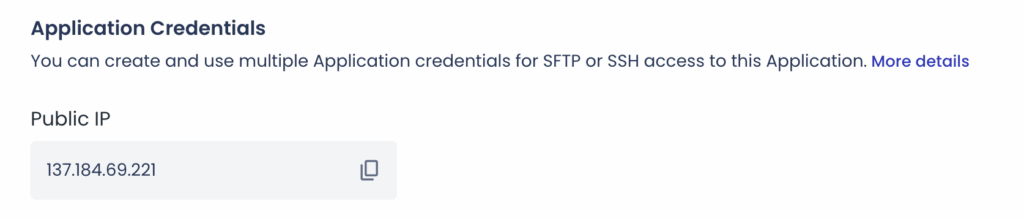
- Update the A Record. In your DNS management panel (at your registrar or Cloudflare), find the A record for your root domain (usually represented by an @ symbol). Make sure the value or “points to” field contains the correct IP address for your web server.
3. Wait for DNS Propagation
DNS changes are not instant. When you update your nameservers or A record, it can take anywhere from a few hours to 48 hours for the change to spread across the globe. This waiting period is called DNS propagation WordPress.
You can check the status of your changes using a tool like whatsmydns.net. Just enter your domain name, and you can see if servers around the world are seeing your new DNS information. If you see green checkmarks with your new IP address or nameservers, you’re on the right track.
4. Clear Your Local DNS Cache (To See Your Changes Faster)
A lot of WordPress errors like this can be cleared by flushing your cache. Sometimes, your own computer will hold on to the old, incorrect DNS information. While you wait for propagation, you can clear your local DNS cache to force your computer to look for the new records. This won’t make your site live for others any faster, but it can help you confirm if your changes are working.
- On Windows: Open Command Prompt as an administrator, type ipconfig /flushdns, and press Enter.
- On macOS: Open Terminal and type sudo dscacheutil -flushcache; sudo killall -HUP mDNSResponder and press Enter.
5. Check for Domain Expiration
It sounds obvious, but it happens to the best of us. Tools like MalCare will help you monitor your domain from the dashboard. They will notify you if you’re approaching an expired domain. Most registrars offer a grace period, but don’t delay. Once renewed, your DNS settings should be restored, though it may take a few hours.
What to Do if DNS Server Not Responding Still?
If you’ve followed every step and your WordPress site not loading error persists after 48 hours, it’s time to call for backup. Don’t spend any more time pulling your hair out; your host and registrar have teams dedicated to solving these exact problems.
- Check for malware: There’s a chance that this could be caused by DNS hijacking or other WordPress hacks. So, use a malware scanner and make sure that your site is clean.
- Contact Your Web Host’s Support. When you choose a good web host, you can look at their server logs and instantly confirm if your domain is correctly pointing to their platform. They can also re-confirm the correct nameservers and IP address you should be using.
- Contact Your Domain Registrar’s Support. If your host confirms everything is correct on their end, the issue may be with your registrar. They can help you troubleshoot nameserver changes that aren’t saving or propagating correctly.
How to Prevent WordPress DNS Server Not Responding?
Fixing a DNS error is a relief, but never having to deal with one in the first place is even better. Preventing issues with your WordPress DNS configuration comes down to good habits and smart choices. A few proactive steps can save you hours of future headaches and downtime.
- Keep Your Domain and Hosting Under One Roof. The easiest way to avoid nameserver mistakes is to register your domain with your web host. When you do this, the host often handles the tricky DNS setup for you automatically. If you’re starting a new site, choosing a host that offers a free domain is a great way to simplify things.
- Enable Auto-Renewal on Your Domain. This is the single most important preventative step you can take. Log into your domain registrar and ensure auto-renewal is turned on. An expired domain means instant downtime, and if you wait too long, you could lose the domain entirely.
- Plan Your DNS Changes. Treat DNS changes like minor surgery. Don’t make them on a Friday afternoon right before you log off. Plan to update nameservers or other records during a low-traffic period, and be prepared to wait for propagation. Know that your site might be inaccessible to some users for a few hours.
- Write It Down. Keep a secure record of your critical information: your domain registrar login, your web host login, your host’s nameservers, and your website’s IP address. Having this information handy will make any future troubleshooting much faster.
Final Thoughts
A “DNS server not responding” error for your WordPress site is almost always a configuration issue between your domain name and your host. By carefully checking your nameservers and allowing time for propagation, you can resolve this and get your site back online.
As a side note, we recommend that you also install MalCare. MalCare’s firewall can help you prevent other DNS issues like DNS hijacking. It’s a great way to protect your site once it’s up and running.
FAQs
Frequently asked questions
For a WordPress site, the fix is usually to log into your domain registrar and ensure your domain’s nameservers are pointing to the ones provided by your web host. After saving, you must wait for DNS propagation, which can take up to 48 hours.
This question has two meanings. To “reset” your website’s DNS, you would log into your DNS provider (either your host or registrar) and update the records (like nameservers or A records) to the correct settings. To reset your personal computer’s DNS cache, you can use the ipconfig /flushdns command on Windows or the equivalent on macOS.
8.8.8.8 is Google’s public DNS server. It is used for your personal internet connection to translate domain names into IP addresses when you browse the web. It has nothing to do with your WordPress site’s DNS configuration and changing your computer’s DNS to 8.8.8.8 will not fix an issue with your website’s nameservers.
If you cannot access your own WordPress site on your mobile phone after making DNS changes, it’s likely because your mobile carrier’s DNS servers haven’t updated yet. The solution is to wait for DNS propagation to complete. You can try switching from cellular data to Wi-Fi (or vice-versa) to see if a different network has the updated records.