I was staring at my WordPress dashboard, trying to publish that blog post. Instead, all I see is: “duplicate entry ‘0’ for key ‘primary’.” The first time I saw this WordPress error, I didn’t understand what’s happening. What does it mean to have a duplicate entry? What is the primary key? How do I fix this?
Then, I did what you’re doing. I looked it up. I gathered all the solutions that forums have. Mixed in some of my own advice, after managing websites for years. I put it all together and this article was born.
The “duplicate entry ‘0’ for key ‘primary’” error happens when WordPress tries to create database records with conflicting ID values. We recommend you create a backup before you start to prevent any more problems.
Understanding the “wordpress database error: [duplicate entry ‘0’ for key ‘primary’]” Error
Let’s breakdown the “wordpress database error: [duplicate entry ‘0’ for key ‘primary’]” error. Think of your WordPress database like a massive filing cabinet in an office. Every piece of content on your website—your blog posts, pages, comments, user accounts—gets stored as a file in this cabinet. Now, to keep everything organized, each file gets a unique ID number, kind of like how every employee in a company gets a unique employee ID badge.
The “primary key” is essentially that unique ID system. Just like you can’t have two employees with the exact same ID number (it would create chaos when trying to find someone), your database can’t have two records with the same primary key. It’s the database’s way of saying “this is record #1, this is record #2, this is record #3,” and so on.
When you see the error “duplicate entry ‘0’ for key ‘primary’,” it’s like the filing system is trying to create a new file but accidentally trying to give it an ID number that already exists—or worse, no ID number at all (which defaults to ‘0’).
What causes this error?
Several situations can trigger this database conflict:
- Theme or plugin conflicts
- Content imports and migrations
- Corrupted database tables
- Manual database modifications
- Server or hosting issues
Step 1: Backup Your Database
Before attempting any fix for the “duplicate entry ‘0’ for key ‘primary’” error, creating a complete database backup isn’t optional—it’s essential. Even the simplest database modification can have unexpected consequences, and right now your site is mostly functional despite this error. A backup ensures you can instantly restore everything if a troubleshooting attempt goes wrong, giving you the confidence to proceed without risking your entire website.

Expert Advice: After testing dozens of backup plugins across various scenarios, MalCare consistently came out on top for reliability and ease of use. Unlike many backup solutions that create bulky, slow backups or fail during critical moments, MalCare creates lightning-fast incremental backups that are stored securely off-site and can be restored with a single click.
Step 2: Identify the Table Causing the Issue
Once your backup is secure, you need to pinpoint exactly which database table is triggering the “duplicate entry ‘0’ for key ‘primary’” error. The error message sometimes includes the specific table name, but if it doesn’t, you’ll need to do some detective work. Check your WordPress error logs (found in your hosting control panel or via FTP in the /wp-content/ directory), plugin error logs, or your hosting provider’s error logs to find the complete error message that identifies the problematic table. Look for phrases like “Table ‘wp_posts’” or “Table ‘wp_options’” in the full error output. This tells you exactly where the conflict is occurring.
Step 3: Set the PRIMARY KEY
The primary key in your WordPress database tables acts as the unique identifier system that keeps everything organized—it’s like giving each piece of content a distinct serial number so WordPress knows exactly which post is post #47 versus post #48. In a healthy WordPress installation, every database table automatically has a primary key set up during installation, typically on an ID column that auto-increments (automatically assigns the next available number) each time new content is added.
The format for these IDs may vary. For example, Cloudways uses “tablename_id” as seen below:
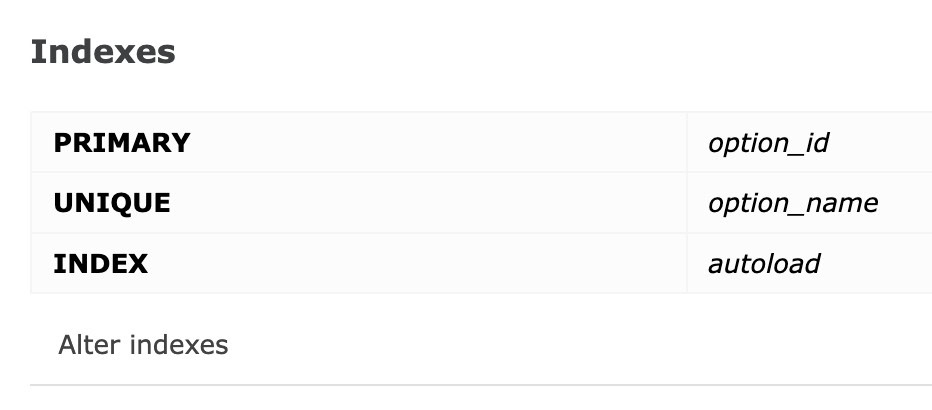
However, this primary key can sometimes get dropped or corrupted.
Here’s how to restore the primary key to your affected table:
- Access your database through phpMyAdmin (found in your hosting control panel under Databases or MySQL Databases).
- Select your WordPress database from the left sidebar and locate the problematic table you identified in Step 2.
- Click on the table name, then select the Structure tab to view the table’s column layout.
- Look for the ID column (usually the first column) and check if it shows Primary in the Key column—if it’s blank, the primary key is missing.
- If the primary key is missing, click the checkbox next to the ID column, then click the Primary button in the toolbar below the column list.
- Ensure the ID column is also set to AUTO_INCREMENT by clicking the edit icon next to it and checking the A_I checkbox, then click Save.
Test your WordPress site to see if the error is resolved by attempting the action that originally triggered the problem.
Step 4: Check for Auto Increment
Auto increment is your database’s automatic numbering system that ensures each new record gets the next available ID number. Think of it like a ticket dispenser at a busy deli that automatically prints the next number in sequence for each customer.
When auto increment is disabled or corrupted, WordPress tries to insert new records with an ID of ‘0’ or conflicts with existing numbers, triggering the duplicate entry error. Setting auto increment ensures your database maintains proper ID sequencing and eliminates conflicts by always assigning fresh, unique numbers.
Much like the previous step, this step may vary depending on the webhost that you use.

Here’s how to enable auto increment on your problematic table:
- In phpMyAdmin, navigate to your WordPress database and click on the affected table you identified earlier.
- Click the Structure tab to view the table’s column configuration.
- Locate the ID column (typically the first column) and click the edit icon (pencil symbol) next to it.
- In the column editing interface, scroll down and check the A_I (Auto Increment) checkbox if it’s unchecked.
- Click Save to apply the changes to the column structure.
- Go to the Operations tab for additional auto increment settings if needed.
- In the Table options section, you can manually set the AUTO_INCREMENT value to a number higher than your current highest ID (check the “Browse” tab to see your highest existing ID number and add 1 to it).
- Click Go to save the auto increment settings, then test your WordPress site to verify the error is resolved.
Step 5: Review Incorrect Inserts
Incorrect inserts occur when WordPress or a plugin attempts to add data to your database with explicitly specified ID values instead of letting the auto increment system handle ID assignment automatically.
This commonly happens during content imports, plugin installations, or when migrating data from another source that tries to preserve original ID numbers from the source system. For example, if you’re importing blog posts from another platform and the import tool tries to insert a post with ID #5, but your WordPress database already has a post with ID #5, you’ll get the duplicate entry conflict. Similarly, some poorly coded plugins might hardcode ID values or reset ID sequences incorrectly, forcing WordPress to attempt inserting records with ‘0’ or duplicate IDs.
The solution involves identifying and cleaning up these problematic insert attempts. First, check if you recently ran any imports, installed new plugins, or restored from backups, as these are the most common culprits. Look through your recent plugin installations and deactivate any that were added around the time the error started appearing—if the error disappears, you’ve found your problematic plugin. For import-related issues, you may need to clear out partially imported data and re-run the import process with proper ID handling, or manually adjust the conflicting records.
Step 6: Check Custom Code
Custom code in your WordPress site—whether it’s in your theme’s functions.php file, custom plugins you’ve developed, or code snippets you’ve added—can often cause the duplicate entry error by attempting to insert database records with hardcoded ID values or improperly structured queries. This is particularly common when developers write custom functions to create posts, users, or other database entries without properly utilizing WordPress’s built-in functions that handle ID assignment automatically. For instance, if you have custom code that tries to insert a post with a specific ID number using direct SQL queries instead of wp_insert_post(), or if you’re running custom database operations that don’t respect the auto increment system, you’ll likely encounter this primary key conflict.
Review any recent custom code additions, especially those that interact with the database directly through $wpdb queries or raw SQL statements. Look for INSERT statements that specify ID values explicitly, custom functions that create database records without using WordPress APIs, or any code that manipulates primary keys directly. If you find suspicious custom code, temporarily comment it out or remove it to see if the error resolves, then rewrite it using proper WordPress functions like wp_insert_post(), wp_insert_user(), or wp_insert_comment() that handle ID assignment safely and automatically.
Step 7: Check for Plugin Conflicts
Plugin conflictsare one of the most frequent causes of the duplicate entry error, especially when plugins attempt to create database records during activation, updates, or normal operation without properly checking for existing data. This typically happens with plugins that manage user registrations, create custom post types, handle imports, or modify database structures—they might try to insert records with predetermined IDs or conflict with other plugins that have already claimed certain database entries. The problem often emerges right after installing a new plugin, updating an existing one, or when two plugins that perform similar functions clash over database resources.
To identify plugin conflicts, start by deactivating all your plugins and checking if the error disappears when you attempt the action that originally triggered it. If the error is gone, reactivate your plugins one by one, testing after each activation until the error returns—this isolates the problematic plugin. Pay special attention to recently installed or updated plugins, membership plugins, SEO plugins that create database entries, backup plugins, security plugins, and any custom or lesser-known plugins that might not follow WordPress coding standards.
Step 8: Switch to Default Theme
WordPress themes can trigger the duplicate entry error when they contain custom functions that interact with the database improperly. The error is triggered when you install a new theme or have a failed theme update.
To test for failed theme updates, temporarily switch to a default WordPress theme like Twenty Twenty-Four and attempt the action that triggered your error.
If the error disappears with the default theme, the problem lies within your custom theme’s code. Check your theme’s functions.php file for any custom database operations, review recent theme updates or customizations, and look for any theme-specific plugins or add-ons that might be causing the conflict.
Consider reaching

out to your theme developer for support or temporarily disabling problematic theme features until a proper fix can be implemented.RetryClaude can make mistakes. Please double-check responses.
Step 9: Consult Your Hosting Provider
If you’ve exhausted all the previous troubleshooting steps and the duplicate entry error persists, it’s time to reach out to your hosting provider’s technical support team. Server-level issues, database configuration problems, or hosting environment limitations can sometimes cause persistent primary key conflicts that can’t be resolved through standard WordPress troubleshooting. Your hosting provider has access to server logs, database error logs, and system-level diagnostics that aren’t available to you through the WordPress dashboard or phpMyAdmin.
Preventing the “wordpress database error: [duplicate entry ‘0’ for key ‘primary’]” Error
Prevention is always better than cure when it comes to database errors, and there are several proactive steps you can take to avoid encountering the “duplicate entry ‘0’ for key ‘primary’” error in the future. By implementing these preventive measures, you’ll maintain a healthy database structure that can handle new content and plugin installations without conflicts.
Auto-Increment Primary Key:
Always ensure that your primary key columns are set to auto-increment, which allows the database to automatically assign unique, sequential values without any manual intervention. This prevents conflicts because the system will never try to reuse an existing ID number—it simply takes the highest existing ID and adds one to it for each new record. Without auto-increment, WordPress or plugins might default to inserting ‘0’ values, which creates immediate conflicts since zero isn’t a valid unique identifier.
Check for Defaults:
Verify that your database tables don’t have default values of ‘0’ set for primary key columns, as this forces the system to attempt inserting zero values when no ID is explicitly provided. Primary keys should either have no default value (allowing auto-increment to handle assignment) or be set to auto-increment themselves. A default of ‘0’ essentially guarantees duplicate entry errors because every new record without a specified ID will try to use the same zero value.
Review Insert Statements:
Regularly audit any custom code in your themes or plugins to ensure they’re not manually setting primary key values, especially to ‘0’ or other hardcoded numbers. Custom insert statements should omit the primary key field entirely, letting the database’s auto-increment system handle ID assignment automatically. Manual ID assignment often leads to conflicts when the specified ID already exists or when multiple operations try to use the same predetermined value.
Check Plugins and Themes:
Maintain a cautious approach when installing new plugins or themes by testing them in a staging environment first, as poorly developed extensions often cause database conflicts through improper insert operations. Before adding new functionality to your live site, verify that plugins follow WordPress coding standards and use proper database functions rather than raw SQL queries. This prevents conflicts before they occur and saves you from troubleshooting database errors on your production website.
Data Integrity:
Regularly inspect your database tables using tools like phpMyAdmin to identify and clean up any existing records with problematic primary key values like ‘0’ or duplicates. These “ghost” records can cause confusion during future insert operations, even if they’re not currently causing visible errors. Maintaining clean data integrity ensures that your database’s numbering system remains consistent and conflict-free as your site grows.
Review Database and Table Structure:
Periodically examine your database structure to ensure there are no conflicting constraints, missing indexes, or misconfigured table settings that could trigger primary key conflicts during normal operations. A well-structured database with proper constraints and indexes not only prevents errors but also improves your site’s performance by ensuring efficient data retrieval and storage operations.
Final Thoughts
The “duplicate entry ‘0’ for key ‘primary’” error is a solvable problem that stems from database management issues like missing primary keys. The key to resolving it lies in methodical troubleshooting, starting with simple solutions and working through more advanced fixes until you identify the root cause.
Having a reliable backup system like MalCare transforms what could be a site-breaking crisis into a manageable inconvenience. With MalCare’s automated backups, you could restore your site within minutes while troubleshooting at your own pace. Even better, MalCare’s staging environment will let you test problematic plugins or updates safely before they caused database conflicts on your live site—preventing the error entirely rather than scrambling to fix it after the fact.
FAQs
The “duplicate entry ‘0’ for key ‘primary'” error occurs when WordPress tries to insert a new record into your database with a primary key value that already exists or defaults to zero. Think of it like trying to assign the same employee ID number to two different people—the database rejects it because primary keys must be unique identifiers. This typically happens when the auto-increment feature is disabled, when plugins insert records with hardcoded IDs, or when database corruption causes the primary key system to malfunction and default to ‘0’ instead of generating unique numbers.
Fix this error by first backing up your database, then identifying which table is causing the problem through your error logs. Check if the problematic table has a properly set primary key and ensure auto-increment is enabled on the ID column. If the primary key or auto-increment is missing, restore it through phpMyAdmin by selecting the ID column and setting it as primary with auto-increment enabled. Additionally, deactivate recently installed plugins to check for conflicts, review any custom code that might be inserting records with predetermined IDs, and clean up any existing records with ‘0’ or duplicate primary key values.
While you can technically use MySQL’s INSERT IGNORE or ON DUPLICATE KEY UPDATE statements to bypass duplicate entry errors, this is not recommended for WordPress sites as it masks underlying problems rather than solving them. Ignoring these errors can lead to data corruption, missing content, or broken functionality since WordPress expects every record to have a unique, valid primary key. Instead of ignoring the error, it’s better to fix the root cause by properly configuring primary keys, enabling auto-increment, and ensuring your plugins and themes follow proper database practices.
The MySQL error code for duplicate primary key entries is 1062, which corresponds to the ER_DUP_ENTRY error. When this occurs, MySQL returns the full error message “Duplicate entry ‘[value]’ for key ‘PRIMARY'” along with error code 1062. In WordPress, you’ll typically see this displayed as a database error message rather than the raw MySQL error code, but server logs and detailed error reporting will show the 1062 code, helping hosting providers and developers quickly identify that it’s specifically a primary key duplication issue rather than other types of database errors.RetryClaude can make mistakes. Please double-check responses.