You open a link expecting a normal page, but a username-and-password box appears instead.
That can feel like a WordPress failure, but often nothing is wrong with your site. HTTP Basic Authentication is a simple server-level gate that asks for credentials before showing a protected staging site, private preview, folder, or file.
This guide explains the prompt, how Basic Authentication works, when it helps, and why it differs from WordPress login security. You will know whether it fits and how to use it with HTTPS.
TL;DR: HTTP Basic Authentication adds a username and password prompt for protected pages, files, or staging sites. Use it over HTTPS and pair it with the WordPress security controls your site actually needs. It provides limited protection and should not replace WordPress accounts or full site security.
If you are facing that prompt now, your confusion is reasonable: the gate may come from your host or server, not WordPress. Start by identifying the resource it protects.
What is HTTP Basic Authentication?
HTTP Basic Authentication asks for a username and password before a server returns a protected page, file, directory, or API response.
The popup is not a WordPress login screen. A web server, reverse proxy, CDN, or hosting service usually sends it before WordPress renders the page, even when your WordPress login works normally.
Basic describes simple machinery, not modern account security. It is useful because it is widely supported and easy to place before a small resource.
The short rule: Use Basic Auth as a gate over HTTPS. Do not use it instead of WordPress accounts, roles, MFA, or a session system.
How does the browser authentication flow work?
For a private staging link, the browser and server take this path before the page appears:
- You request a protected resource. Your browser asks for a page, file, directory, image, or API endpoint.
- The server sends a challenge. It returns 401 Unauthorized, meaning credentials are required, and usually includes a WWW-Authenticate: Basic challenge with a realm label.
- Your browser shows the popup. You enter a username and password.
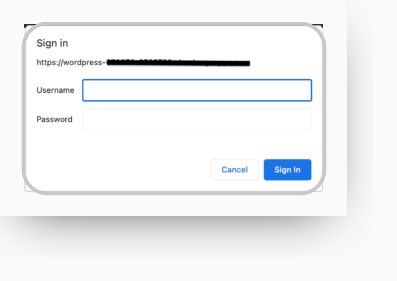
- The browser sends the credentials. It joins the username, a colon, and the password, then Base64-encodes that value in an Authorization: Basic request header.
- The server makes the access decision. It returns the resource when the credentials are accepted, or sends another challenge when they are missing or rejected.
Base64 is reversible encoding, not encryption. Anyone who obtains the authorization value can decode it. HTTPS protects that value while it travels between your browser and the server. Without HTTPS, Basic Auth can expose the credential in transit.
The colon separates the username from the password, so a username cannot contain that separator in the usual Basic Auth value. Use a server-supported username and a unique password.
That exchange does not create a normal WordPress session cookie, which is a browser-held record that keeps a user signed in. The client sends the credentials with requests instead of receiving an application-managed session. The protocol has no built-in logout message or server-controlled session expiry, and a browser may cache the credentials, so closing a tab is not a reliable way to revoke access.
Is HTTP Basic Authentication secure enough?
It can be secure enough for a limited barrier over HTTPS. You also need a strong, unique credential, a narrow scope, safe server-side storage, and a way to remove access when the job ends.
HTTPS solves one problem: it protects the request in transit. It does not fix a weak or reused password, a shared credential, or a rule that exposes too much of your site. A server-side password file does not make a credential sent over plain HTTP private. Basic Auth is a reasonable fit for:
- a staging or development site;
- a private preview for a small team or client;
- an internal directory, report, or file;
- a small API or an older service with known surrounding controls.
It is a poor fit for customer accounts, sensitive application data, or services needing per-user roles, multifactor authentication (MFA, requiring more than one proof of identity), activity records, expiry, revocation, or real logout. Use WordPress sessions, an identity system, or a scoped token design instead.
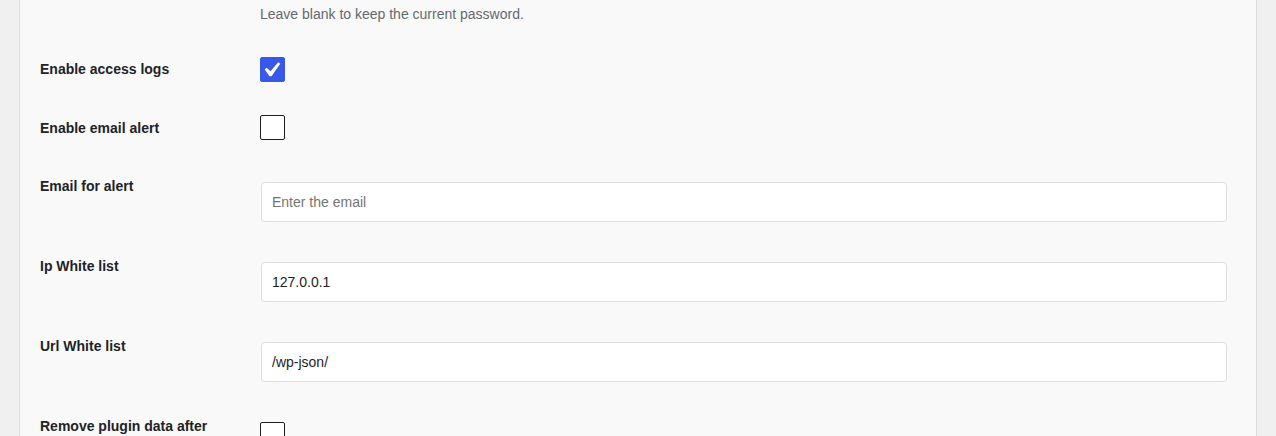
Some tools add operational controls such as access logs, email alerts, IP allowlists, and URL allowlists. Those are features around Basic Auth, not part of the protocol itself.
What should you protect?
Protect the smallest useful scope. A whole-site rule can block images, scripts, webhooks, XML-RPC and other APIs, deployment tools, uptime monitors, and search crawlers. A directory or file rule is less likely to break your workflow.

Before you turn on the gate, answer these questions:
- Is every request using HTTPS, including redirects and proxy connections that pass through another server?
- Does the rule cover the whole site, one directory, one file, or one API path?
- Which people or systems need access?
- Can you create a unique credential for this resource?
- Where will you recover the site if the rule locks you out?
- When will you remove or rotate a temporary credential?
Write down the removal date. Temporary staging access often becomes permanent simply because nobody returns to remove it.
Why should you avoid credentials in a URL?
Do not use a URL such as https://username:password@example.com/ to set up Basic Auth. A browser or client may strip or reject it, and an accepted URL can expose the secret in browser history, server logs, monitoring tools, screenshots, copied messages, or support tickets.
Use the browser prompt, server configuration, your host’s control panel, or a properly configured API client instead. Never put a real password in an example, screenshot, ticket, chat message, or shell-history command.

How do you protect a WordPress site with Apache?
Apache commonly applies Basic Auth through an .htaccess rules file and a server-side .htpasswd file. The latter stores password verifiers, which let the server check a password without storing the original. Make sure you have a recovery path before editing .htaccess safely; if your host manages Apache, ask support to apply the rule at the server or staging layer.
Create the password file
Create the password file only when it does not already exist. The -c option creates a new file. Leave it out when adding another user to an existing file.
htpasswd -c /home/example/.htpasswd staging-userThe command should ask for the password instead of placing it in the command itself. To add another user later, use:
htpasswd /home/example/.htpasswd reviewerThe path /home/example/.htpasswd is only a placeholder. Use the real absolute path supplied by your host. Keep the file outside the public web root, the folder visitors can request directly, when possible, and check that it cannot be downloaded.
Protect the site or directory
For a full-site gate, a root, or top-level .htaccess file can contain this pattern. For a staging site, this is the moment to pause and confirm that you really want every request to pass through the gate: 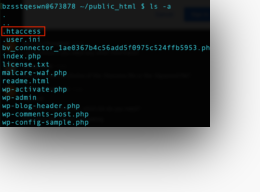
AuthType Basic
AuthName "Staging site"
AuthUserFile /home/example/.htpasswd
Require valid-user
AuthName labels the protected area, AuthUserFile points to the password file, and Require valid-user allows any user in that file with a valid password.
For a smaller scope, put the pattern in the directory’s .htaccess file. To protect one file, use a file rule in the applicable directory:
<Files "private-report.pdf">
    AuthType Basic
    AuthName "Private report"
    AuthUserFile /home/example/.htpasswd
    Require valid-user
</Files>
These are Apache patterns, not a universal WordPress recipe. If your host uses NGINX, do not paste Apache directives, meaning configuration instructions, into its configuration. The wrong syntax can cause a configuration error or a 500 Internal Server Error, which means the server could not use its current configuration to answer the request.
Before you save: Keep a recovery route open. A root rule can lock you out of the whole site, while a bad path or unsupported directive can make the server return a 500 error.
Can NGINX or a managed WordPress host use Basic Auth?
Yes, but the rule belongs to NGINX, a reverse proxy, a CDN, or your host’s staging service rather than WordPress. NGINX uses different directives. A location-level example for one URL path looks like this:
location /staging/ {
    auth_basic "Staging site";
    auth_basic_user_file /etc/nginx/.htpasswd;
}
The location, password-file path, and reload process belong to the host’s NGINX setup. A managed provider may give you a staging-password setting instead. Configure the layer that actually returns the 401 response. Without server access, ask your host where it supports Basic Auth and whether it can limit the rule to the staging or preview path.
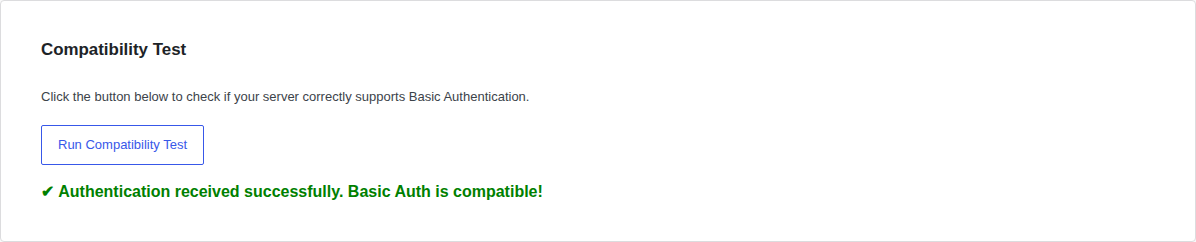
The compatibility check below is a tool-specific confirmation that the server received Basic Auth. It is not an NGINX configuration screen or a replacement for checking the layer that returns the challenge.
Basic Auth or WordPress password protection?
Choose the protection layer based on what you are trying to keep private:
| Your need | Better fit | Why |
|---|---|---|
| Hide a staging site or directory before WordPress runs | Server or proxy Basic Auth | The gate covers the resource at the server layer. |
| Share one private post, page, or product | Restrict page access to logged-in users | The protection belongs to that content item. |
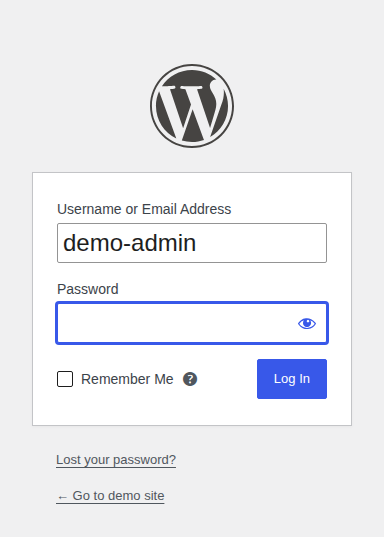
| Give people accounts, roles, 2FA plugins, or restricted admin access | WordPress login and sessions, or an identity system | Each person can have separate permissions and revocation. |
| Let an application call a service | A scoped token or session design | Access can be limited and revoked for that application. |
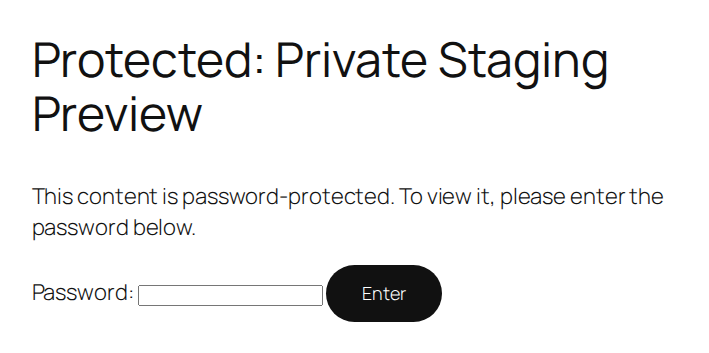
WordPress’s native content password feature is for selected content. A server rule can block a whole site, directory, or file before WordPress loads. A content password is not a staging gate, and Basic Auth is not account management.
How do you test and troubleshoot it?
Test the exact URL over HTTPS in a private window, also called incognito or private browsing mode. Use a temporary credential, check the page and its assets, and confirm that deployment tools, webhooks, APIs, and uptime checks still work. Then remove or rotate it.
If the popup keeps returning, check the username, password, realm, password-file path, and file permissions. A missing user, unreadable file, incorrect AuthUserFile path, or cached credential can cause repeated prompts. A reverse proxy or host panel may issue the challenge, so the file you edited may not control access.
The response code you see helps narrow the problem:
For comparison, a failed WordPress content-password attempt stays inside the page’s application flow rather than showing the server-level 401 challenge:
- 401 Unauthorized: The resource requires authentication, and the credentials are missing or not accepted. The server normally sends another WWW-Authenticate challenge.
- 403 Forbidden: The request is not permitted. Another permission or access rule may deny it after authentication. The exact behavior depends on the server and application.
- 500 Internal Server Error: The configuration may contain invalid syntax, an unsupported directive, a bad path, or a rule the host does not allow in that location.
If an .htaccess change causes a 500 error or locks you out, restore the last known-good file using your host’s recovery method. Then ask support to validate the rule. Also check proxy and HTTPS behavior: the layer that challenges the browser may not be the layer you edited.

How does Basic Auth fit into WordPress security?
Basic Auth answers one question: who can reach this protected resource? It does not patch WordPress, detect malware, provide backups, or manage WordPress accounts.
Once you have chosen the right scope and set up the gate, you can add other WordPress security controls for other risks. MalCare can complement Basic Auth with a WordPress-focused firewall that blocks unwanted traffic, brute-force protection that limits login attempts, malware scanning that looks for malicious code, and cleanup that removes it. MalCare does not create the Apache or NGINX browser prompt, and it does not turn Basic Auth into a WordPress login system.
An authentication tool may also record failed requests for review. That kind of log can help you investigate access attempts, but it is separate from malware scanning and from WordPress account security.

Conclusion
HTTP Basic Authentication is useful when you need a simple gate in front of a known resource. Its limits are just as important: it does not encrypt credentials by itself, manage WordPress users, or replace broader security controls.
Use HTTPS, a unique credential, a protected server-side password file, the smallest practical scope, and a recovery plan. If you need customer identity, roles, MFA, sessions, or individual revocation, choose a proper login or token system instead.