
Seeing repeated WordPress failed login attempts can be alarming. The activity may come from a real user entering the wrong password, but repeated attempts are often automated bots testing common or leaked credentials. The entries show that login attempts failed, not that an attacker got into the site.
TL;DR Failed login attempts usually show probing or incorrect credentials, not a confirmed hack. Check for successful logins and unexpected changes first. Then use strong passwords and 2FA for accounts, rate limiting for repeated guesses, and a maintained security plugin or host firewall; WordPress 2FA plugins can add the second factor.
What failed login attempts mean
A failed login is a request that WordPress rejected because the username, password, or both were wrong. A few attempts may come from someone who forgot a password. A burst from different addresses or attempts that continue around the clock is more consistent with a brute-force attack, an automated effort to guess many combinations.
Some bots use credential stuffing, trying usernames and passwords exposed in an unrelated data breach. Others test common usernames such as admin. That entry does not prove that an administrator account with that name exists because anyone can submit it. Attempts against an existing username deserve closer review because they may target that account.
WordPress itself does not normally provide a configurable login-attempt limit or automatic IP-address lockout. A security plugin, host, traffic-filtering service, or managed platform usually adds those controls. That is why one layer may record failed logins while another displays “Too Many Failed Login Attempts. Please Try Again.”
Note: A lockout message shows that a protection layer stopped the login. Check your security plugin, host, or traffic-filtering dashboard before changing files or settings.
Check whether a login succeeded
The number of failed attempts is a warning signal, not a verdict. Check that period and look for:
- successful logins, including the username, time, and network address when available;
- new users, unfamiliar administrators, or changed user roles;
- password-reset messages or account changes nobody requested;
- changes to plugins, themes, settings, scheduled tasks, or security controls;
- unexpected edits to posts, pages, menus, widgets, media, or files.
An activity log records time-stamped site actions. Then review your WordPress activity log with login records instead of looking only at failed requests. A firewall log can show which traffic was blocked, challenged, or allowed. The useful evidence is the sequence of events: a rejected login, a successful login, a new account, or a change made soon afterward.
If you find an unfamiliar successful login or unexplained site change, treat it as a possible compromise rather than only a login-volume problem. From a trusted device, reset affected passwords, enable 2FA, remove unknown users, revoke active sessions where possible, and preserve the logs. Scan the site with a WordPress malware scanner plugin, then clean it or get specialist help to clean a hacked WordPress site if you find evidence of compromise.
If all relevant entries are failed and there are no unexplained account or site changes, the evidence points to probing rather than a confirmed takeover. Improve the login controls and keep monitoring. Do not treat a quiet log as proof that the site is clean.
How to stop repeated login attempts
Use layered protection. Passwords protect accounts, login limits slow guesses, and a firewall or bot filter reduces unwanted traffic. Each control solves a different part of the problem.
Use strong, unique passwords and 2FA
Give every user a long, unique password. Do not reuse a password or use a site name, person’s name, common phrase, or predictable variation. Change any reused password everywhere because an exposed credential can be tried against WordPress automatically.
Enable two-factor authentication for administrators first as part of your WordPress login security. It requires a second proof of identity after the password, such as a code from an authenticator app. A guessed or leaked password is less useful without that second proof.
These steps protect accounts after a login reaches WordPress, but do not stop bots from sending requests. Add traffic controls when attempts are frequent or consume server resources.
Add rate limiting or login protection
Use a maintained security plugin, host control, or traffic-filtering service that supports rate limiting, which restricts failed attempts during a set period. Check its retry count, counting window, lockout duration, invalid-username, and password-reset settings. Forgot-password forms need attention too: bots can flood reset emails or discover which usernames or addresses exist.
There is no threshold that fits every site. A strict rule can lock out people who mistype a username, share a network, use a VPN, or work on a test site. Login limits reduce guesses, but do not stop every request or a distributed attack that rotates addresses.
Note: Set the threshold against normal login behavior, not just the size of the attack. A shared office or VPN can make several legitimate users appear to come from one address.
Put a firewall or bot filter in front of the login
A firewall screens web requests before they reach WordPress; use a WordPress firewall when automated traffic creates noise, slows the site, or consumes server resources. Filtering traffic before it reaches the server is more useful under heavy attack than relying only on a plugin that runs after WordPress starts processing the request.
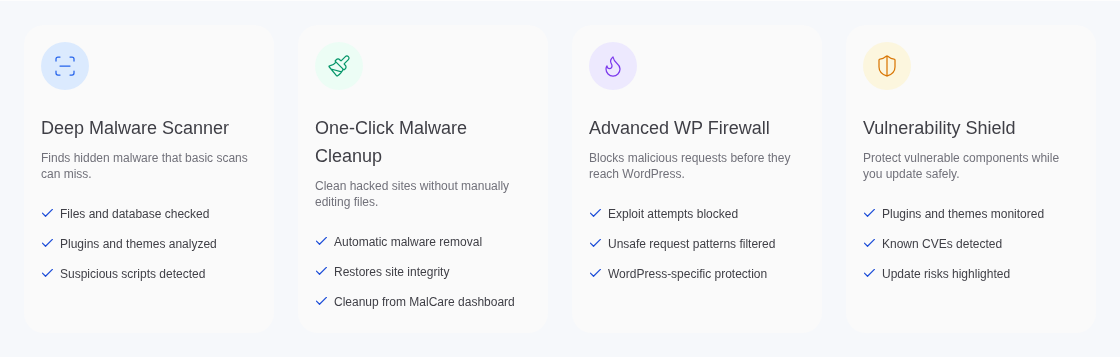
MalCare combines login protection with firewall and bot protection. Its activity log records logins and site changes, while firewall logs record filtered traffic. It does not guarantee that every attempt will be blocked or that a site cannot be compromised.
Check the real client address before blocking
Manual IP address blocking denies traffic from one internet address, but attackers can rotate through many addresses. It can also block legitimate visitors who share an office, VPN, or network.
If the site uses Cloudflare or another reverse proxy, a service that receives traffic before your server, confirm that WordPress and the security tool identify the visitor’s original address. Otherwise, logs may show the proxy’s address, and blocking it can affect real traffic. Fix logging first, then use IP rules as one part of a broader policy.
Note: Do not block a Cloudflare or proxy address just because it appears in a log. One address can represent many real visitors.
Disable XML-RPC only when it is not needed
XML-RPC, an interface that lets apps and services communicate with WordPress, supports remote publishing, the WordPress mobile app, pingbacks, trackbacks, and integrations. It can also be abused for login attempts.
If no service needs it, disabling XML-RPC can remove one attack path. It will not stop attempts against the normal WordPress login page and may break a feature your team uses. Confirm the dependencies before disabling it; otherwise, protect and limit it instead.
Note: Test remote publishing, the WordPress mobile app, and connected integrations before disabling XML-RPC on a production site. Restore it if a required workflow stops working.
Use CAPTCHA as an extra layer
A CAPTCHA is a challenge intended to separate people from automated tools. It can slow basic bots, but adds friction and is not a complete defense. Use it alongside login limits, 2FA, and firewall protection when the benefit outweighs the added step.
Do not rely on a hidden login URL
Changing the login URL may reduce background noise, but it is obscurity rather than security. It does not replace unique passwords, 2FA, login limits, firewall protection, or monitoring. It can create an access problem if the address is forgotten or its plugin fails.
Keep useful alerts and reduce noise carefully
Turning off email notifications does not stop requests or protect the login. Keep alerts for successful administrator logins, new users, role changes, password resets, and lockouts. Reduce repetitive notifications only after logs remain available for investigation.
How to fix “Too Many Failed Login Attempts. Please Try Again.”
This message usually comes from a security plugin, host, traffic filter, or managed platform rather than WordPress core. Identify the layer that issued the lockout before changing files or deleting anything. A plugin lockout can be cleared in its panel, while a host or proxy lockout must be cleared there.
If you still have dashboard access
Open the security or hosting panel that recorded the lockout. Review the log, clear the WordPress login lockout for the affected user or address, and check its retry count, time window, lockout duration, and invalid-username setting. If you cannot identify the panel, ask the host before changing the site.
Then change the password for the affected account, enable 2FA, check successful logins and site changes, and confirm that the policy will not block legitimate users. Keep a recovery method documented.
If the dashboard is completely unavailable
Use the host’s File Manager or an FTP client to manage and rename site files. Do not delete the security plugin.
- Open the site files: Open the main site folder and then wp-content/plugins/. The location may differ on a managed host.
- Find the controlling plugin: Identify the plugin enforcing the lockout. Ask the host or check its recovery instructions if you are unsure.
- Temporarily rename its folder: Add a temporary suffix such as -disabled to the plugin folder name. Do not delete the plugin.
- Test the WordPress login: Try to log in again. Renaming the folder normally prevents WordPress from loading that plugin.
- Secure the account after access returns: Change the password, enable 2FA, and review users, roles, successful logins, and site changes.
- Restore the plugin and settings: Return the folder to its original name, reconfigure the lockout, and document the recovery path.
If the lockout comes from the host or traffic filter, renaming a plugin will not clear it. Contact the host instead. Avoid direct database edits as a first step because storage names differ between plugins and an incorrect change can cause downtime.
What to do after the traffic slows down
A quieter log does not prove that the site is clean. Remove temporary recovery changes, update WordPress, themes, and plugins, test backups, and review administrator accounts and permissions. Keep enough activity-log history to compare a future burst with later changes. If the burst was followed by a successful login or unexplained change, continue with compromise response.
Conclusion
WordPress failed login attempts are common, but they should not be ignored. They usually indicate probing or incorrect credentials, not a confirmed breach. Check the surrounding activity first so you know whether you are dealing with background bot traffic, a locked-out user, or signs of successful access.
Once that distinction is clear, use layered controls that fit your site: unique passwords, 2FA, login limits, firewall and bot protection, careful IP handling, and useful logs. This reduces automated guessing without making legitimate users collateral damage.