If a scanner reports no HSTS header after you moved WordPress to HTTPS, you need to know what HSTS changes before you enable it. The safe approach is to confirm that HTTPS works across your site and that the HTTP-to-HTTPS redirect reaches the right host, add a short policy, and extend it only after the public responses remain healthy.
TL;DR: HSTS tells browsers to use HTTPS for future visits, but it does not issue a certificate or repair broken HTTPS.
Start with a short max-age, check the real responses, and use a WordPress security maintenance checklist before extending includeSubDomains and preload until every affected hostname is ready.
What HSTS does in WordPress
HSTS is the Strict-Transport-Security response header and one of the WordPress security headers. A response header is an instruction sent by a web server with a page or other response. HSTS tells a browser to treat a domain as HTTPS-only for the period set by max-age.
After the browser receives the policy over HTTPS, it changes future HTTP requests to HTTPS before sending them. This reduces downgrade attacks, where someone tries to keep a visitor on an unencrypted connection. It also stops the browser from offering a normal way around a certificate error for that domain.
HSTS is not a WordPress core setting. The CDN, a service that delivers site responses, a managed host, a web server, or WordPress code may send it. Choose one layer as the owner. Multiple HSTS rules can create duplicate or conflicting headers.
HSTS is also different from an HTTPS certificate. The certificate lets the browser trust the encrypted connection. HSTS tells the browser to keep using HTTPS. Browsers accept HSTS only from an HTTPS response, and the policy changes later requests rather than the response that carries it.
The header has three controls:
- max-age sets how long, in seconds, the browser remembers the HTTPS-only rule. Five minutes is 300 seconds. One week is 604800 seconds.
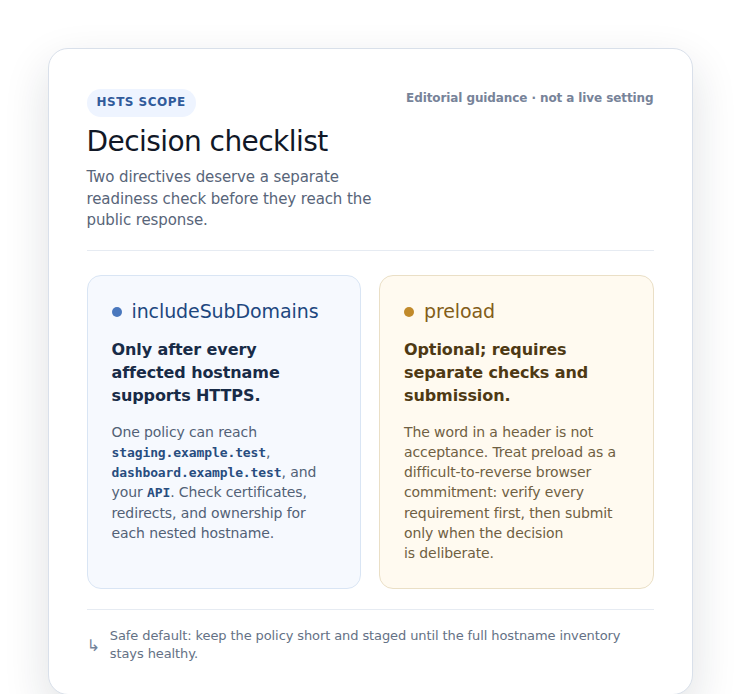
- includeSubDomains extends the rule to nested subdomains, including staging sites, dashboards, APIs, mail services, and forgotten hostnames.
- preload signals that you may request inclusion in browser preload lists. Adding the word does not add the domain automatically.
HSTS applies to a domain across its ports. When it upgrades a normal HTTP request, port 80 becomes HTTPS on port 443. An explicitly supplied nonstandard port stays unchanged, so that port must also support HTTPS.
Check HTTPS before adding HSTS
Complete this WordPress security maintenance checklist before editing a server file or enabling a plugin setting:
- Confirm each public hostname works over HTTPS: Check the main domain, the chosen www or non-www address, login, admin area, forms, previews, APIs, and important assets.
- Follow the same-host HTTP redirect: Open the HTTP address and make sure it reaches the HTTPS version of the same host without a loop or unexpected domain change.
- List every subdomain and outside service: Include staging sites, internal tools, dashboards, webhooks, which are automated requests from another service, payment systems, and integrations managed by another team.
- Back up the current configuration: Save a copy and know how to restore it before changing .htaccess, Nginx, a CDN, a host setting, or a plugin. Use a WordPress security checklist to keep the broader maintenance steps documented.
- Find the current response owner: Check whether the CDN, managed host, web server, plugin, or WordPress code already sends HSTS.
An HTTP-to-HTTPS redirect and HSTS do different jobs. A first-time visitor may still need the redirect. The HSTS header must arrive in the HTTPS response that follows, because browsers ignore it when it is sent over HTTP.
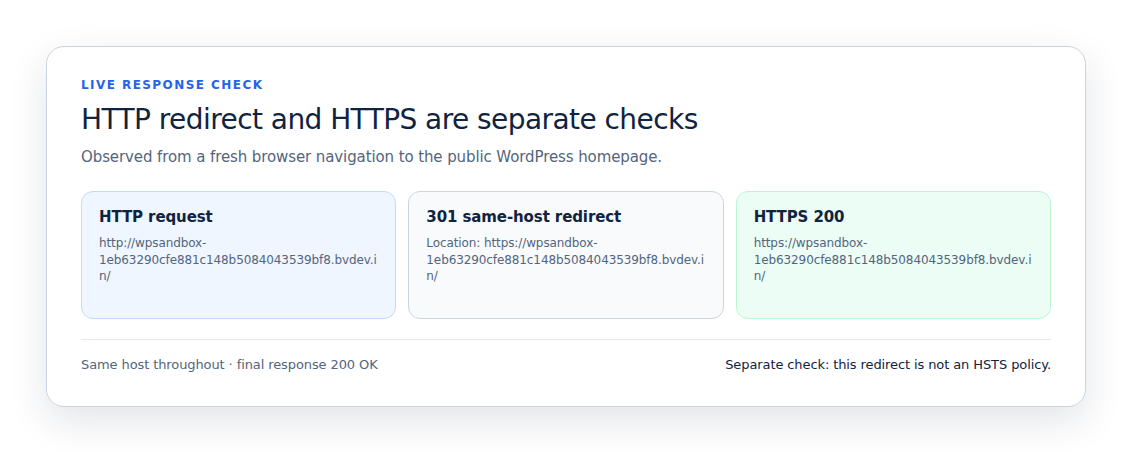
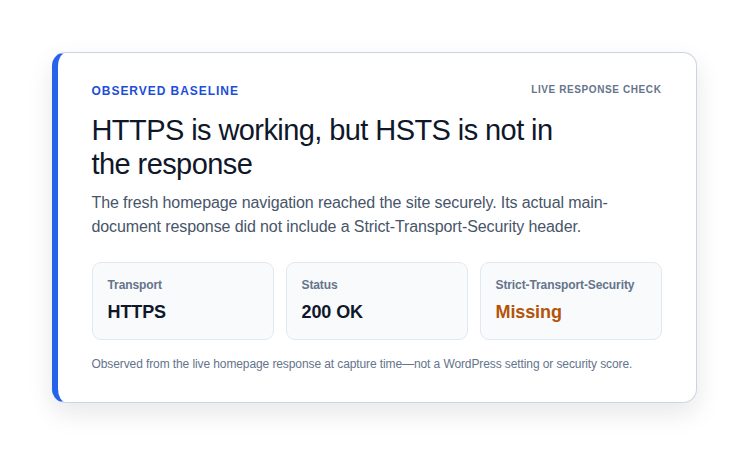
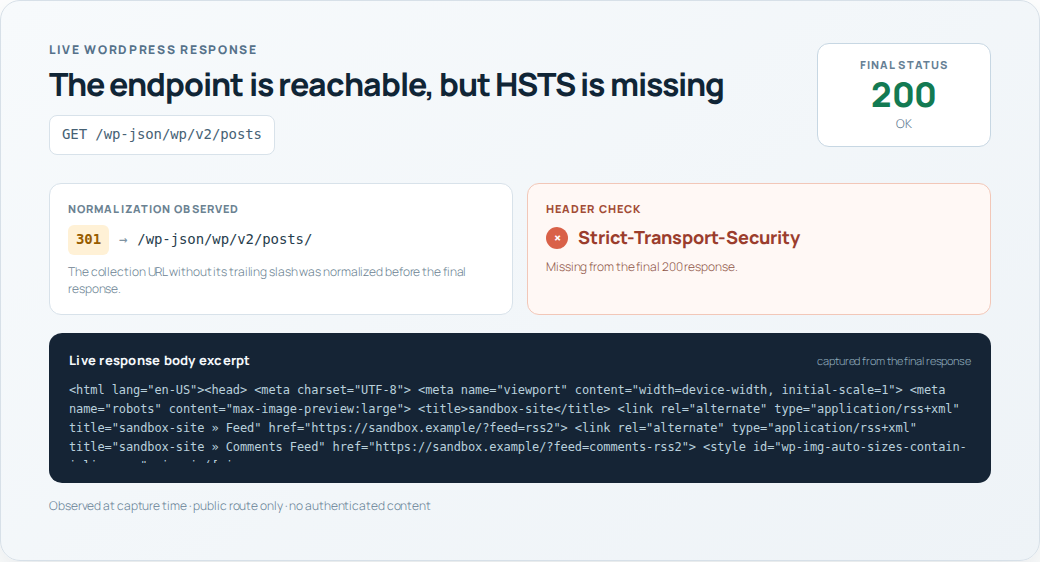
That difference appeared in a live check of a fresh WordPress 6.9.4 site. The HTTPS homepage returned 200 OK without HSTS, while the HTTP homepage returned a same-host 301 redirect to HTTPS. A WordPress API request first redirected to add a missing trailing slash, then returned 200 OK without HSTS. Working redirects did not prove that HSTS was enabled.
Choose one place to add the header
Use a CDN or managed host setting
Choose the CDN or managed WordPress host when it handles HTTPS or serves cached pages. It may send the response before WordPress runs. Ask whether the setting covers redirects and error responses, whether another layer already sends HSTS, and how to clear the cache after a change.
Add HSTS with Apache
Apache can add the header through mod_headers, its feature for changing response headers. Back up .htaccess first, and do not edit WordPress’s generated rewrite rules.
For the first rollout, use a short policy in the HTTPS server configuration or the .htaccess location supported by your host:
<IfModule mod_headers.c>
    Header always set Strict-Transport-Security "max-age=300"
</IfModule>
The always option helps include more response types. The host’s configuration still decides the final result. If Apache already sends HSTS elsewhere, this rule can create duplicates. If your host blocks mod_headers or you cannot restore .htaccess, ask the host to apply the setting.
You can edit .htaccess with an FTP client, which is an app for moving files, a hosting panel’s File Manager, or SSH, which is a secure command-line connection. The file is often hidden, so turn on hidden-file viewing before you look for it.
Add HSTS with Nginx
Nginx uses the add_header setting in its site configuration. Depending on the host, it belongs in the http, server, or location section:
add_header Strict-Transport-Security "max-age=300" always;The always option adds the header regardless of the response code. Nginx settings can be inherited or replaced in a nested section, so inspect the public response after reloading. A managed host may require its support team to make the change.
Use a plugin or WordPress code as a fallback
A current WordPress security plugin that explicitly supports HSTS can help when you have no server or CDN access. Check its current documentation because screens and coverage change. A plugin runs inside WordPress and may miss static files, cached responses, redirects, or errors served before WordPress loads.
If you use a WordPress code snippet, make it run only for HTTPS requests:
add_action('send_headers', function () {
    if (is_ssl()) {
        header('Strict-Transport-Security: max-age=300');
    }
});
This fallback is less complete than a server or CDN rule. Confirm that WordPress recognizes HTTPS correctly behind a proxy, which is a service between the visitor and your web server. Do not use it beside another HSTS rule unless the public response contains one deliberate value.
Roll out HSTS in stages
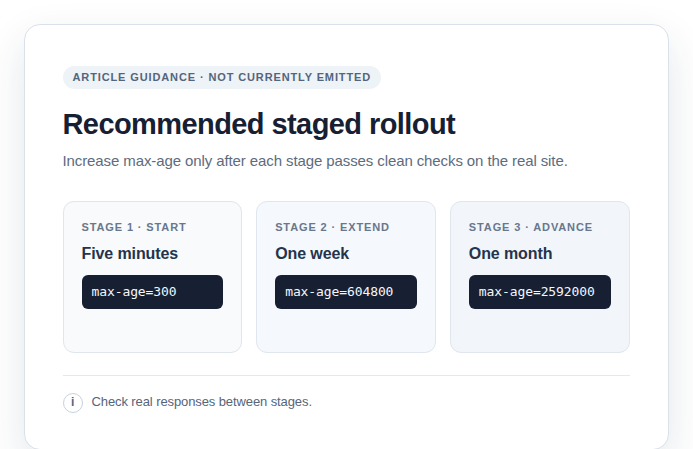
The official HSTS Preload service recommends increasing max-age in stages and checking site metrics and broken pages at each stage. This staged approach is useful even when you do not plan to preload the domain.
-
Begin with a five-minute policy:
Strict-Transport-Security: max-age=300Test the homepage, login, admin area, forms, APIs, webhooks, assets, redirects, and a real error page.
-
Extend it to one week after clean checks:
Strict-Transport-Security: max-age=604800Check traffic, form or checkout submissions, API calls, certificates, integrations, and the subdomains you intend to cover. Wait through the full policy period before moving on.
-
Move to one month only after stable traffic:
Strict-Transport-Security: max-age=2592000Consider a year only when every required hostname works over HTTPS and your team can maintain that setup. A long policy makes a bad configuration last longer in browsers that already learned it.
🧪 Note: In the live WordPress check, a deliberately missing route returned a fallback 200 OK instead of a normal 404. That result cannot prove error-response coverage. Test a real 404 and other error responses on your own hosting stack.
Verify what visitors receive
Check the public response, not only what WordPress shows in its dashboard. You can use the browser’s Network panel or a command-line checker such as:
curl -I https://example.com/
curl -I -L http://example.com/
The first command checks the final HTTPS response. The second follows the HTTP redirect chain. Then complete these checks:
- Confirm one complete HSTS value: Find the full Strict-Transport-Security header.
- Remove competing values: Check the CDN, host, server, plugin, and WordPress code for other HSTS rules.
- Match the scanner’s target: Test the same hostname, port, and redirect path that the scanner used.
- Inspect redirects and errors: Check the HTTP redirect, final HTTPS page, a representative subdomain, and a real error response.
- Purge the correct cache: Clear the CDN or page cache after changing the rule, then test from outside the site.
A “no HSTS header” warning may come from a different redirect, port, cache, maintenance page, or host. Compare the scanner’s target with the response visitors actually receive before adding another rule.
Add includeSubDomains only when ready
Use this directive only after every affected subdomain has reliable HTTPS and a valid certificate:
Strict-Transport-Security: max-age=2592000; includeSubDomainsThis includes services outside WordPress. The directive does not create HTTPS or repair a certificate. It tells browsers to require HTTPS for those subdomains, so one forgotten staging site or internal tool can become inaccessible.
Treat preload as optional
Ordinary HSTS works without preload. The official preload service says the extra protection is limited compared with HSTS and recommends that preloading remain opt-in rather than a default setting.
Preload requires a valid certificate, a same-host HTTP-to-HTTPS redirect, HTTPS on every subdomain, and an HTTPS HSTS response with at least one year of max-age, includeSubDomains, and preload. You must also submit the domain and receive acceptance. Adding preload to the header alone does not complete that process.
Preload is difficult to undo. Removal can take months to reach browsers, so treat it as a long-term decision. Do not request it until every affected hostname is ready and the staged rollout has stayed stable.
Fix common HSTS problems
The header is still missing
Inspect the final HTTPS response. Confirm which layer owns HSTS, check that Apache or Nginx loaded the rule, purge caches, and remove competing settings. Page source will not show response headers.
The site becomes inaccessible
HSTS does not repair an expired or mismatched certificate. Restore valid HTTPS first. If the browser can still reach the site securely and the domain is not preloaded, send max-age=0 over HTTPS to clear that browser’s stored policy. Removing the header alone does not clear policies already stored by visitors.
A subdomain stops working
Test its HTTPS certificate and check whether the problem began after includeSubDomains was added. Remove that directive from future responses after you have a recovery plan. It can remain active in browsers until the stored policy expires.
Mixed-content warnings appear
HSTS does not fix a mixed content warning or rewrite HTTP addresses inside pages, styles, scripts, database content, or third-party embeds. Change those addresses to HTTPS and test the affected pages.
Redirects loop or an integration fails
Check which layer handles HTTPS and which layer creates the redirect. A proxy can make a secure visitor request look like HTTP to your web server. www rules and mismatched server names can cause the same loop. Also confirm that webhooks, payment callbacks, APIs, and embedded services support HTTPS. HSTS cannot make an HTTP-only service support it.
Use HSTS with broader protection
HSTS protects the browser-to-site connection. It is one layer of WordPress security headers. It does not find malware, block malicious traffic, fix vulnerable WordPress plugins or themes, replace backups, or secure weak administrator accounts. It also does not guarantee better rankings or faster pages.
Keep WordPress, plugins, and themes updated. Use strong passwords and two-factor authentication, limit user permissions, maintain tested backups, and use a security plugin for broader protection through WordPress security practices. The MalCare firewall and malware protection can complement HSTS with malware scanning, monitoring, and cleanup. It does not configure HTTPS or certificates, and it does not replace secure code or response-header checks.
Conclusion
HSTS is useful when your WordPress site already works reliably over HTTPS. Start with a short max-age, inspect the public responses, and increase the policy only after the site, integrations, and required hostnames remain stable. Add includeSubDomains and preload only when their separate requirements are clear.
The goal is a dependable HTTPS setup, not the longest header or the highest scanner score. Pair HSTS with WordPress hardening, updates, tested WordPress backups, and access controls so your site is protected during the connection and inside the application.
For a recurring routine, follow a WordPress maintenance checklist.