If you are setting up a new WordPress site or hardening an existing one, WordPress user enumeration is a way for someone to discover a valid user or author identifier without logging in. A scanner warning deserves attention, but it does not prove a breach. Check the author, REST, and login paths, then close only the exposure your site does not need and strengthen every account.
TL;DR
Check author routes, public data responses, and login messages on a site you own or are allowed to test. An exposed identifier is a weakness worth fixing, not proof that an attacker got in.
Use a security plugin such as MalCare for firewall, bot, and login protection. Close unnecessary author or data routes, then use unique passwords, multi-factor authentication, and backups.
What WordPress user enumeration reveals
WordPress user enumeration is finding a valid user or author identifier without logging in. The detail may appear on an author page, in an author URL, in a display name, in a URL slug, in a WordPress REST API response, or in a login message. The REST API is the set of web routes that lets WordPress share data with editors, apps, and other services. A URL slug is the readable name used in a link.
Common disclosure paths include:
- author archives or numbered author requests
- the public REST API users route
- different login messages for unknown and known usernames
These details are not always the private login name. A display name is what visitors see, while a login name is used to sign in. Public clues can still help an attacker focus password guessing, credential stuffing, or phishing. Credential stuffing means trying username and password pairs stolen from another service.
Enumeration reveals no password and does not prove account takeover. Risk rises with reused passwords, missing multi-factor authentication, or accounts with more access than needed.
🔐 Note: Do not treat every public name as a defect. Reduce predictable disclosure where it is unnecessary, and protect the account when authorship must remain public.
Where WordPress can reveal user details
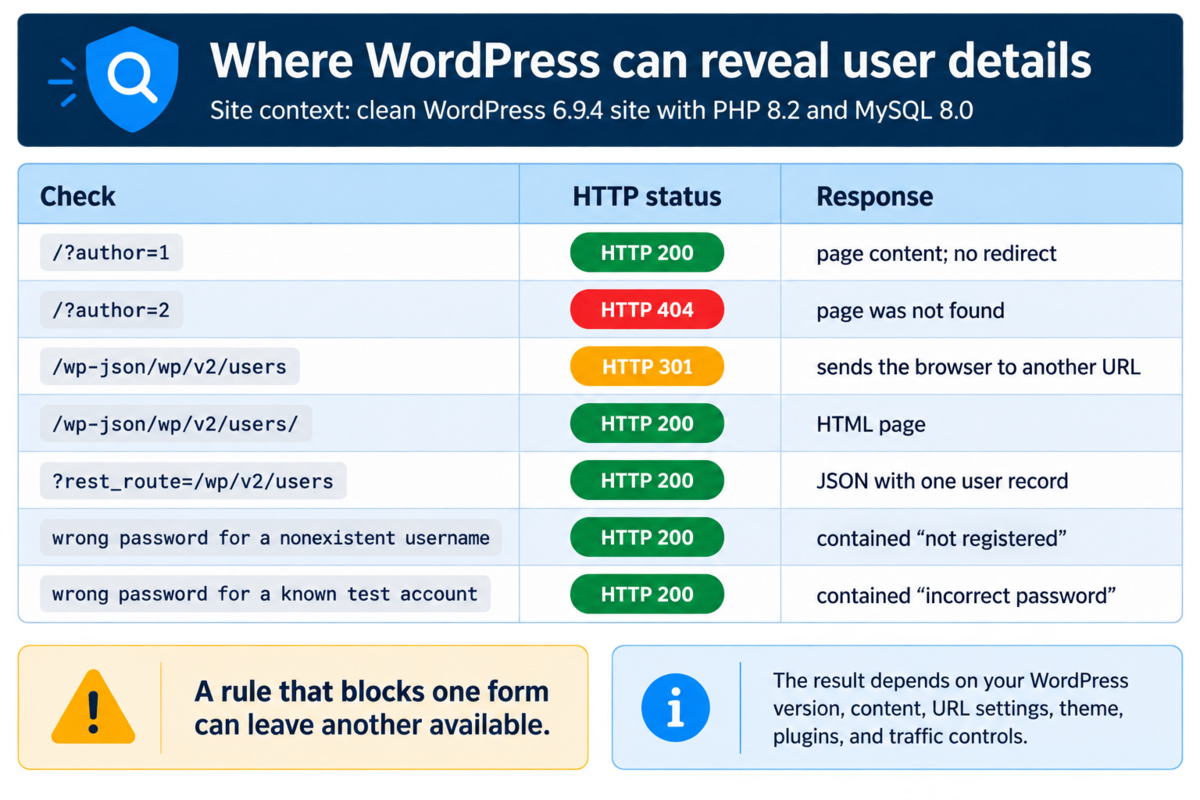
The result depends on your WordPress version, content, URL settings, theme, plugins, and traffic controls. Check the site instead of treating a scanner label as a final diagnosis.
Author pages and author requests
An author archive is a page that lists posts by one author. It can help a publication with several writers, but a small business site may not need it.
Some sites respond to /?author=1 by showing an author page or sending the browser to an author URL. That URL may reveal a public author slug. It does not always expose the private login name, but it can provide a useful identity clue.
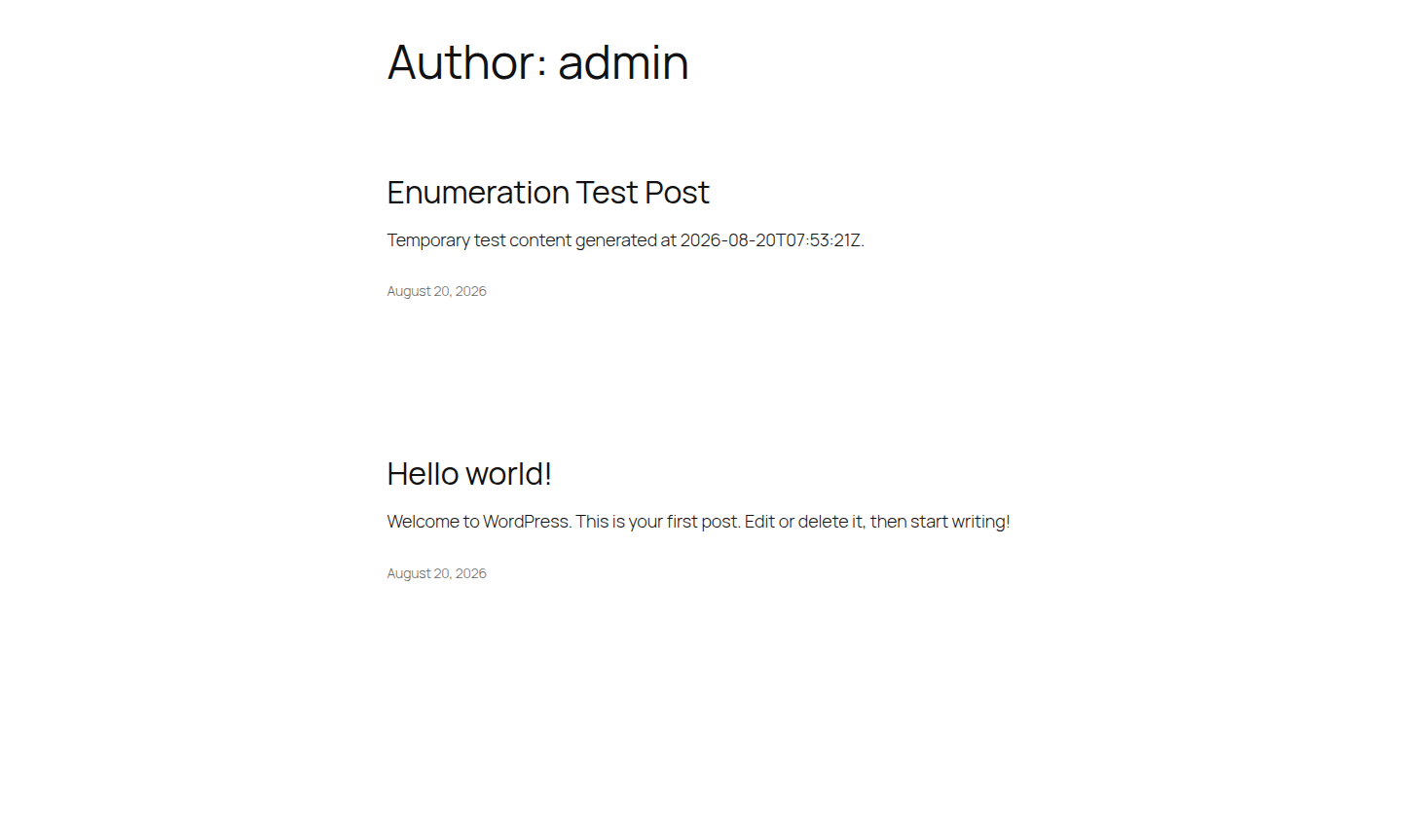
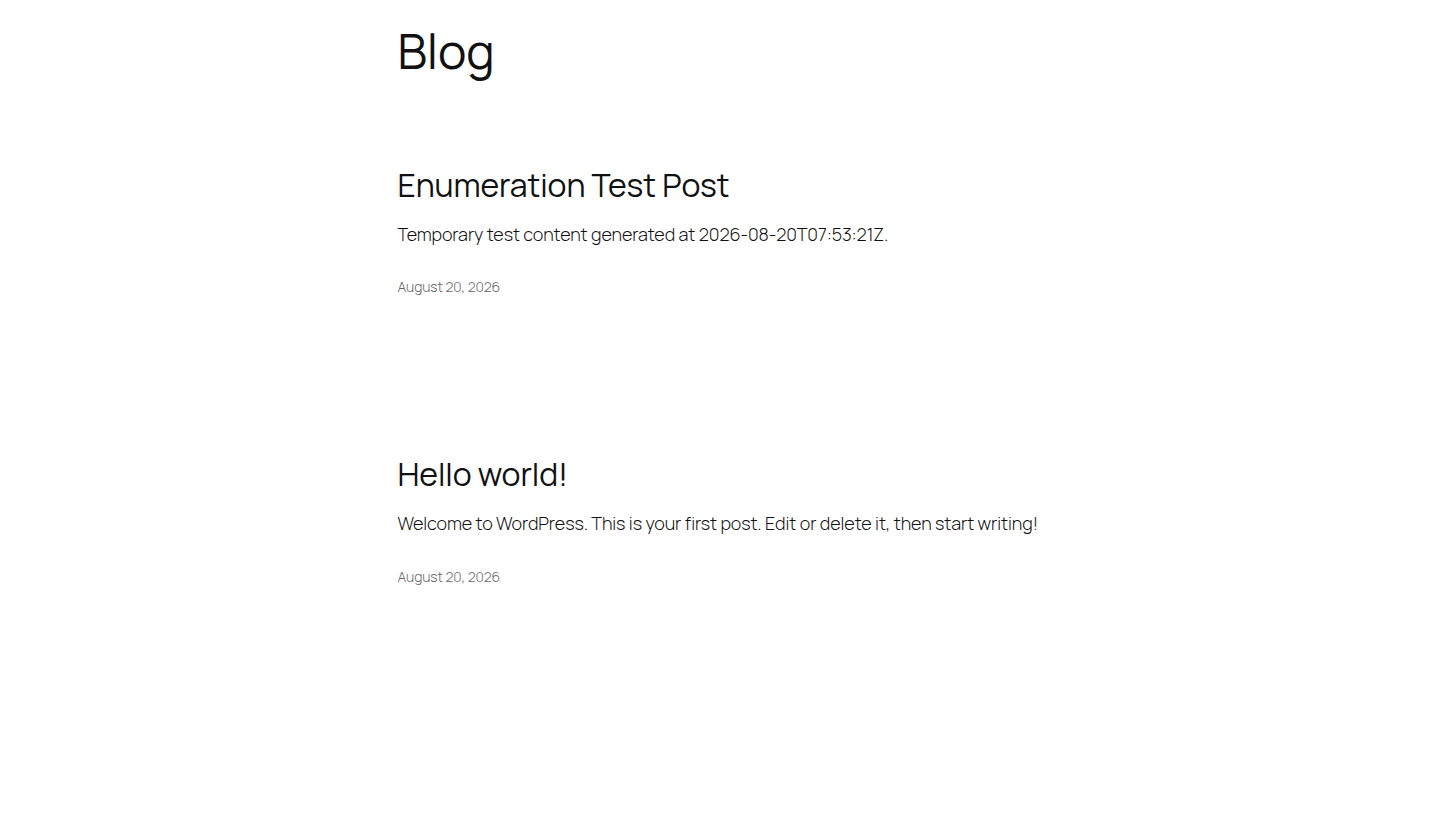
In our baseline test on a clean WordPress 6.9.4 site with PHP 8.2 and MySQL 8.0, /?author=1 returned page content with status 200, meaning the page loaded, and no redirect. /?author=2 returned status 404, meaning the page was not found. This difference shows why the check must run on your site.
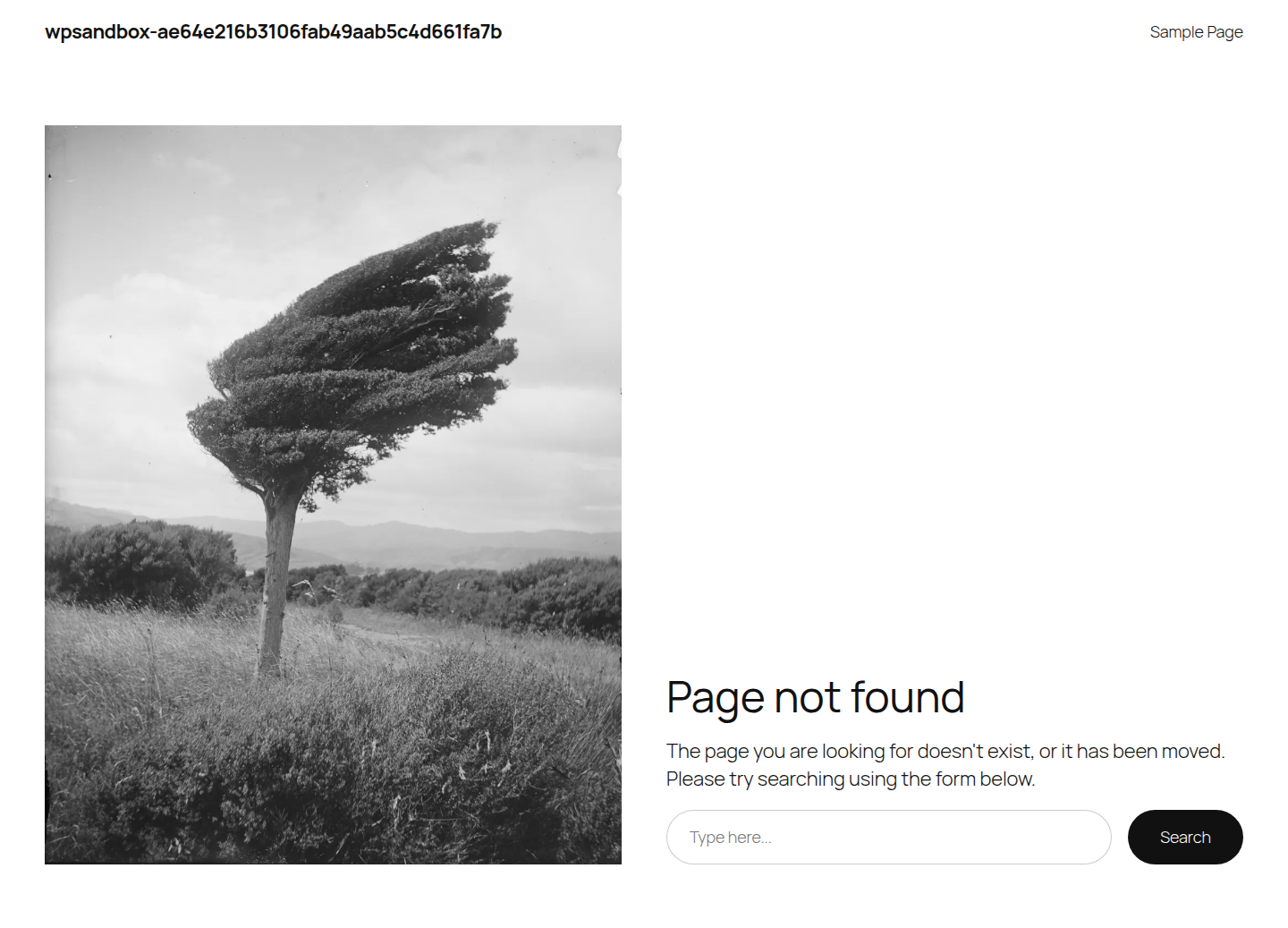
🧭 Note: Check more than one author number. A 404 for one ID can reflect missing content, not protection for every author route.
REST API user responses
The REST API lets the block editor, the visual editor used to build pages, mobile apps, publishing tools, and plugins exchange data with WordPress. Its public users route can return a display name, slug, author link, avatar, description, or user number.
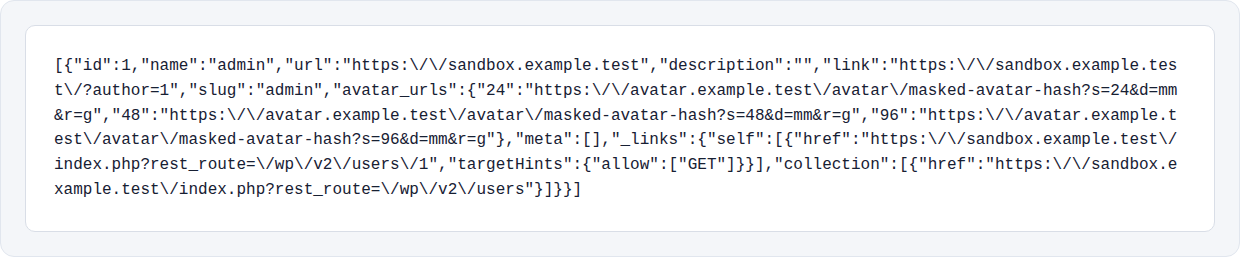
Those fields are public identity data, not automatically the login name. Inspect what your site returns before blocking the whole API. WordPress keeps the login name out of the public view of its user records, but a public author slug can still help an attacker.
Equivalent-looking URLs may also behave differently. In the same test, /wp-json/wp/v2/users returned status 301, which sends the browser to another URL. The trailing-slash form returned status 200 with an HTML page, while ?rest_route=/wp/v2/users returned status 200 with JSON, a structured data format, and one user record. A rule that blocks one form can leave another available.
⚙️ Note: Read the response body, not only the status code. In the baseline test, equivalent routes returned 301, HTML, and JSON.
Login error messages
The login form can reveal whether a username exists when it uses different messages for different failures. A message such as “not registered” points to a missing account, while “incorrect password” suggests that the account exists.
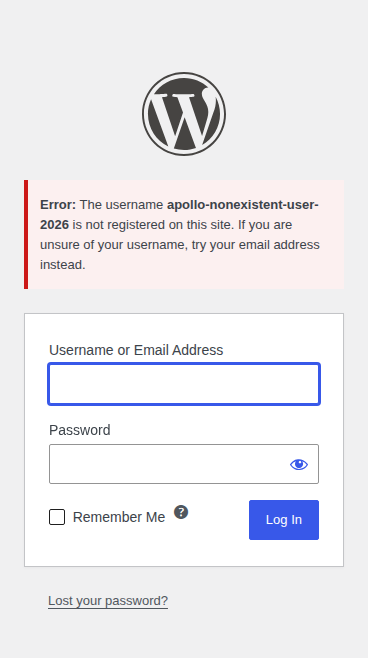
We tested one wrong password for a nonexistent username and one for a known test account. Both responses returned status 200, but the first contained “not registered” and the second contained “incorrect password.” That difference exposed username validity before a password was guessed.
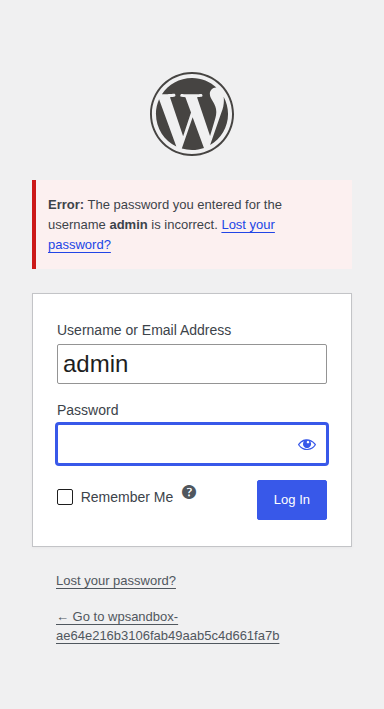
🧪 Note: Compare response wording as well as status. Both baseline login failures returned 200; the username signal appeared in the text.
Other public identity paths
Posts, feeds, comments, author links, avatar services, and plugin-created profile fields can identify the same person. Reduce login-name exposure without removing authorship that readers need.
How to check your site safely
Only test a site you own or are authorized to assess. Use a private copy for changes when possible. The checks below confirm the issue without creating password-testing traffic.
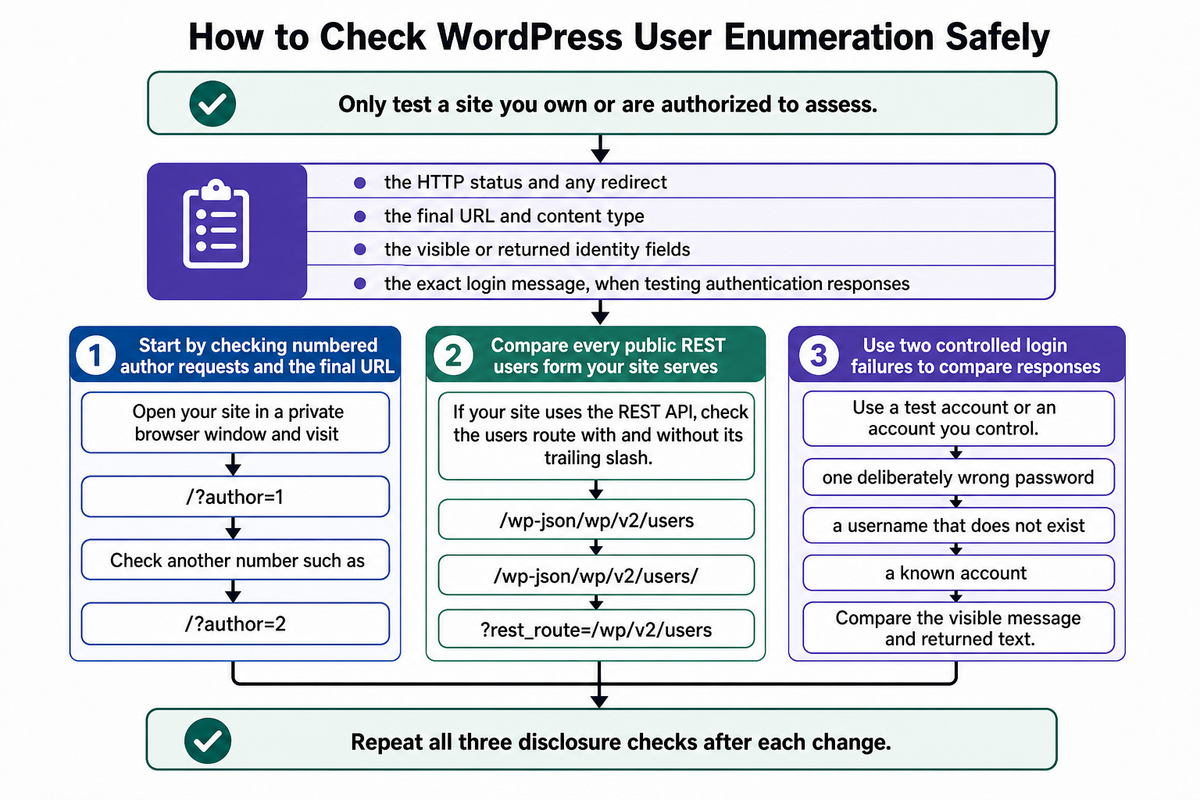
For each check, record:
- the HTTP status and any redirect
- the final URL and content type
- the visible or returned identity fields
- the exact login message, when testing authentication responses
Start by checking numbered author requests and the final URL
Open your site in a private browser window and visit /?author=1. Record whether it shows a page, returns an error, or redirects to another address. Check another number such as /?author=2.
Compare the final URL, page title, visible author name, page source, and status. One 404 does not prove that every number is protected, and one 200 does not prove that a private login name was exposed.
Compare every public REST users form your site serves
If your site uses the REST API, check the users route with and without its trailing slash. Also check ?rest_route=/wp/v2/users, which puts the route after the question mark, when your site supports that form.
Record the status, any redirect, final URL, content type, and returned fields. Check whether the result contains a display name, slug, author link, or field your site does not need to publish.
Use two controlled login failures to compare responses
Use a test account or an account you control. Submit one deliberately wrong password for a username that does not exist and one for a known account. Do not repeat requests quickly. Compare the visible message and returned text.
If the messages differ, the login process provides a username-validity signal. A generic message closes this path, but it does not make repeated login attempts safe. Keep login limits and multi-factor authentication enabled.
🔎 Note: A single author request or failed login is not evidence of a breach. Look for unknown successful logins, unfamiliar administrator accounts, unexpected content, changed settings, or other unexplained activity before treating the event as an incident.
How to prevent user enumeration without breaking WordPress
Choose the smallest fix that matches the site’s needs. A multi-author site may need public author pages. A private business site may not need author archives or a public users route.
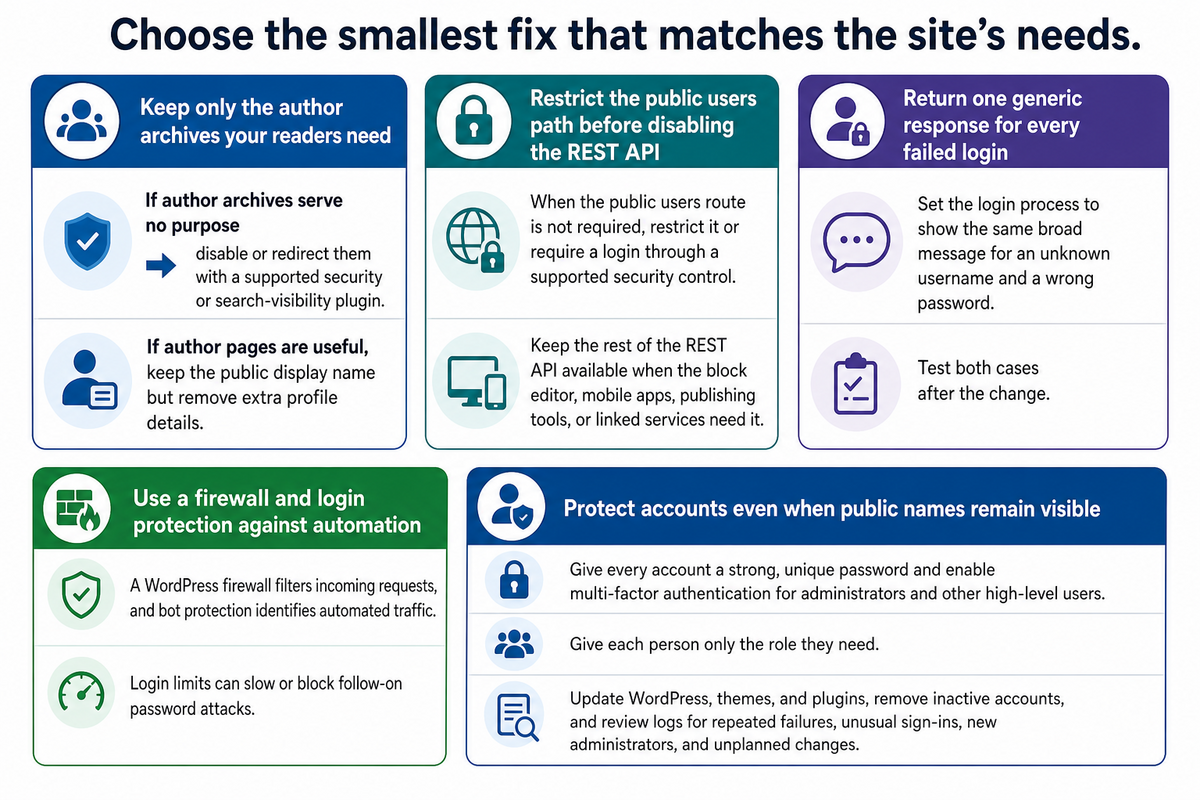
Keep only the author archives your readers need
If author archives serve no purpose, disable or redirect them with a supported security or search-visibility plugin. Test live posts, feeds, preferred URLs, and 404 behavior afterward.
If author pages are useful, keep the public display name but remove extra profile details. Use a public name that does not need to match the login name. Review the Users screen as well: avoid predictable names such as admin, remove inactive accounts, and give each account only the role it needs. Changing an administrator username may remove one obvious guess, but it does not close other public paths.
👥 Note: Public authorship can be intentional. On a multi-author site, preserve the author information readers need and remove only unnecessary profile or login clues.
Avoid putting untested PHP code directly into a live theme. If custom code is necessary, test it on staging, keep a recent backup, and store the code in a small plugin instead of theme files.
Restrict the public users path before disabling the REST API
When the public users route is not required, restrict it or require a login through a supported security control. Keep the rest of the REST API available when the block editor, mobile apps, publishing tools, or linked services need it.
Turning off the entire REST API can break dashboard features and linked services. Restrict the users route first. If the site truly does not need the API, test those features before disabling it. Repeat every URL check because a plugin or firewall may block one form while another still reaches WordPress.
🔌 Note: Prefer the narrowest API control that works. Route-level protection is usually less disruptive than disabling REST features the editor or integrations need.
The same caution applies to XML-RPC, an older interface used by some remote publishing tools and integrations. Disable it only after checking that nothing on the site depends on it.
Return one generic response for every failed login
Set the login process to show the same broad message for an unknown username and a wrong password. A supported security plugin is safer for most site owners. Developers can use WordPress’s login-error setting in a small site plugin instead of editing the theme’s main files.
Test both cases after the change. The visible response should not reveal whether the username exists, while your private security logs should still retain enough detail to review abuse. Do not use a generic message as a substitute for login limits, strong passwords, or multi-factor authentication.
🧾 Note: Generic login messages should not mean generic private logs. Keep internal detail for abuse review while showing requesters one broad response.
Use a firewall and login protection against automation
A WordPress firewall filters incoming requests, and bot protection identifies automated traffic. Together, they can reduce repeated checks of author and REST paths. Login limits can slow or block follow-on password attacks.
MalCare combines firewall and bot protection with login protection and activity logs. To add that layer, create a MalCare account and add the site URL; its onboarding scans the site and installs the firewall automatically. The logs help you review repeated failures, blocked requests, and site changes. These controls reduce automated abuse, but cannot guarantee that every public user detail stays hidden.
🛡️ Note: A firewall may block the familiar route while an alternate URL still reaches WordPress. Test the exact paths your site serves, and do not block a shared proxy address, which many visitors may use, without checking it first.
Protect accounts even when public names remain visible
Give every account a strong, unique password and enable multi-factor authentication for administrators and other high-level users. It adds a second proof of identity after the password.
Give each person only the role they need. This is called least privilege, and it limits damage if an account is compromised. Update WordPress, themes, and plugins, remove inactive accounts, and review logs for repeated failures, unusual sign-ins, new administrators, and unplanned changes.
Changing the login URL may reduce background noise, but it does not remove author pages, REST responses, public profile details, or risk from an existing session. Treat it as a small reduction in noise, not the fix for user enumeration.
Verify every fix before leaving it live
Repeat all three disclosure checks after each change
Test the author numbers, every REST URL form your site serves, and both login failures again. Record the status, redirects, final URL, returned data, and login message. Compare the results before and after the change.
Confirm the features you chose to keep
Publish or edit a post if the site uses the block editor. Check author pages and feeds on a multi-author site, then test linked apps, remote publishing, and plugins that use the REST API. Confirm that your backup restores correctly before changing live settings.
Review logs for signs of real access
If the warning came with an unknown administrator, unexpected content, or a suspicious successful login, move beyond hardening. Preserve logs, change reused or possibly exposed passwords, restrict affected accounts, and review the site for unauthorized changes. Restore only from a backup you trust.
Look for concrete signs such as:
- successful logins from unfamiliar locations or times
- new administrator accounts or changed user roles
- unexpected posts, pages, plugins, or settings
- modified files or other unexplained site changes
Enumeration alone warns about exposure. It does not prove a breach.
Conclusion
WordPress user enumeration is worth fixing because it gives attackers a clearer target, but it is not the same as a hacked site.
Test the author, REST, and login paths on the site you control, then remove unnecessary exposure without breaking features your readers or integrations need. Use a WordPress security checklist to guide the broader hardening steps.
Layer selective route controls with generic login responses, MalCare firewall and bot protection, login limits, strong passwords, multi-factor authentication, updates, least privilege, activity logs, and a recent backup you can restore.